Key takeaways
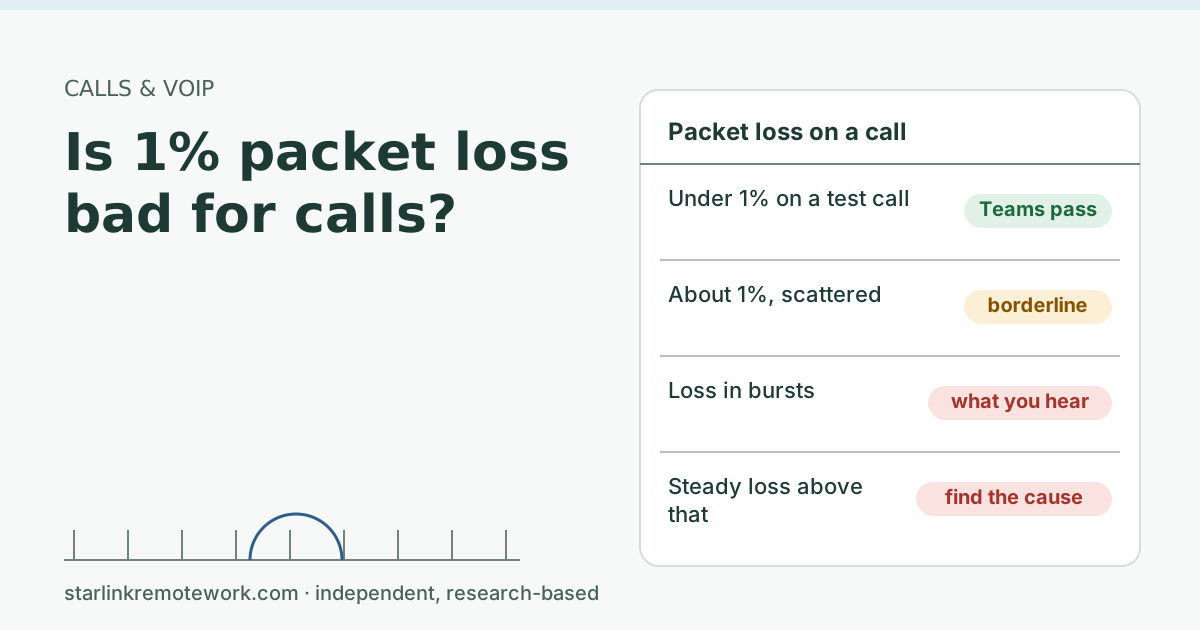
- Microsoft’s network test passes Teams when packet loss in a short test call is under 1%. So 1% is the edge of a pass, not a disaster.
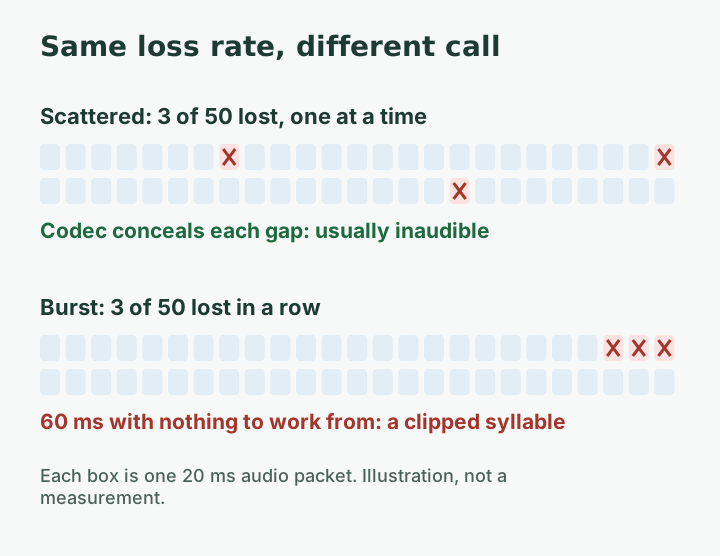
- Voice codecs hide scattered single losses well. The same 1% bunched into a half-second burst is what you hear as a robotic word or a gap.
- Geoff Huston at APNIC measured a long-term loss rate of a little over 1% on Starlink with one-second pings, with loss events seen at satellite handovers. That puts a typical line close to the pass line.
- Steady loss well above 1% usually points to something you can fix at home: Wi-Fi, a full upload, or a VPN in the path.
- Measure loss with a longer test than the app’s live readout, and note the time, so you can match it to the Starlink app’s outage list.
On this page
One percent packet loss is borderline for a call, not bad in itself. Microsoft’s network test passes Teams when loss in a short test call is under 1%, so 1% sits right on the pass line. Whether you notice it depends on how the loss is spread. Scattered single packets get hidden by the voice codec and you won’t hear them. The same 1% bunched into a half-second burst is the clipped word or robotic patch everyone notices. On Starlink, loss tends to come in short bursts, so the average number alone can mislead you in both directions.
What packet loss means on a call
A call app chops your voice into small packets and sends a steady stream of them, often one every 20 milliseconds or so. That is around fifty packets a second for audio alone, plus more for video. Packet loss is the share of those packets that never arrive. Our glossary entry on packet loss has the short definition.
Calls can’t wait for lost packets to be sent again the way a download can. By the time a resend arrived, the moment in the conversation would be gone. So call apps do two other things instead:
- They hide small gaps. The Opus codec, used by many call apps, describes packet loss concealment as a decoder feature that “SHOULD be included when receiving from an unreliable channel.” The decoder guesses what the missing 20 ms probably sounded like, using the audio around it.
- They send some audio twice. Opus also has in-band forward error correction, where important speech is “encoded again at a lower bitrate” and tucked into a later packet. If the first copy is lost, the backup copy fills in.
Both tricks work well for single missing packets. Neither works for a long run of missing packets, because there is nothing nearby to guess from and the backup copies are lost too.
Why the same 1% can sound fine or awful
Here is the key idea. Imagine 1,000 audio packets, which is about 20 seconds of speech. One percent loss means 10 of them go missing.
| How the 10 lost packets fall | What the app does | What you hear |
|---|---|---|
| Spread out, one at a time | Conceals each 20 ms gap from the audio around it | Usually nothing |
| Two or three small clusters | Conceals some, misses a syllable or two | A slight warble or a clipped sound |
| One run of 10 in a row | Has 200 ms of nothing to work with | A missing word, or a robotic patch |
| Steady loss of 3% or more | Conceals constantly and runs out of backup copies | Choppy, tiring audio all call |
The first three rows have the same average. An app’s live readout, a ping tool and a monthly report would all call them “1% loss.” Only the pattern differs, and the pattern is what your ears judge.
Where Starlink sits
Two published measurements help here, both from outside the site:
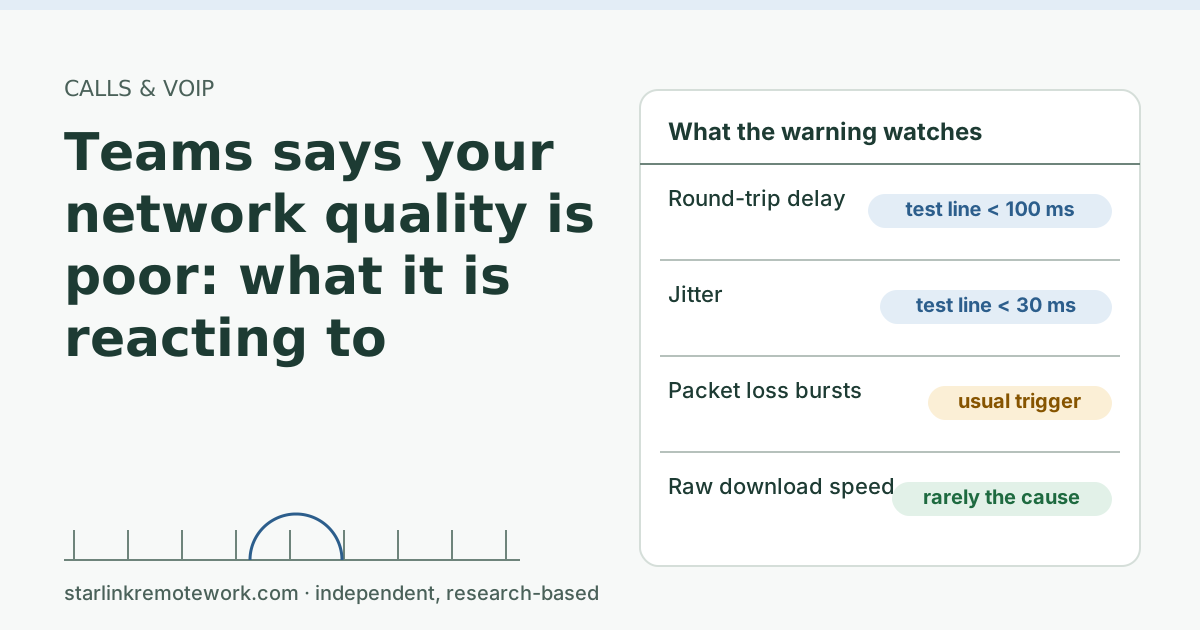
- Microsoft’s pass line: Teams passes the network test when loss is under 1%, jitter under 30 ms and latency under 100 ms. These are marks for a short test, not a promise about every call.
- APNIC’s Starlink measurement: Geoff Huston measured a long-term loss rate of a little over 1% using one-second pings over an extended period. He also found that the minimum latency shifts on a regular cycle of about 15 s, which he links to the terminal switching satellites, and that loss events show up at those switchovers as well as, less often, from obstruction, signal quality or congestion.
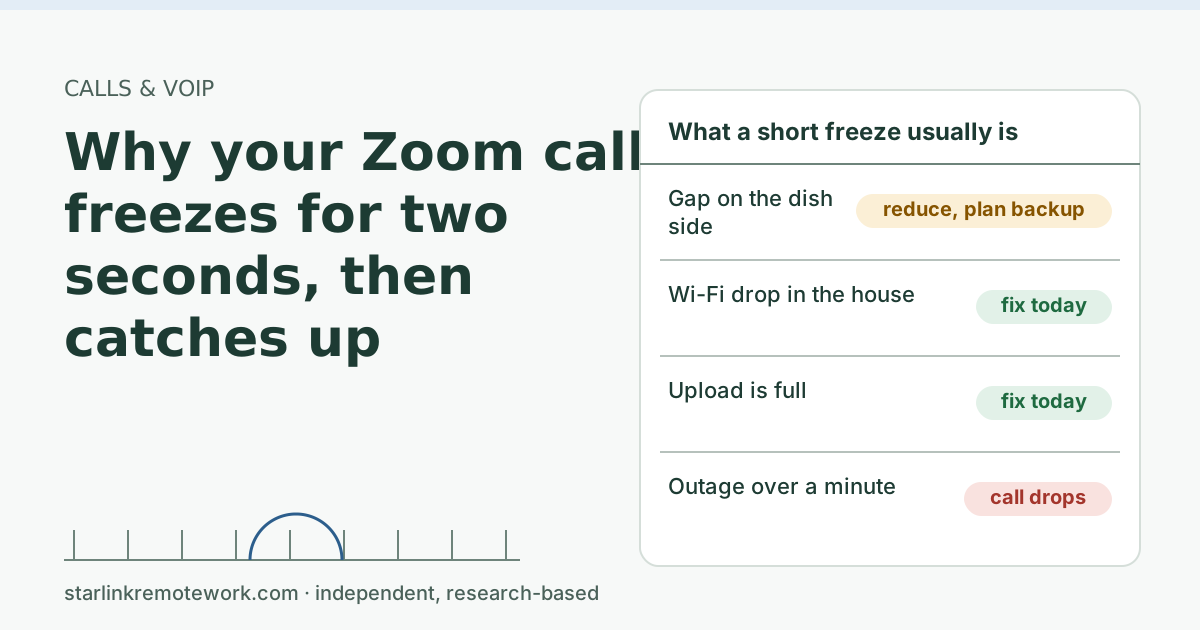
Put together, a typical Starlink line can sit close to Microsoft’s pass line, with its loss arriving in short bunches rather than a steady trickle. That fits what remote workers describe: most of a call is clean, then there is a brief stutter, then it’s clean again. Our post on why Zoom freezes for two seconds, then catches up covers the longer version of the same event.
Two cautions. Huston’s measurement isn’t specific to the US or to your dish, and a ping every second can’t see bursts shorter than a second. Your own line, with your own obstructions and your own Wi-Fi, can be better or worse.
How to measure your own loss properly
The live numbers in a call app are useful during a call but bad for diagnosis, because they cover a few seconds. To find a pattern you need a longer window and a clock.
Step 1: run a ping for at least five minutes
On Windows, open Command Prompt and run ping -n 300 1.1.1.1. On a Mac, open Terminal and run ping -c 300 1.1.1.1. That sends about one ping a second for five minutes. At the end you get a loss percentage.
Starlink’s own VoIP troubleshooting steps use a shorter version: run a ping for 30 seconds and note latency over 200 ms or any loss. That is a quick health check. Five minutes is better for spotting a pattern.
Step 2: read the gaps, not just the total
Scroll through the output. Lost pings show as “Request timed out” on Windows or as missing sequence numbers on a Mac. Ask:
- Are losses single, with good replies on either side? That is scattered loss.
- Do they come in runs of two, three or more? That is burst loss, and it is what you hear.
- Do runs line up with roughly the same point each minute? That hints at something regular, such as a handover or a device on your network doing a scheduled task.
Step 3: match the times
Note the clock time of each run. The Starlink app’s statistics page lists outages on your side. If a burst lines up with a listed outage, the cause was on the dish or satellite side. If the app shows nothing at that moment, look at home first.
Step 4: repeat on a cable
Run the same test with the work computer plugged in by Ethernet. If loss falls sharply on the cable, your Wi-Fi was a big part of the problem.
What changes the number, cheapest first
| Cause | How to tell | What helps |
|---|---|---|
| Wi-Fi interference or distance | Loss drops on a cable | Ethernet to the work computer, or move closer to the router |
| A full upload (cloud backup, photo sync) | Loss rises while something uploads | Pause or schedule uploads outside call hours |
| Work VPN in the path | Loss or jitter is worse with the VPN on | Ask IT about split tunneling for call traffic |
| Obstruction | Bursts line up with outages in the Starlink app | Clear the view, or move the dish (install help is outside this site) |
| Satellite handovers | Short bursts on a regular cycle, cable and VPN ruled out | Not fixable at home; a backup line for important calls |
The video calls guide covers the call-app settings side, and the troubleshooting page walks through the home-network causes in order.
For your IT person
If you raise call quality with IT, give them more than “calls are choppy.” A useful note includes the app and version, the time of each bad moment, the call statistics screenshot (loss, jitter, latency), whether you were on a cable or Wi-Fi, whether the VPN was connected, and the five-minute ping output with any runs of lost replies marked. Also mention that the connection is Starlink with CGNAT for IPv4. IT can then compare your times with their own call-quality dashboards, which in Teams show per-call loss and jitter for each participant.
Edge cases
- Loss only on video, not audio. Apps protect audio first and drop video quality when the line struggles. Blurry or frozen video with clean audio is the app doing its job.
- Loss on desk phones but not on Zoom. A VoIP desk phone may not have the same concealment tricks, and router features like SIP ALG can make things worse. See SIP ALG: what it is and whether to turn it off.
- Loss that only you hear. If others hear you breaking up but you hear them fine, the problem is usually on your upload. Look for uploads running in the house.
- A ping test showing 0% while calls still stutter. One ping a second can miss a burst that lasts a fraction of a second. Short bursts are real even when a slow test doesn’t catch them.
Common mistakes
- Treating the average as the whole story. A low average with bursts can sound worse than a slightly higher average spread thinly.
- Testing over Wi-Fi and blaming the satellite. Always repeat on a cable before drawing a conclusion.
- Running a speed test instead. Speed tests measure throughput over a few seconds and say little about loss.
- Changing several things at once. Change one thing, test again, and note the result.
- Upgrading the plan to fix loss. Loss is rarely about top speed.
What we don’t know
Microsoft doesn’t publish the exact loss pattern that triggers a warning during a call, and Zoom doesn’t publish its concealment limits. Nobody publishes how often Starlink loss comes in bursts of a given length on US connections. The owner’s logger records the share of work minutes with loss above a set level; the Work-Day Reliability Report will show that by hour once months are complete, and the method page explains how loss is counted.
What to do next
- Run the five-minute ping on Wi-Fi and on a cable, and save both outputs with the time.
- Look for runs of lost pings and match them to the Starlink app’s outage list.
- Fix the home side first: cable, uploads, VPN.
- If short bursts remain and your job has zero tolerance for them, plan a backup line for key calls. The Failover Builder sizes one, and jitter vs latency explains the other number that shapes call quality.
Questions people ask
Is 1% packet loss bad for a Zoom or Teams call?
It is borderline. Microsoft’s network test for Teams uses under 1% loss as the pass mark. If the loss is scattered, most people won’t hear it. If it comes in bursts, you may hear clipped words or a short robotic patch.
What is an acceptable packet loss for VoIP?
There is no single number every vendor agrees on. Microsoft’s Teams test uses under 1% in a short test call as a pass. Lower is better, and how the loss is spread matters as much as the average.
Why do I hear robotic voices on calls?
Robotic or metallic sound usually means the app is filling in missing audio. When packets go missing, the decoder guesses at the gap. A few guesses are invisible; a burst of them sounds artificial.
Does Starlink have packet loss?
Some, yes. APNIC’s Geoff Huston measured a long-term loss rate a little over 1% using one-second pings, with loss events seen at the regular satellite handovers. Your own line can be better or worse depending on obstructions and your home network.
How do I check packet loss during a call?
Zoom shows loss in its statistics panel, and Teams shows call health while you are in a meeting. For a longer view, run a ping test for several minutes and count lost replies, then compare the times with the Starlink app’s outage list.
Can a faster plan fix packet loss?
Usually not. Loss on a call is mostly about dropouts, Wi-Fi problems or a full upload, not the plan’s top speed. Fix the home side first, and use a wired connection for the work computer.
Sources
- Microsoft Learn – Microsoft 365 network connectivity test tool, checked Oct 5, 2026
- Geoff Huston (APNIC), ISP Column: A Transport Protocol's View of Starlink (May 2024) (secondary), checked Oct 5, 2026
- Additional FAQs - Troubleshooting (VoIP and WiFi Calling Issues) (Starlink support), checked Oct 5, 2026
- Microsoft Learn: Microsoft 365 network connectivity test tool, retrieved Oct 6, 2026
- Microsoft Learn: Prepare your organization's network for Teams, retrieved Oct 6, 2026
- IETF RFC 6716: Definition of the Opus Audio Codec, retrieved Oct 6, 2026
- Geoff Huston (APNIC), ISP Column: A Transport Protocol's View of Starlink, retrieved Oct 6, 2026
- Starlink support: Additional FAQs - Troubleshooting (VoIP and WiFi Calling Issues), retrieved Oct 6, 2026
Research-based: written from vendor documentation, Starlink support pages and standards, not from our own measurements. Starlink rules and prices on this page come from our dated fact file and show the day they were checked; they change, so confirm before you rely on one.Links to Starlink’s plan pages here use the site owner’s own referral link; the owner may get a referral reward and your price is the same. No affiliate links (how we make money). General information, not professional IT, legal or medical advice. Independent · not affiliated with SpaceX or Starlink. Spotted an error? Tell us.