Key takeaways
- A freeze that catches up means packets stopped for a second or two and then resumed. More speed does not fix it; a steadier path does.
- Zoom’s own statistics panel recommends latency of 150 ms or less, jitter of 40 ms or less and packet loss of 2% or less. Watch it during a freeze to see which number spikes.
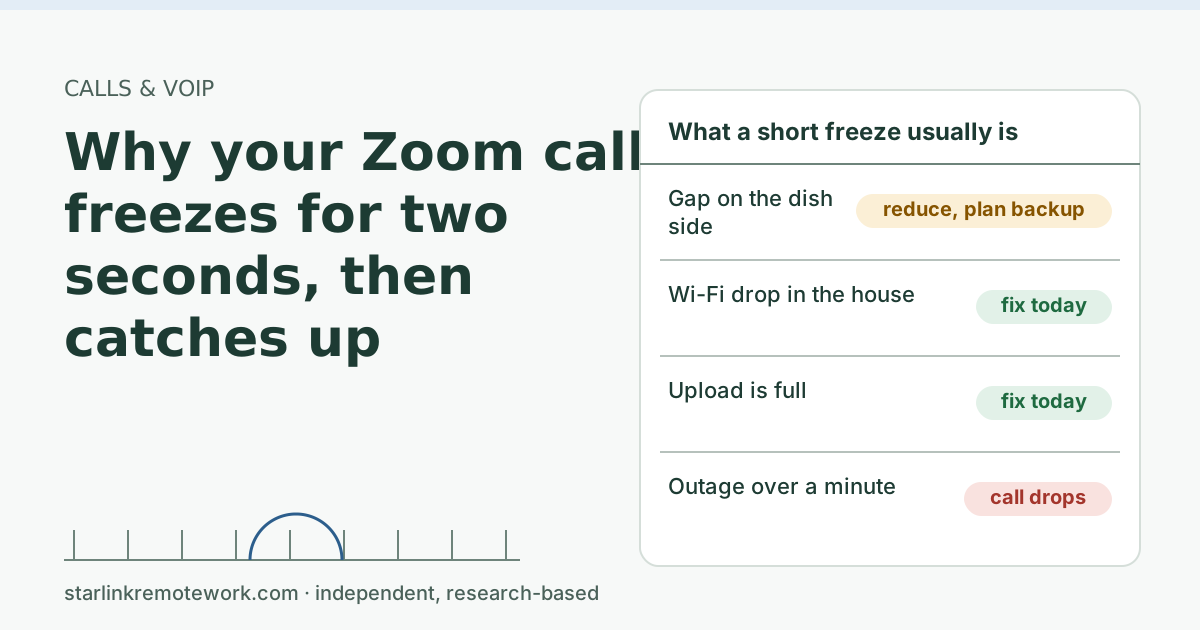
- If every device froze at once, the gap was on the dish side. If only the Wi-Fi laptop froze, it was your home network. If it happens when someone uploads, it is a full upload.
- Wi-Fi and upload freezes are fixable at home today. Dish-side gaps can be reduced (clear view, cable, no VPN for media) but not removed, so plan a backup for calls that can’t drop.
On this page
A Zoom call that freezes for a second or two and then races to catch up has hit a short gap in the connection, not a lack of speed. Something between your laptop and Zoom’s servers stopped passing packets briefly, then started again. On Starlink the gap can come from the dish side (a blocked view of the sky or a hand-off between satellites), from your home Wi-Fi, or from your own upload being full. The fix depends on which one it was, and you can usually tell in under ten minutes.
What a two-second freeze actually is
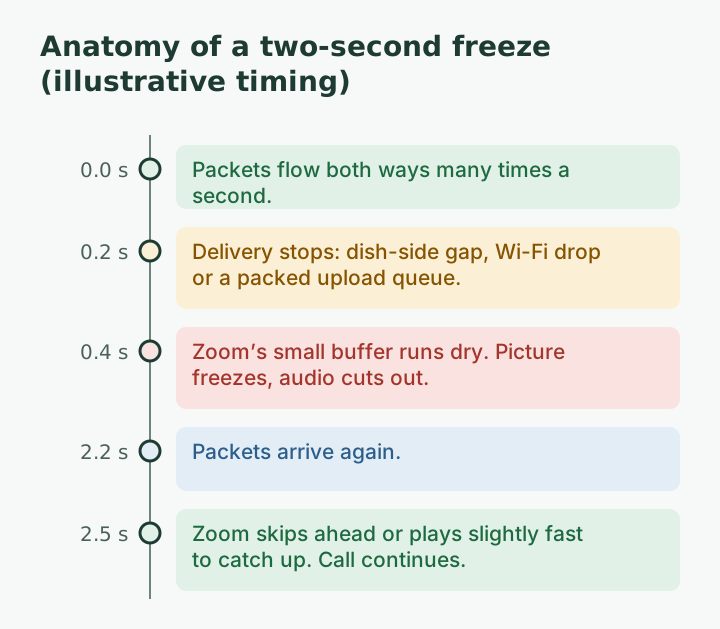
A video call sends a steady stream of small packets in both directions, many times a second. Your Zoom app holds a tiny buffer so it can smooth over packets that arrive a little early or late. When packets stop arriving for longer than that buffer can cover, the picture freezes and the audio drops out. When they start again, Zoom either skips ahead or briefly speeds up what it has, which is the “catch-up” you notice.
That is why speed tests look fine on a line that freezes. A speed test measures how much data moves per second on average. A freeze is about whether delivery stopped, even for one second. Three numbers describe it better than Mbps:
- Latency: how long a packet takes to get there and back (see latency).
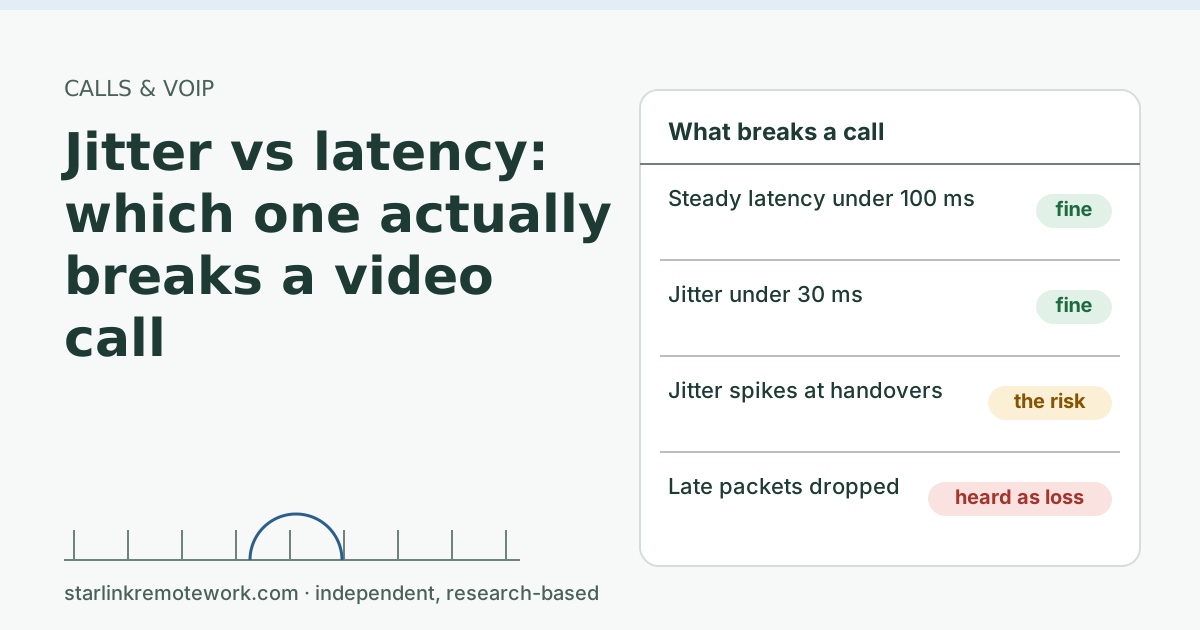
- Jitter: how much that delay jumps around from packet to packet (jitter).
- Packet loss: packets that never arrive at all (packet loss).
Zoom publishes its own guide lines for these in the in-meeting statistics panel: latency of 150 ms or less, jitter of 40 ms or less and packet loss of 2% or less. A two-second gap shows up as a burst of loss and a jitter spike, even if the minute’s average looks fine.
The three usual causes on Starlink
1. A gap on the dish side
Starlink satellites move fast, and the connection hands over from one satellite to the next on a regular schedule. Geoff Huston at APNIC measured Starlink’s minimum latency shifting every 15 s, which lines up with those hand-offs, and measured average jitter of 6.7 ms between successive pings. He also measured long-term packet loss of a little over 1%. Those are third-party figures from one study, not ours, and they are not US-specific.
Most hand-offs are invisible on a call. The ones you notice tend to happen when the dish’s view of the sky is partly blocked, so the next satellite is behind a tree or roofline for a moment (obstruction). The Starlink app's Statistics page shows speed, uptime, latency, outages and alerts (when on the Starlink router). That outage list is the quickest way to match a freeze to a dish-side event.
2. A Wi-Fi drop inside the house
Home Wi-Fi drops packets more often than people expect, especially through walls, on the 2.4 GHz band, or when a laptop roams between access points. Microsoft’s network guidance for Teams says plainly that Wi-Fi networks “aren’t necessarily designed or configured to support real-time media”. The same is true for Zoom. A Wi-Fi hiccup looks exactly like a satellite gap from inside the call.
3. Your upload is full
If someone in the house starts a cloud backup, a photo sync or a large file upload, the upload queue fills and your call’s packets wait in line behind it. That shows up as rising latency, then loss, then a freeze. It often repeats at the same time each day, when a scheduled backup runs. Our guide to uploads and large files covers why this hits calls so hard.
There is a fourth, rarer cause worth knowing: Starlink says Residential connections are limited to 1,200 sessions at once, with new sessions dropping the oldest. Starlink says hitting the session limit can drop VoIP calls, freeze video meetings and cause gaming/VPN issues. A normal household rarely gets near that, but a house full of devices, torrent clients or a misbehaving app can.
Find out which one it was (ten minutes)
You need one wired computer (or a phone on the Starlink Wi-Fi standing next to the router), the Starlink app, and the next call that freezes.
- Open Zoom’s statistics during the call. In the meeting controls, click the arrow next to Start Video or Stop Video, choose Video Settings, then Statistics. Leave it open on the Network or Audio tab. When the freeze comes, note whether latency, jitter or loss jumped, and the time.
- Run a continuous ping on a second device. On a wired Windows PC:
ping -t 1.1.1.1. On a Mac:ping 1.1.1.1. Watch for “Request timed out” lines or a run of very high times at the moment of the freeze. - Check the Starlink app’s outage list for an entry at that minute.
- Ask the house whether anything was uploading.
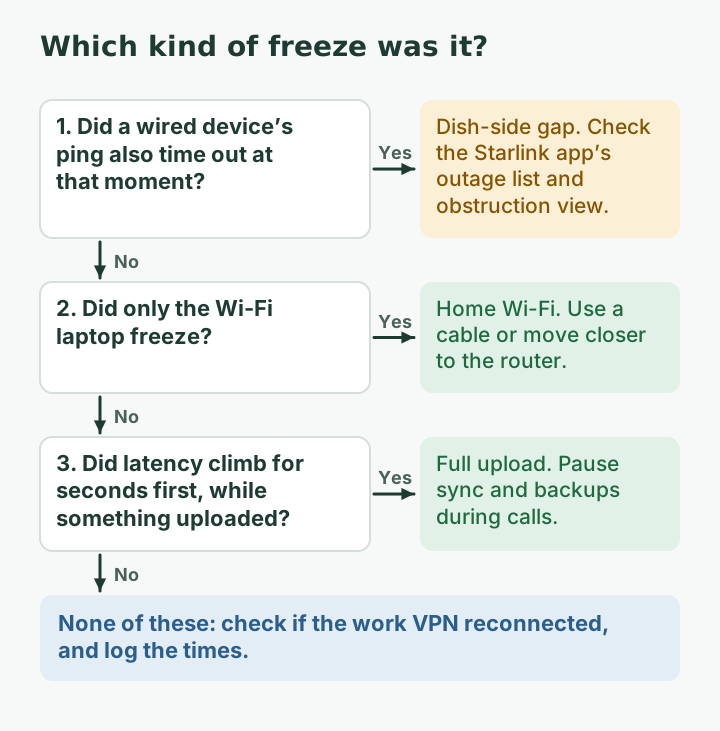
Then read the result against this table:
| What you saw at the freeze | Most likely cause | First fix |
|---|---|---|
| Ping on the wired device also timed out, and the app shows an outage | Dish-side gap (obstruction or hand-off) | Check the obstruction view in the app; plan a fallback for key calls |
| Only the Wi-Fi laptop froze; the wired ping kept going | Home Wi-Fi | Use a cable, or move closer to the router or access point |
| Latency climbed for several seconds before the freeze, and something was uploading | Full upload | Pause sync and backups during calls |
| Freezes line up with your VPN reconnecting | Work VPN path | Ask IT about split tunneling for meeting traffic |
| Nothing obvious, freezes are rare | Normal short gaps | Note times; compare with the report once it has data |
Fixes, cheapest first
Free, today:
- Pause cloud sync (OneDrive, Dropbox, Google Drive, iCloud Photos) during calls, or schedule big uploads for after work hours.
- Close other video tabs and streams on your own computer.
- In Zoom, turn off HD video if the trouble is upload. Video is most of what you send; audio needs very little.
- Ask IT whether Zoom traffic can skip the work VPN. Microsoft recommends this split-tunnel setup for Teams, noting that VPNs “are typically not designed or configured to support real-time media.”
Cheap:
- Run an Ethernet cable to your work computer. It removes the Wi-Fi link from the chain completely. Check your router first: The older Gen 2 router has no built-in Ethernet ports; an Ethernet adapter is sold separately.
- Use a wired headset. Bluetooth audio adds its own dropouts that look like network trouble.
Bigger:
- Clear the dish’s view if the app shows obstructions. Mounting and obstruction work is beyond this article; the app’s obstruction check is the place to start.
- Add a backup line for calls that must not drop. A phone hotspot is the simple manual version; a dual-WAN router switches for you. Be clear that even automatic failover will not save a call in progress from a short freeze, as we explain in what failover does in the first seconds.
Edge cases worth knowing
- Freezes only on one person’s end. If other people in the meeting freeze but you don’t, the gap is on their line, not yours. Zoom’s statistics only describe your own connection.
- Freezes only in big meetings. Gallery view with many cameras raises your download, and screen sharing raises your upload. Switch to speaker view and see whether the pattern changes.
- Freezes at the same minute every hour. A regular pattern points to something scheduled: a backup job, a sync app, or a VPN timer. Weather and satellites don’t keep a clock.
- Freezes only on one laptop. Try another device on the same spot. An old Wi-Fi card, a power-saving setting or a busy CPU can freeze video with a perfect line.
Common mistakes
- Buying a faster plan. A higher speed tier does not remove gaps. It may help a full upload slightly, but pausing the backup helps more.
- Blaming the satellite for every freeze. In many homes the Wi-Fi link is the weaker one. Test with a cable before changing anything else.
- Turning on a personal VPN “to stabilize” the call. It adds distance and another thing that can reconnect.
- Restarting the router mid-day. That turns a two-second freeze into a two-minute outage.
When Starlink is the wrong tool for your calls
If fiber or cable reaches your address, take it and keep satellite as a backup at most. If your job is customer-facing calls all day and a two-second freeze in front of a client is not acceptable, you need either a wired primary line or a second line plus habits that cover a dropout (a phone dial-in saved in the invite, a co-host who can carry the meeting). Our honest take on fit by job type is in is Starlink good for remote work.
What we don’t know yet
How often a typical Starlink connection has a gap long enough to freeze a call, at which hours, is exactly what the Work-Day Reliability Report is built to show: per-minute latency, jitter, loss and “would a call have dropped” minutes from one logged connection. The owner’s logger has not completed a month yet, so we have no measured numbers to give you here, and we will not guess. Huston’s figures above are one researcher’s measurements in 2024, not a promise about your dish.
What to do next
- Run the ten-minute check on your next freeze and fix the cheapest cause first.
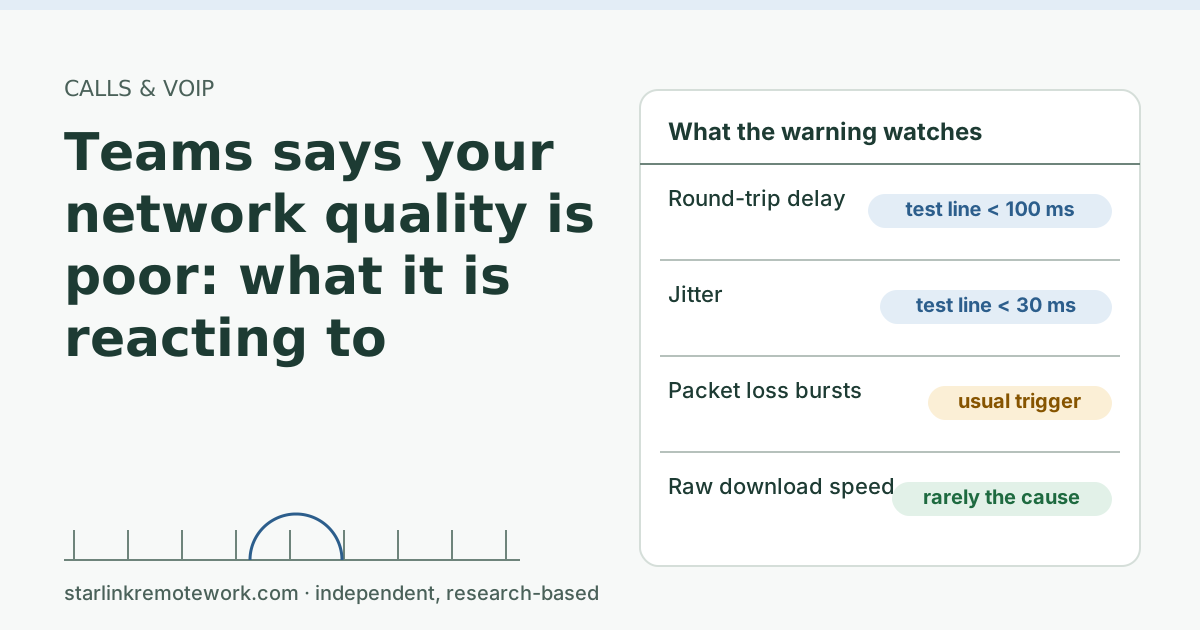
- If Teams is your app, the banner logic is a little different: see what Teams’ “network quality is poor” warning reacts to.
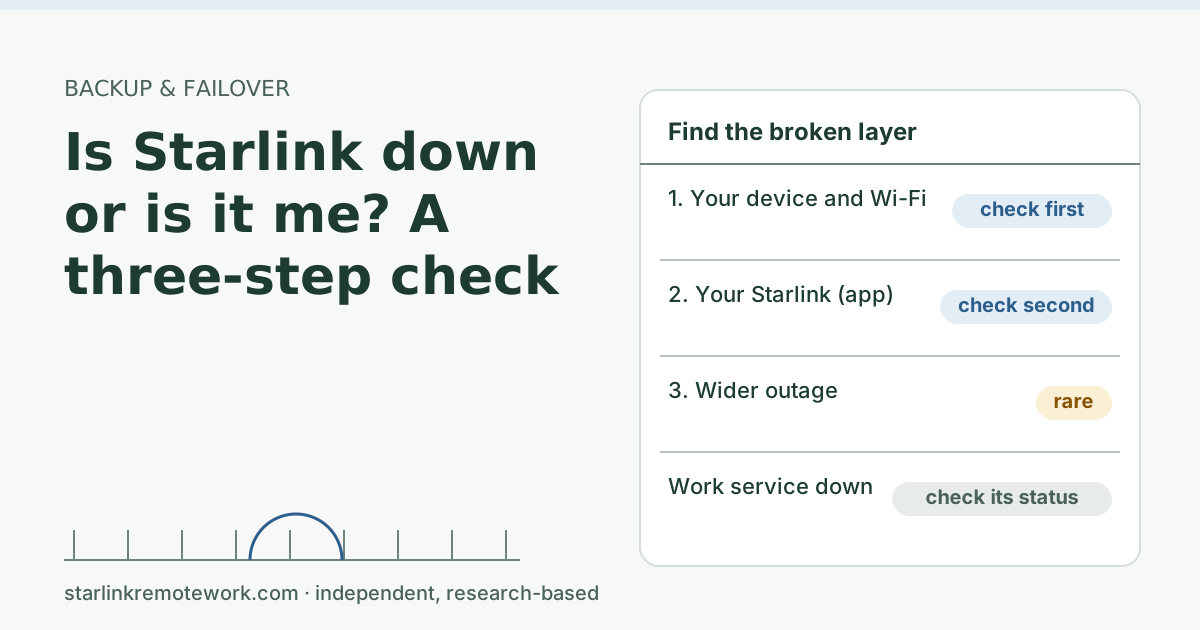
- If the whole connection seems to vanish, use the is it down or is it me check.
- For the full picture on call apps and Starlink, read the Zoom and Teams calls guide.
Questions people ask
Why does my Zoom freeze and then speed up to catch up?
Zoom buffered or dropped the packets that did not arrive during a short gap, then resumed when the connection came back. A catch-up after a freeze points to a dropout of a second or two, not to low bandwidth.
Is Starlink good enough for Zoom calls?
For most calls, yes. Zoom says a 1:1 720p call uses about 1.2 Mbps each way, which is a small slice of a Starlink line. The weak spot is short gaps, which show up as brief freezes rather than constant lag.
Does turning off my camera stop the freezes?
It helps when the cause is a full upload, because video is most of what you send. It does not help when the connection itself drops for two seconds, because audio stops too.
Will a faster Starlink plan stop Zoom freezing?
Usually not. A freeze is a gap in delivery, and a higher download cap does not close gaps caused by obstructions, Wi-Fi or a busy upload. Fix those first.
How do I see Zoom’s latency and jitter during a call?
In the meeting controls, click the arrow next to Start Video or Stop Video, choose Video Settings, then Statistics. Zoom recommends latency of 150 ms or less, jitter of 40 ms or less and packet loss of 2% or less.
Can a VPN make Zoom freeze more?
Yes. If call traffic runs through a work VPN, every packet takes a longer path, and the call freezes whenever the VPN reconnects. Ask IT whether meeting traffic can bypass the VPN.
Sources
- Geoff Huston (APNIC), ISP Column: A Transport Protocol's View of Starlink (May 2024) (secondary), checked Oct 5, 2026
- How can I monitor my Starlink's performance? (Starlink support), checked Oct 5, 2026
- What are CGNAT session limits and how do they affect my connection? (Starlink support), checked Oct 5, 2026
- Does the WiFi router have any ethernet (LAN) ports to connect wired devices? (Starlink support), checked Oct 5, 2026
- Zoom – system requirements (Windows, macOS, Linux) KB0060748, checked Oct 5, 2026
- Zoom Support: Viewing in-meeting statistics (KB0070504), retrieved Oct 6, 2026
- Microsoft Learn: Prepare your organization's network for Teams (VPN and Wi-Fi guidance), retrieved Oct 6, 2026
Research-based: written from vendor documentation, Starlink support pages and standards, not from our own measurements. Starlink rules and prices on this page come from our dated fact file and show the day they were checked; they change, so confirm before you rely on one.Links to Starlink’s plan pages here use the site owner’s own referral link; the owner may get a referral reward and your price is the same. No affiliate links (how we make money). General information, not professional IT, legal or medical advice. Independent · not affiliated with SpaceX or Starlink. Spotted an error? Tell us.