Key takeaways
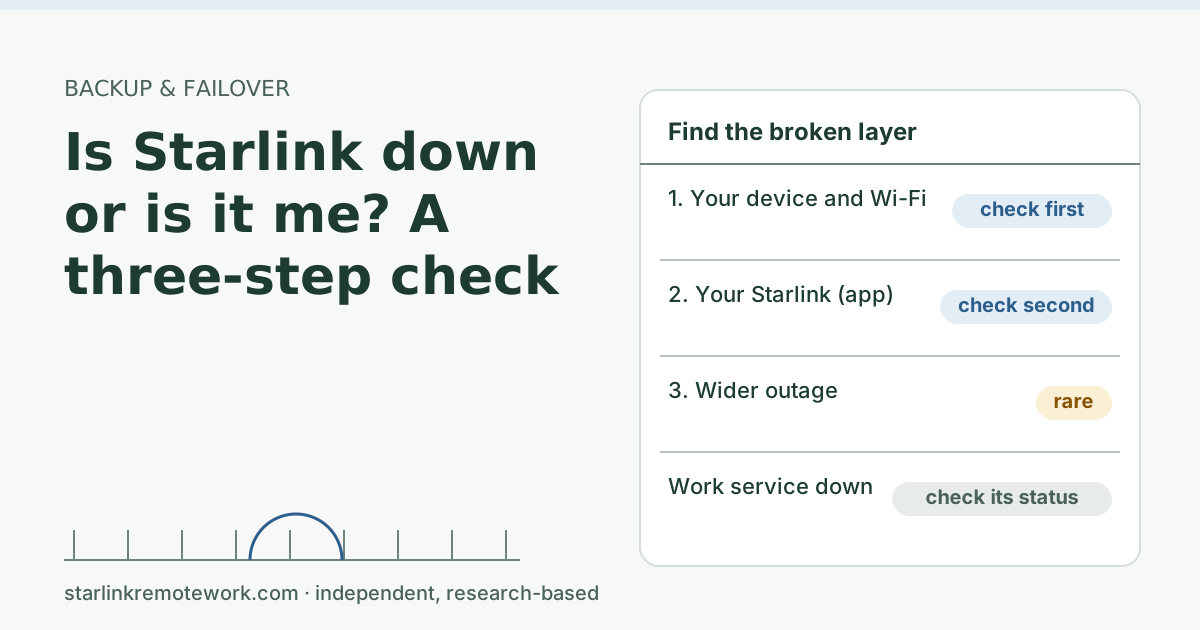
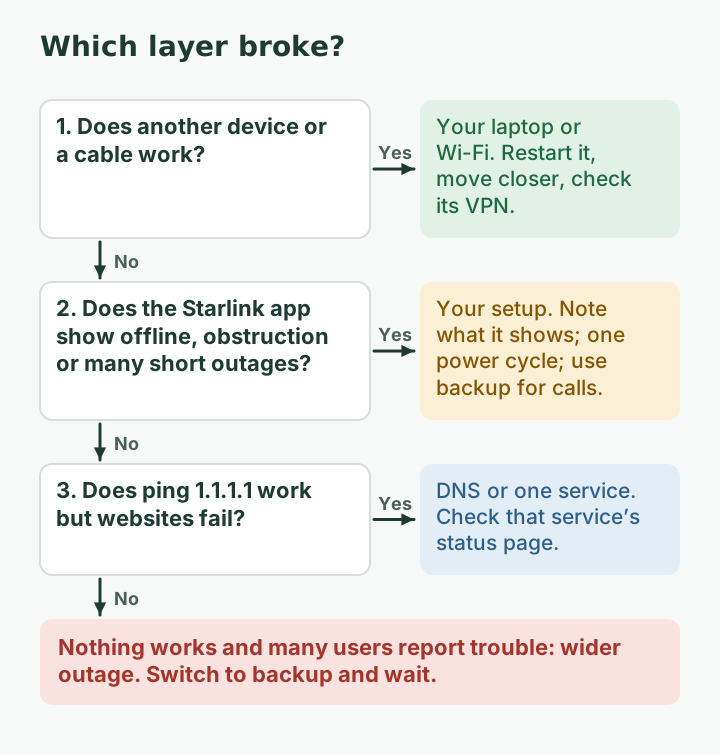
- Step 1: check another device and a cable. If something else works, the problem is your laptop or Wi-Fi, not Starlink.
- Step 2: open the Starlink app. Its statistics page shows outages and alerts when you use the Starlink router; an obstruction or offline status points to your setup.
- Step 3: check for a wider outage. We could not confirm that Starlink runs a public status page, so use news, crowd reports and your work apps’ own status pages.
- A wide outage is rare but real: a global Starlink outage on July 24, 2025 lasted about 2.5 h. Have a backup plan for the workday either way.
On this page
- Step 1: Is it your device or your Wi-Fi?
- Step 2: Is it your Starlink?
- Step 3: Is it something bigger?
- When it’s not down, just bad
- Keep a two-line outage log
- Set it up before you need it
- What to do in the first 15 minutes of a real outage
- Common mistakes
- How often does this happen?
- What we don’t know
- What to do next
- Questions people ask
- Sources
To tell whether Starlink is down or it’s just you, check three layers in order: your own device and Wi-Fi, your Starlink connection in the Starlink app, then the wider world. If another device works, it’s your computer or Wi-Fi. If the app shows your dish offline or obstructed, it’s your setup. If your dish looks fine but nothing works and other Starlink users are reporting trouble, it’s a wider outage, and the right move is your backup plan, not a reset. The whole check takes about five minutes.
Step 1: Is it your device or your Wi-Fi?
Start closest to you, because that is where most “the internet is down” moments actually live.
- Try a second device (a phone on the same Wi-Fi). If it loads pages normally, the problem is the first device.
- Try a cable if you have one, or stand next to the router. If the wired or close-up device works, the problem is Wi-Fi range or interference.
- Ping a number, then a name. On a computer, open a terminal and run:
ping 1.1.1.1
ping example.com
If the first works and the second fails, your connection is up but name lookups (DNS) are failing. If both fail, the connection itself is down. If both work, the internet is fine and the problem is one website, app or your work VPN.
- Turn off a personal VPN if you use one, and try again.
Step 2: Is it your Starlink?
Open the Starlink app on a phone connected to your Starlink Wi-Fi. The Starlink app's Statistics page shows speed, uptime, latency, outages and alerts (when on the Starlink router).
Look for:
- Offline or disconnected status. Your dish isn’t connected to the network.
- Recent outages listed, with reasons. Short, frequent outages usually point to obstructions; one long outage that started at a clear time may be wider.
- Obstruction alerts. New tree growth, snow, or a moved dish can start a pattern of drops (obstruction).
- Router or cable alerts. A damaged cable or power problem shows here too.
If the app reports a problem specific to your kit, one power cycle of the Starlink is a reasonable step. Write down what the app showed first; it is the evidence support will ask for.
Step 3: Is it something bigger?
If your device is fine and the app looks normal but nothing works, or the app shows offline with no obstruction and nothing changed at your house, look outward.
- Starlink status page. We could not confirm that one exists. Starlink’s support pages we checked describe the app’s statistics, not a public status page, so we list this as unverified. Don’t rely on finding one.
- Other Starlink users. Crowd-report sites and social media fill up quickly during a wide outage. A sudden spike of reports from many places is a strong sign. A handful of reports is not.
- News. Large outages make the news within an hour or so. Our news page records dated changes and major outages that affect work.
- Your work service, not the internet. If only Teams, Outlook or your VPN fails, check that service’s own status. Microsoft 365 admins can check service health in the admin center; ask your IT team if you can’t see it. Zoom, Slack and most VPN providers publish status pages too.
A real example of “something bigger”
On July 24, 2025, Starlink had a global outage that lasted about 2.5 h, according to Light Reading. Starlink's VP of Engineering Michael Nicolls blamed failure of key internal software services that run the core network. No amount of rebooting at home would have helped that day. A backup line or a phone dial-in would have.
| What you see | Most likely layer | What to do now |
|---|---|---|
| Phone works, laptop doesn’t | Your laptop | Restart it; forget and rejoin Wi-Fi; check its VPN |
| Works on a cable, not Wi-Fi | Home Wi-Fi | Move closer; reboot your own router or mesh |
| Ping 1.1.1.1 works, websites don’t | DNS or one service | Check the service’s status; try another DNS on your router |
| App shows obstructions or frequent short outages | Your dish’s view | Note times; plan to clear the view; use backup for calls |
| App shows offline, no change at home, many reports elsewhere | Wider Starlink outage | Switch to backup; tell your manager; wait |
| Everything works except Teams or the VPN | Your work service | Check its status page; tell IT |
When it’s not down, just bad
Many “is it down?” moments are really “it’s up but awful.” Pages crawl, calls freeze, the VPN reconnects. The three steps still apply, with a different lens:
- Slow on one device only: check what that device is doing. A sync app, a backup or an update can fill your upload and make everything else feel broken.
- Slow on everything, app shows no outages: look at what the whole house is uploading. A full upload queue raises delay for every device. Our uploads guide explains why.
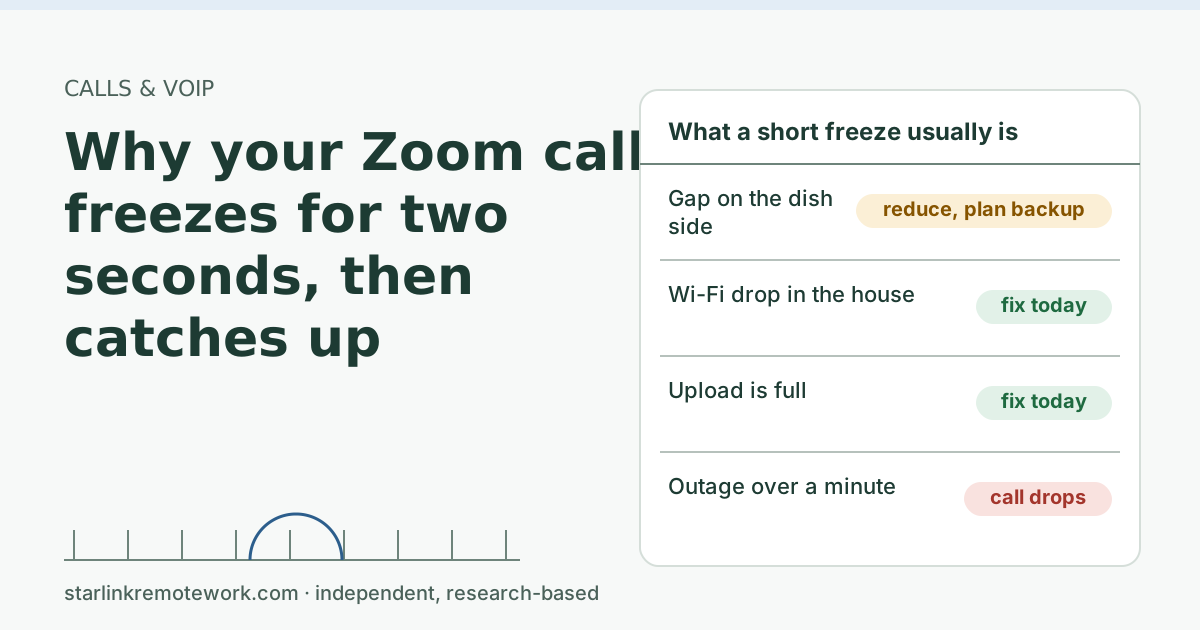
- Frequent short drops in the app: that is usually the dish’s view of the sky, not a network-wide problem. Short drops are what freeze calls; see why Zoom freezes, then catches up.
- Fine for browsing, bad for one work app: test with and without the VPN, and check the app’s status page.
A useful rule: a wide outage is all-or-nothing for many people at once. “Slow and choppy” at your house alone is almost always something local you can fix or work around.
Keep a two-line outage log
If outages or bad spells keep coming back, a short log turns “it’s been terrible lately” into something support and your employer can act on. Keep it in a note on your phone:
| Date and time | How long | What the app showed | What you were doing | What fixed it |
|---|---|---|---|---|
| Oct 6, 10:42 | About 3 min | Offline, no obstruction | Teams call | Came back by itself |
| Oct 6, 14:05 | Seconds, repeating | Obstruction alerts | Upload to client | Paused upload; drops continued |
(Example rows, not real events.) After a week or two, patterns show up: the same hour every day points to something scheduled at home; drops in the afternoon wind point to a tree; one long gap matching news reports points to the network.
Set it up before you need it
Five minutes on a calm day makes the bad day easier:
- Put the Starlink app on your phone and sign in.
- Turn on your phone’s hotspot once to confirm it works and that you know the password.
- Save your meeting app’s dial-in numbers, or check that invites include them.
- Keep your manager’s phone number somewhere that doesn’t need the internet.
What to do in the first 15 minutes of a real outage
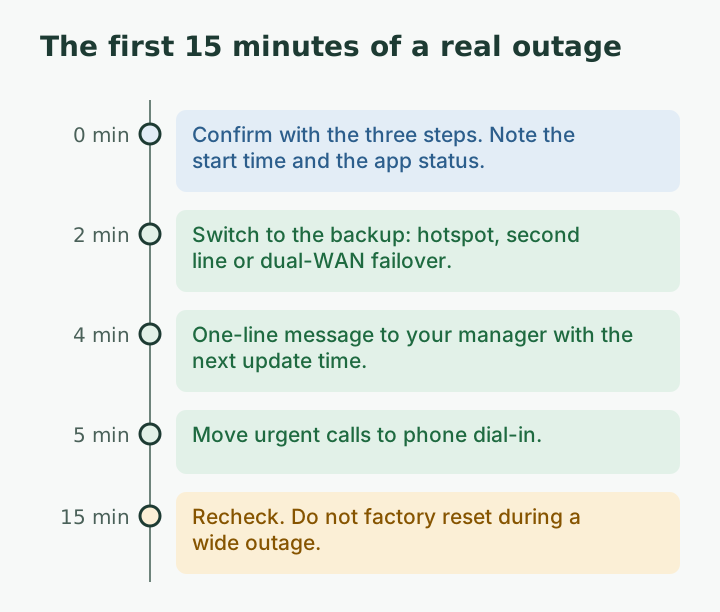
- Switch to your backup: phone hotspot, second line, or a dual-WAN router that already did it for you.
- Tell your manager or client in one line: what’s down, what you’re doing, and when you’ll update them. A template: “My internet provider has an outage. I’m on my phone hotspot for calls; email may lag. Next update at 11:00.”
- Move urgent calls to phone dial-in. Most meeting invites include dial-in numbers.
- Don’t factory reset. It erases settings and won’t fix a wide outage. If you use bypass mode with your own router, a reset also turns that off.
- Note the start time and what the app showed. If outages keep happening, a written log is what support (and your employer) will want.
Common mistakes
- Rebooting the dish over and over. Each reboot adds minutes of downtime and erases the evidence of what was wrong.
- Assuming it’s Starlink because Teams is down. Work services have outages too. Ping a number first.
- Trusting a single report. One person online saying “Starlink is down” means little. Look for many reports from many places.
- Not having a backup ready. The time to set up a hotspot is before the outage, not during a call.
How often does this happen?
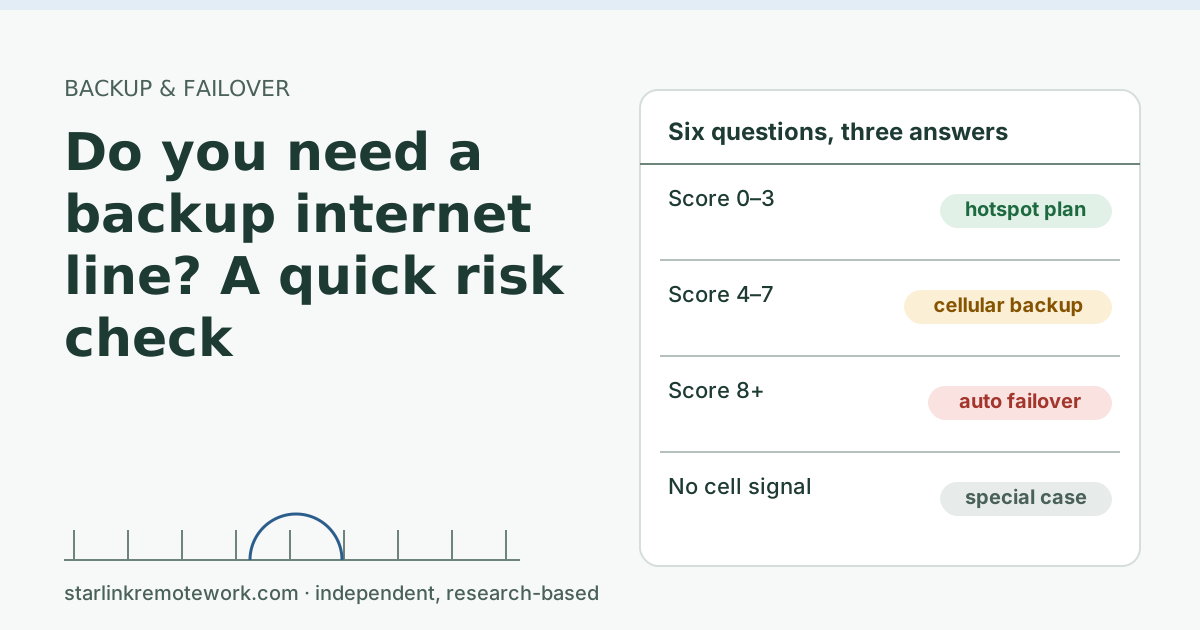
We don’t know how often your connection will have a long outage, and neither does anyone giving a single number. It depends on your dish’s view, weather and the network. The Work-Day Reliability Report will count outages over 5 and 60 seconds during work hours on one logged connection, once the owner’s logger completes a month. Until then, we won’t put a number on it. If you want to decide whether a backup line is worth it for you, use the backup risk check.
What we don’t know
Whether Starlink runs a public status page is unverified. The number of user reports during the July 2025 outage was only seen in a search snippet, so we don’t quote it. We also can’t see Starlink’s network from the inside; when we say “wider outage,” we mean evidence from many users and the press, not a statement from Starlink unless one is cited.
What to do next
- Save this three-step check somewhere you can find offline (a screenshot works).
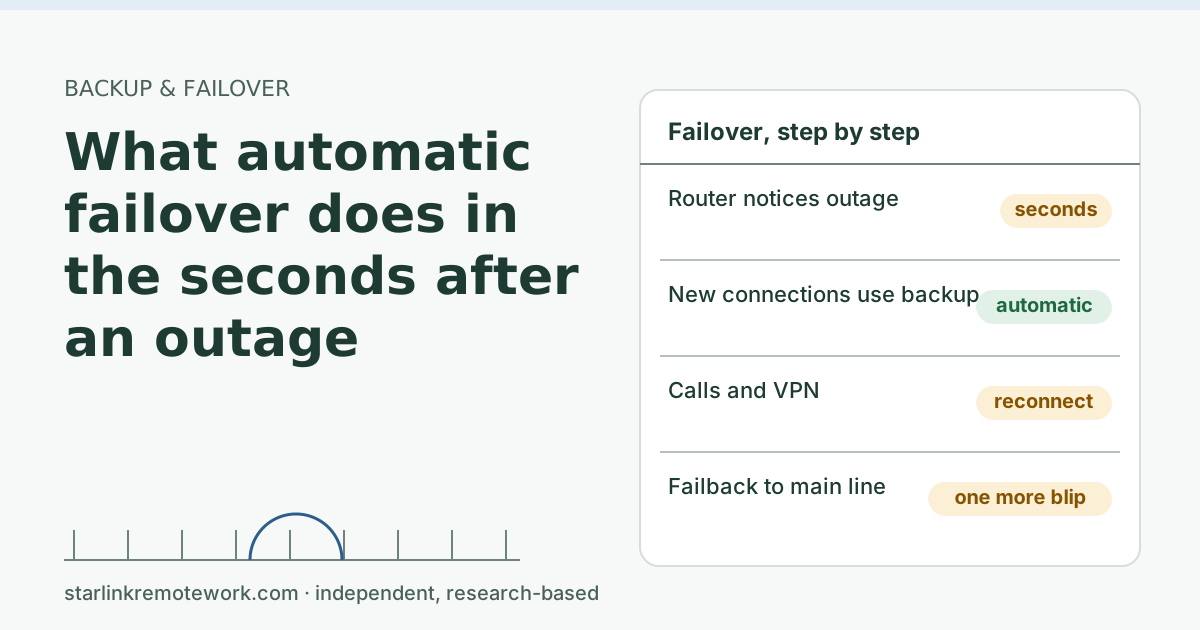
- Set up the simplest backup now: see what automatic failover does in the first seconds and the Failover Builder.
- If short freezes, not full outages, are your problem, read why Zoom freezes, then catches up and the troubleshooting guide.
Questions people ask
How do I know if Starlink is down in my area?
Check the Starlink app for your own status first, then look for reports from other users and news coverage. We could not confirm that Starlink publishes a public network status page, so there is no single place that answers it.
Does Starlink have a status page?
We could not find a Starlink support article describing a public network status page, so we treat it as unverified. Your own dish’s status is in the Starlink app.
Why does Starlink say connected but nothing loads?
Try pinging a number such as 1.1.1.1. If that works but websites don’t, the problem may be DNS or one service, not the connection. If neither works, the line itself is down.
What should I do if Starlink is down during work?
Tell your manager with an expected update time, move urgent calls to a phone dial-in, and switch to your backup (a hotspot, a second line or a nearby place to work). Don’t factory reset anything during a wide outage.
How long do Starlink outages last?
Most interruptions you notice are seconds long. Rare wide outages last longer; the July 24, 2025 global outage lasted about 2.5 h, according to Light Reading.
Should I reboot my Starlink if it’s down?
One power cycle is reasonable if only your connection is affected and the app shows an error. During a wide outage, rebooting won’t help, and a factory reset can create new problems.
Sources
- How can I monitor my Starlink's performance? (Starlink support), checked Oct 5, 2026
- Light Reading: Software failure triggers nationwide Starlink outage (secondary), checked Oct 5, 2026
- Microsoft Learn: How to check Microsoft 365 service health, retrieved Oct 6, 2026
Research-based: written from vendor documentation, Starlink support pages and standards, not from our own measurements. Starlink rules and prices on this page come from our dated fact file and show the day they were checked; they change, so confirm before you rely on one.Links to Starlink’s plan pages here use the site owner’s own referral link; the owner may get a referral reward and your price is the same. No affiliate links (how we make money). General information, not professional IT, legal or medical advice. Independent · not affiliated with SpaceX or Starlink. Spotted an error? Tell us.