Key takeaways
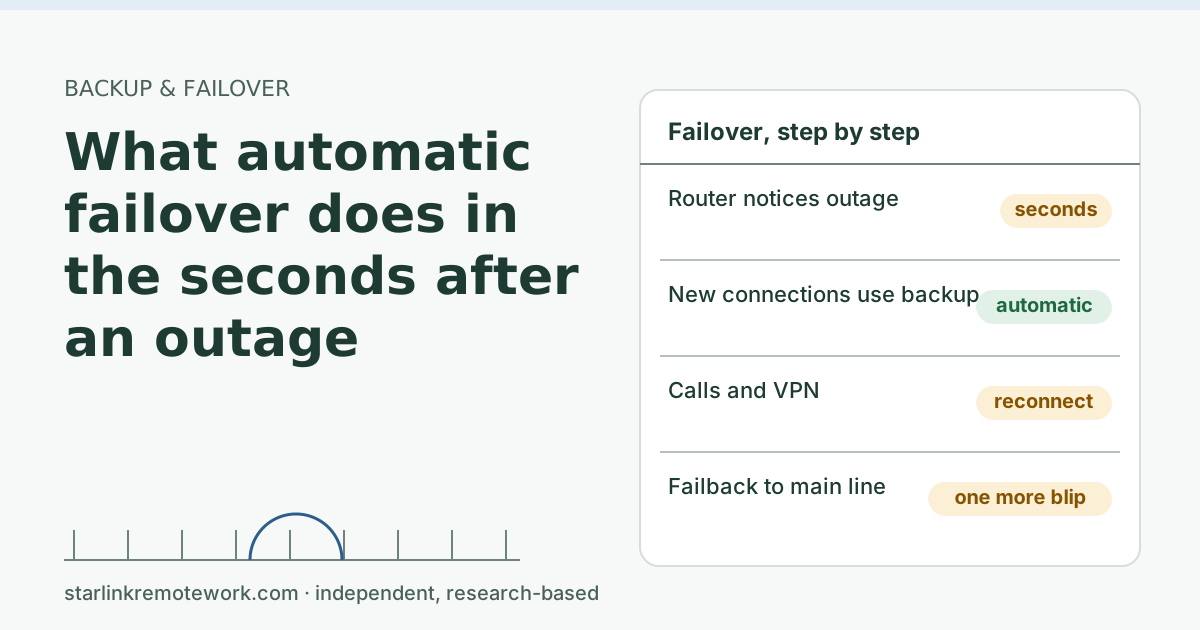
- Failover has three phases: the router notices the main line stopped answering, marks it down, and sends new connections out the backup line.
- Detection is not instant. Routers test the line on a schedule and wait for several failures in a row, so expect seconds of silence before the switch.
- Your backup line has a different public IP, so existing connections can’t move. Calls and VPNs reconnect; web pages and email just carry on.
- Only bonding or tunnel services that keep one outside IP (for example Peplink’s SpeedFusion) can carry a session across the switch, at extra cost and complexity.
- Failback, when the main line returns, is a second switch. Many routers let you delay it so you aren’t knocked off twice.
On this page
- The short version: what each part of your day notices
- Second by second: what the router does
- What can keep a session alive across the switch
- Starlink-specific notes
- Failover or load balancing?
- Test it in ten minutes
- Common mistakes
- When failover isn’t worth it
- What we don’t know
- What to do next
- Questions people ask
- Sources
Automatic failover switches you to a backup line within seconds of an outage, but it doesn’t make the outage invisible. The router first has to notice that the main line stopped answering, then it sends new traffic out the backup. Because the backup line has a different public IP address, connections that were already open, like a video call or a VPN tunnel, break and reconnect. Web browsing and email barely notice. A call or VPN sees a few seconds of “reconnecting” instead of a long outage, which for most remote workers is the whole point.
The short version: what each part of your day notices
| Activity | During a failover | Why |
|---|---|---|
| Web pages, email, chat | A short pause; the next click works | Each request opens fresh connections on the new line |
| Zoom, Teams, Meet calls | Freezes, shows “reconnecting,” rejoins | The call’s media path was tied to the old address |
| Work VPN | Drops and reconnects | The tunnel was built on the old line’s address |
| Large uploads and downloads | May fail and need resuming | A long transfer is one connection that can’t move |
| Remote desktop, SSH | Disconnects; reconnect by hand or automatically | Same reason |
| Things on your home network (printer, NAS) | Unaffected | They don’t use the internet line |
The reason sits in how the internet identifies a connection. The TCP standard defines a connection by “a pair of sockets”: your IP address and port plus the far end’s IP and port. When your public address changes, the far end sees packets from a stranger. Nothing can quietly move an open connection to a new address unless something in the middle keeps the outside address the same (more on that below).
Second by second: what the router does
Times below are illustrative. Every brand’s defaults differ, and most let you change them.
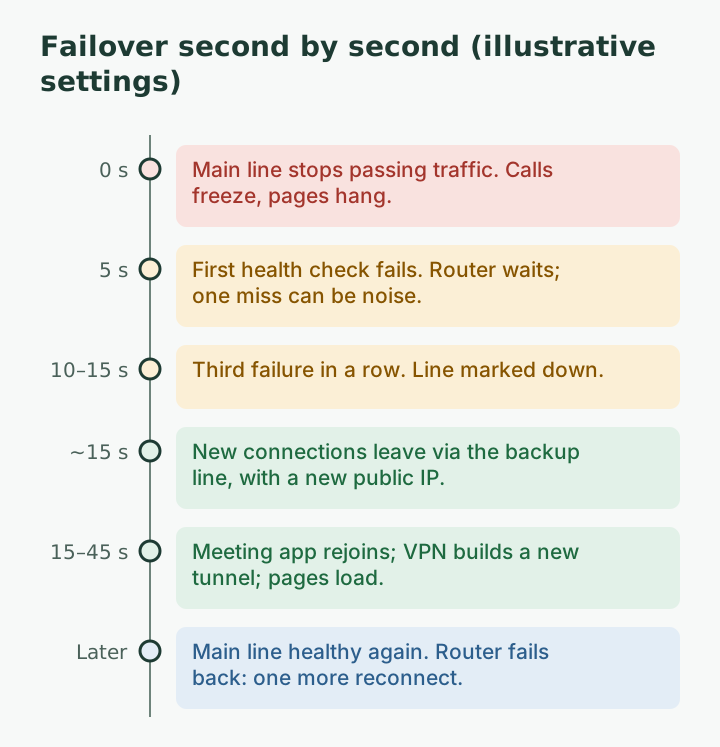
1. The outage starts
Your main line (here, Starlink) stops passing traffic. Your computer doesn’t know yet. Calls freeze, pages hang.
2. Health checks fail
A dual-WAN router tests each line on a schedule. GL.iNet, for example, uses “ping or httping” to track the connection to a destination IP and offers normal, low-data and strict detection modes. TP-Link’s Omada ER605 lists “Online Detection.” Peplink lists “Link Health Check.” The router won’t switch on one missed reply, because one lost ping happens on healthy lines too. It waits for several failures in a row.
That is the trade-off you control: check often and switch after few failures, and you switch fast but may flap between lines during a brief blip. Check rarely and require many failures, and you switch late but rarely by mistake.
Worked example (illustrative settings): if the router checks every 5 seconds and needs 3 failures in a row, the line is marked down 10 to 15 seconds after it actually failed. Halve the interval and you roughly halve the wait.
3. The router marks the line down and switches
New connections now leave through the backup line (a cellular router, a hotspot on the second WAN port, or another wired line). They get the backup line’s public address.
4. Apps reconnect
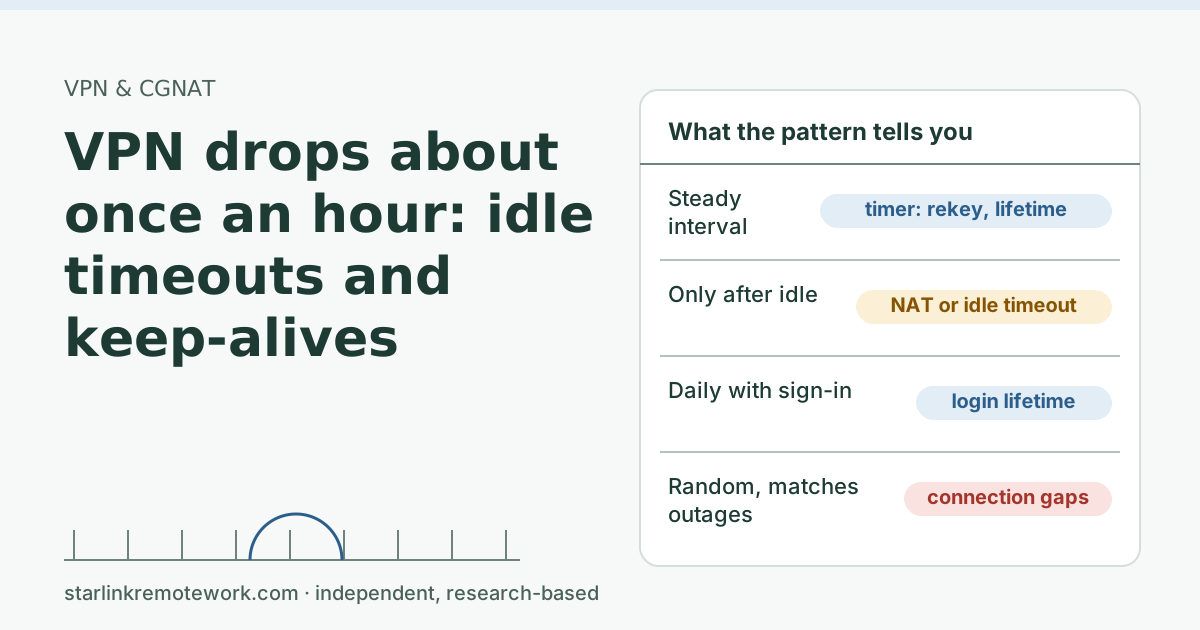
Browsers simply retry. Meeting apps detect the dead path and rejoin, which you see as a few seconds of frozen video and a “reconnecting” banner. Your VPN client notices its tunnel stopped answering and builds a new one. How quickly depends on the client’s own timers; see why VPNs drop about once an hour for how those timers work.
5. Failback
When the main line answers health checks again, most routers switch back automatically. GL.iNet’s documentation says the router “switches back automatically” when a higher-priority link is restored. That is a second switch, and your calls and VPN reconnect a second time. If your main line is the kind that drops repeatedly for short spells, consider delaying failback or requiring the line to be healthy for a few minutes first, if your router allows it.
What can keep a session alive across the switch
To survive a line change, the outside world must keep seeing the same address. Two ways do that:
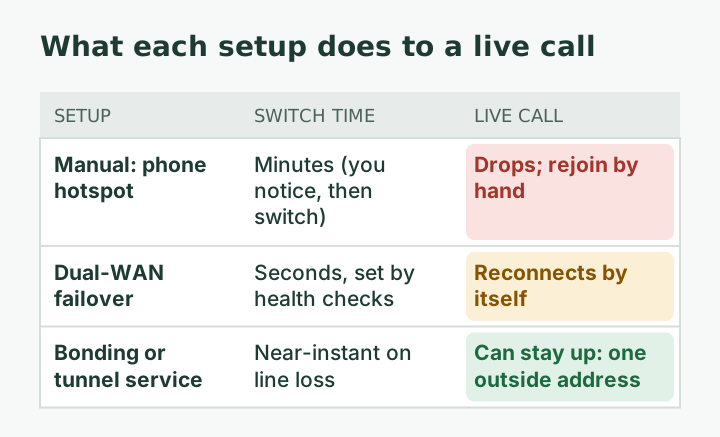
- Bonding or tunnel services. Your router builds tunnels over both lines to a server or peer device, and your traffic leaves the internet from that server’s address. If one line dies, the tunnel carries on over the other. Peplink lists “Session Persistence” and describes SpeedFusion as providing “fault-tolerant high speed Internet access” by combining connections. This costs more (hardware, and often a hosted endpoint) and adds latency because traffic detours through the endpoint.
- Apps with their own reconnection tricks. Some modern VPNs and meeting apps resume quickly on a new address. They still pause; they just recover faster.
For most home workers, a plain dual-WAN router plus apps that reconnect is the right level. Bonding is worth pricing if you run all-day customer calls and even a 10-second drop is costly.
Starlink-specific notes
- Where the dual-WAN router plugs in. Your own router connects to the Starlink router’s LAN port, or to the Starlink with its router in bypass mode. Bypass mode (Starlink app > Settings) turns off the Starlink router's Wi-Fi so a third-party router can connect; exit by factory reset. Starlink does not guarantee performance with third-party routers; some app features may not work.
- Ports. 2 ports The older Gen 2 router has no built-in Ethernet ports; an Ethernet adapter is sold separately.
- Your public IP changes on failover either way. Starlink Residential IPv4 is behind CGNAT, and your cellular backup almost certainly is too, so neither address was yours alone. That matters if your employer allowlists IP addresses; ask IT before you rely on a backup line.
- Health check targets. Point checks at a reliable outside address (not the Starlink router itself, which may still answer while the satellite link is down).
Failover or load balancing?
Most dual-WAN routers offer two modes, and they behave very differently for work.
Failover keeps the backup line idle until the main line fails. All your traffic leaves from one address at a time. That is predictable: your VPN, your bank and your employer’s systems see one address, and calls stay on one path. The cost is that the backup line’s capacity sits unused most of the time, which is fine for a cellular plan you pay for by the gigabyte or by the hour.
Load balancing uses both lines at once and spreads connections across them. GL.iNet’s documentation describes load ratios such as 1:1, and notes that live connections “are not ensured to match the load ratio.” That can raise total speed for many downloads at once, but individual sessions can land on different lines. Some websites and VPNs dislike seeing one user arrive from two addresses, and a metered backup line gets used every day.
For a remote worker, failover is usually the right default. If you want to use both lines, a middle ground is to load balance only for devices that don’t matter (a game console’s downloads, a TV) and pin the work computer to the main line.
Test it in ten minutes
Do this once after setup and then monthly, during a quiet hour.
- Start a continuous ping to a public address on your work computer (
ping -t 1.1.1.1on Windows). - Join a test meeting by yourself, and connect the VPN if you use one.
- Unplug the main line’s cable at the dual-WAN router (don’t unplug the dish; you are testing the router, not stressing the kit).
- Count the seconds of failed pings until replies return. That is your real detection-plus-switch time.
- Watch the meeting rejoin and the VPN reconnect, and note how long each took.
- Plug the main line back in and watch failback. Count the seconds again.
- Check that the router’s notification (if it has one) told you it switched. If your backup is metered, you want to know when you’re on it.
Write the numbers down. If detection takes far longer than you expected, shorten the check interval or the failure count, and test again.
Common mistakes
- Expecting zero downtime. A plain dual-WAN router shortens outages; it doesn’t erase them.
- Load balancing calls across two lines. Spreading connections can send parts of one session over different lines and confuse VPNs and some websites. Use failover mode for work, or pin the work computer to the main line.
- Never testing it. Unplug the main line once a month during a quiet hour and watch what happens.
- A backup that shares the same weak point. A cellular router plugged into the same power strip as the dish fails in the same power cut. Power backup sizing is outside this site’s scope, but plan it.
When failover isn’t worth it
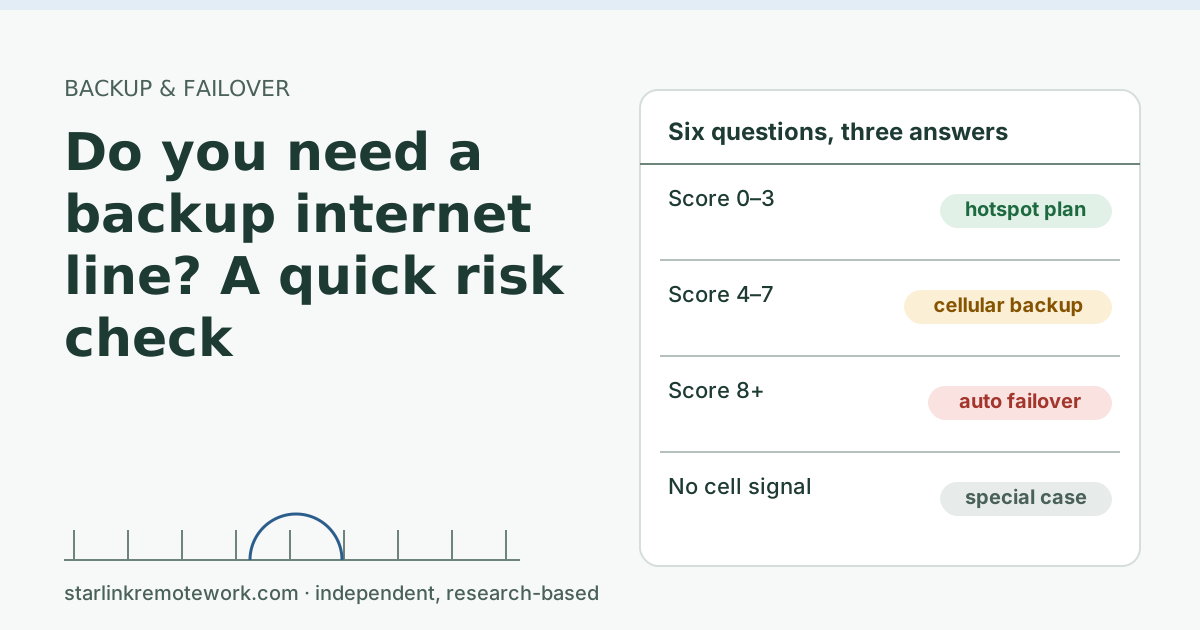
If outages at your house are rare and a phone hotspot covers you in two minutes, a manual switch may be enough. If your work can pause for a few minutes without harm, skip the router. If your job is customer-facing calls all day, failover is close to essential, and fiber or cable as the main line is better still. The backup risk check helps you decide.
What we don’t know
We haven’t timed failover on specific routers over a Starlink line, and default check intervals vary by brand and firmware. The 10-to-15-second example above is arithmetic on illustrative settings, not a measurement. The Work-Day Reliability Report will show how often a logged connection has outages long enough to trigger failover once data exists.
What to do next
- Get a parts list and monthly cost for your situation in the Failover Builder.
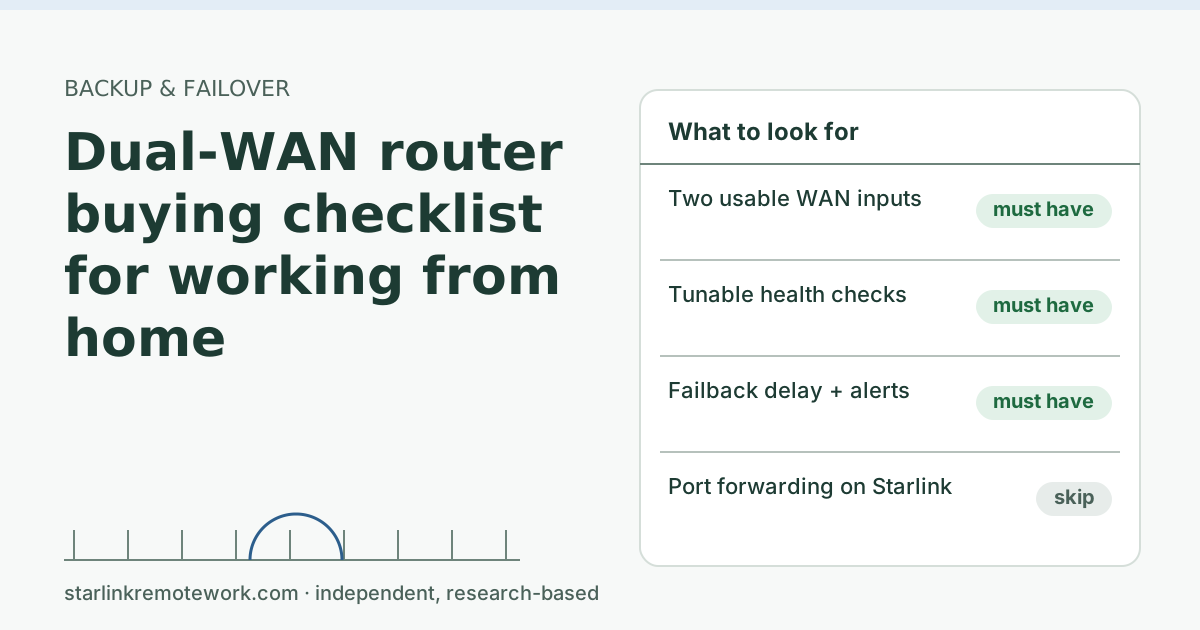
- Before buying, read the dual-WAN router checklist.
- For an office, see Starlink as the backup line for an office.
Questions people ask
How fast is automatic internet failover?
It depends on how often the router checks the line and how many failed checks it needs before switching. Settings vary by brand; with typical setups, expect several seconds to under a minute rather than an instant switch.
Will my Zoom or Teams call survive a failover?
Usually the call drops for a few seconds and reconnects by itself, because your traffic suddenly comes from a different public IP. Meeting apps are built to rejoin; you may see a reconnecting message.
Will my VPN stay connected when the router switches lines?
Usually not. The VPN tunnel was built on the old line’s address, so it has to reconnect on the new one. Most clients do that automatically within seconds to a minute.
What is the difference between failover and load balancing?
Failover keeps the backup idle until the main line fails. Load balancing uses both lines at once and spreads connections across them. For calls and VPNs, failover is usually the calmer choice.
Can a dual-WAN router keep a call alive during an outage?
Only with a bonding or tunnel service that gives your traffic one stable outside address, such as Peplink SpeedFusion with a peer or cloud endpoint. A plain dual-WAN router reconnects calls rather than keeping them.
Do I need bypass mode on Starlink to use a dual-WAN router?
Not necessarily, but many people use it so only one router does address translation. Starlink notes it doesn’t guarantee performance with third-party routers and some app features may not work.
Sources
- What is bypass mode? (Starlink support), checked Oct 5, 2026
- Can I add a third-party router or mesh system? (Starlink support), checked Oct 5, 2026
- Does the WiFi router have any ethernet (LAN) ports to connect wired devices? (Starlink support), checked Oct 5, 2026
- GL.iNet Docs: Multi-WAN (failover and load balance, link tracking), retrieved Oct 6, 2026
- Peplink: B One product page (health check, session persistence, SpeedFusion), retrieved Oct 6, 2026
- TP-Link Omada: ER605 product page (link backup, online detection), retrieved Oct 6, 2026
- IETF RFC 9293: Transmission Control Protocol (connection identified by a socket pair), retrieved Oct 6, 2026
Research-based: written from vendor documentation, Starlink support pages and standards, not from our own measurements. Starlink rules and prices on this page come from our dated fact file and show the day they were checked; they change, so confirm before you rely on one.Links to Starlink’s plan pages here use the site owner’s own referral link; the owner may get a referral reward and your price is the same. No affiliate links (how we make money). General information, not professional IT, legal or medical advice. Independent · not affiliated with SpaceX or Starlink. Spotted an error? Tell us.