Key takeaways
- Regular, clock-like drops point to a timer: a tunnel rekey, a session or login lifetime, or an idle timeout. Random drops point to connection gaps or Wi-Fi.
- Behind Starlink’s CGNAT, a VPN path that goes quiet can be forgotten. Keepalives prevent that; the IETF’s NAT rules say UDP mappings must last at least two minutes, with five or more recommended.
- Log the drop times for a few days and compute the gaps. A steady gap (every 60 minutes, every 8 hours) is the strongest clue you can give IT.
- Starlink keeps your address steady while connected: 5 min
On this page
- Clock-like or random? Sort the drops first
- How to find the interval
- The timers, and what their pattern looks like
- Starlink addresses and VPN drops
- A worked example
- “Is my obstruction causing the hourly drop?”
- A ticket template
- What you can do yourself
- Common mistakes
- What we don’t know
- What to do next
- Questions people ask
- Sources
A VPN that drops about once an hour, or at any steady interval, is almost always reacting to a timer, not to your connection. The usual suspects are a tunnel rekey that fails, a session or login lifetime your IT team set, or an idle timeout that closes a quiet path. Starlink outages and weather don’t keep a schedule. The one Starlink-specific twist is carrier-grade NAT: a VPN path that goes quiet can be forgotten by the NAT in the middle, so keepalive settings matter more than on a line with a public address. A few days of drop times is usually enough to tell which timer it is.
Clock-like or random? Sort the drops first
Before anything else, decide which kind of drop you have. It splits the problem in two.
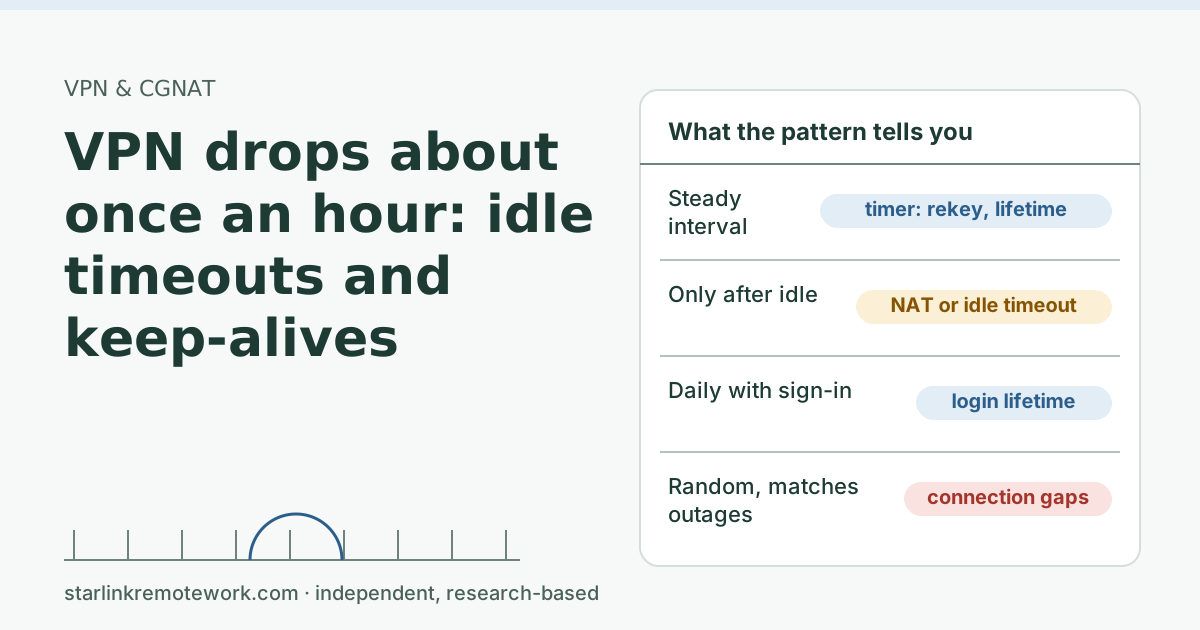
- Clock-like: drops at a steady interval (every 60 minutes, every 8 hours, every day at 5 pm), or a fixed time after you connect, or after the same idle period.
- Random: drops at uneven times, often clustered (several in an afternoon, none the next day), sometimes during calls or uploads.
Clock-like drops point to timers inside the VPN or on the gateway. Random drops point to the line (short Starlink gaps, obstructions), your Wi-Fi, or a full upload. The is it down or is it me check and why Zoom freezes cover the random kind; this article is about the clock.
How to find the interval
- Log every drop for three to five workdays. Time to the minute, and whether you were idle or active.
- Note when you connected each morning.
- Check the Starlink app at each drop time. The Starlink app's Statistics page shows speed, uptime, latency, outages and alerts (when on the Starlink router). An outage at the same minute means the line, not a timer.
- Subtract. Work out the minutes between consecutive drops, and from connect time to the first drop.
The timers, and what their pattern looks like
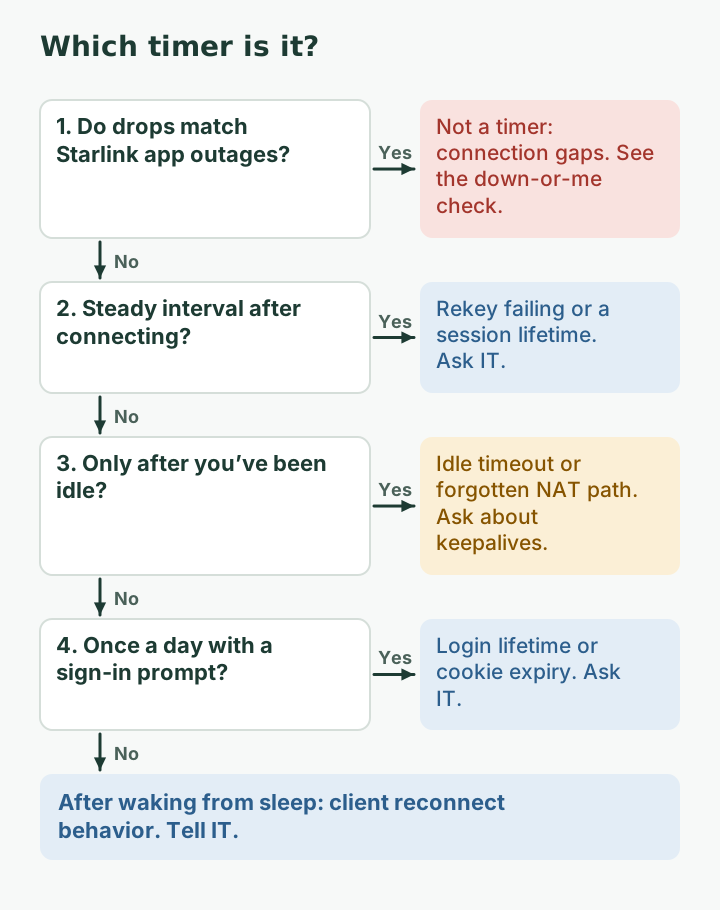
| Pattern you logged | Likely timer | Who controls it |
|---|---|---|
| Same interval after connecting (for example every 60 min) | Tunnel rekey failing, or a short session lifetime | IT (gateway or profile) |
| Once a day, or after 8 to 24 hours, with a sign-in prompt | Login lifetime or authentication cookie expiry | IT |
| Only after you’ve been idle (lunch, a long read) | Idle or inactivity timeout, or a NAT mapping forgotten | IT (timeouts, keepalives) |
| A few minutes after the laptop wakes from sleep | Client reconnect behavior | IT and the client |
| Uneven, matches Starlink outages | Not a timer: connection gaps | You (obstructions), backup line |
Rekeys
Encrypted tunnels change their keys on a schedule. In IKEv2, used by many IPsec VPNs, the standard says “An SA is rekeyed by creating a new SA and then deleting the old one,” and lifetimes are local policy rather than negotiated. A healthy rekey is invisible. A rekey that fails, for example because the rekey packets get lost or one side’s timer doesn’t match the other’s, drops the tunnel at that interval every time. An hourly rekey interval is a common configuration choice, which is why “every hour” is such a familiar complaint.
Session and login lifetimes
Gateways limit how long a session lasts before you must sign in again. Palo Alto’s GlobalProtect, for example, lets admins set “Login Lifetime and Inactivity Logout,” and its authentication cookie lifetime defaults to 24 hours. A drop with a sign-in prompt at the same time daily is usually this.
Idle timeouts and forgotten NAT paths
This is where Starlink comes in. By default, Starlink IPv4 uses carrier-grade NAT (CGNAT) with private addresses from 100.64.0.0/10. NAT devices keep a mapping only while traffic flows. The IETF rule for UDP is that a mapping “MUST NOT expire in less than two minutes,” with “a default value of five minutes or more” recommended. For TCP connections the rule is far longer: an established idle-timeout of no less than “2 hours 4 minutes.” Starlink doesn’t publish its CGNAT timers, and you may have your own router’s NAT in the chain too.
Gateways have idle limits as well. Cisco’s ASA, for example, has “a hardcoded 5-minute TCP inactivity timeout that automatically closes SSL/DTLS tunnel connections when no data or keepalive packets flow for exactly 5 minutes.”
The cure for both is keepalives: small packets sent when nothing else is. For IPsec with NAT traversal, the standard default is one every 20 seconds when no other traffic is sent; Cisco’s client keepalive is configurable from 15 to 600 seconds. Keepalives that are too slow, or turned off, show up as drops after quiet spells.
Starlink addresses and VPN drops
People sometimes suspect their IP address changes every hour. On Starlink that’s unlikely while you stay connected: 5 min Addresses can change after bigger events. For public IP customers, Starlink notes: Even with a public IP, relocating the Starlink or software updates may change the IPv4 address and IPv6 prefix. On Residential CGNAT, your shared public address is managed by Starlink and isn’t yours to fix. A VPN that drops exactly when your address changes reconnects on the new one; that should be rare and irregular, not hourly.
A worked example
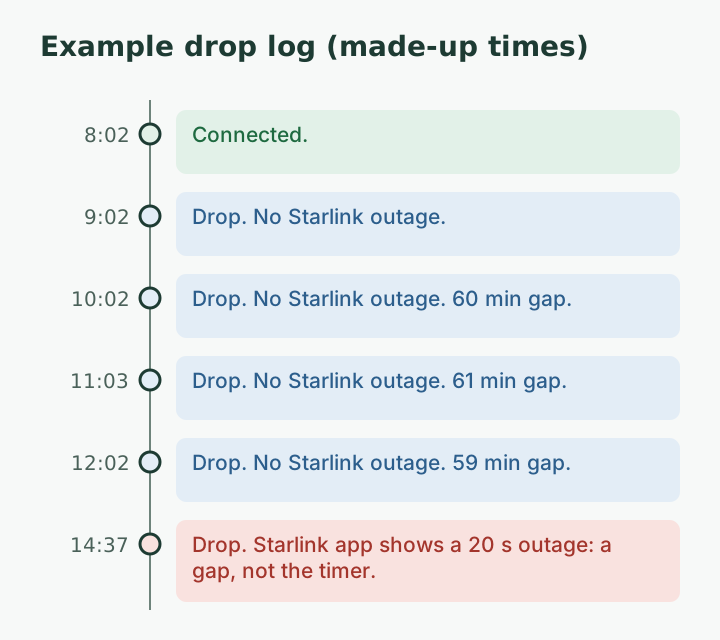
Suppose your log shows drops at 9:02, 10:02, 11:03 and 12:02 after connecting at 8:02, and one more at 14:37. (These are example times, not a real log.) The Starlink app shows a 20-second outage at 14:37 and nothing at the others.
- The four drops are 60 minutes apart, measured from connect time. That is a timer, almost certainly a rekey or a one-hour session setting.
- The 14:37 drop is a connection gap and has a different fix.
Your ticket can say: “My VPN drops every 60 minutes after connecting, regardless of activity; Starlink shows no outages at those times. Could you check rekey and session lifetimes for my profile?” That is a ticket IT can close in one change.
“Is my obstruction causing the hourly drop?”
It’s a common question, and the answer is usually no, for a simple reason: obstructions cause drops when a satellite passes behind a tree or roofline, which happens at uneven times as satellites move across the sky. You may see several short drops in one hour and none in the next. An obstruction won’t produce drops exactly 60 minutes apart for days.
That said, both can be true at once. A timer can drop you every hour while an obstruction adds random drops on top. That is why the log needs the Starlink app column: it separates the two. If you do have obstructions, the app’s obstruction view is the place to start; fixing the view is outside this article.
A ticket template
Subject: VPN drops every [N] minutes on a steady schedule
My VPN disconnects every [N] minutes after connecting (log attached: [times]). The Starlink app shows no outages at those times. I’m on Starlink Residential (IPv4 behind CGNAT, native IPv6), on a cable, with no other VPN running. Drops happen [whether I’m active or idle / only after idle periods].
Could you check the rekey lifetime, session or login lifetime, idle timeout and keepalive or DPD settings for my profile?
IT Details for your IT person
Interval-locked drops usually map to IKE/Child SA lifetimes (RFC 7296: rekey by creating a new SA and deleting the old; lifetimes are local policy), session/login lifetimes, or idle timeouts. Behind CGNAT, UDP mappings may expire after as little as two minutes of silence (RFC 4787 minimum; five or more recommended). Ensure NAT-T keepalives (RFC 3948 default 20 s) or client keepalives are enabled, and DPD is configured so failures are detected and recovered quickly. Starlink doesn’t publish CGNAT timers and doesn’t troubleshoot VPNs.
What you can do yourself
- Keep something light running during idle spells, if your problem is drops after quiet periods. It’s a workaround, not a fix; tell IT anyway.
- Use a cable and turn off other VPNs to rule out the random causes.
- Avoid sleep mode during the workday if drops follow wake-ups, until IT adjusts reconnect behavior.
- Don’t reboot the dish to fix a timer. It won’t help.
Common mistakes
- Blaming weather for clock-like drops. Rain doesn’t arrive every 60 minutes.
- Reporting “it drops all the time.” Times and intervals get fixed; adjectives don’t.
- Asking Starlink support. Starlink says it cannot troubleshoot VPN connection issues and the Starlink app may not work properly with a VPN on.
- Changing the laptop’s power and network settings at random. One change at a time, logged.
What we don’t know
We can’t see your company’s VPN settings, and vendors pick different defaults. Starlink doesn’t publish CGNAT mapping timeouts. The Work-Day Reliability Report is designed to include a weekly VPN session test on one logged connection, which will show whether a tunnel survives idle periods on that line once data exists.
What to do next
- Log five days of drops and fill in the table above.
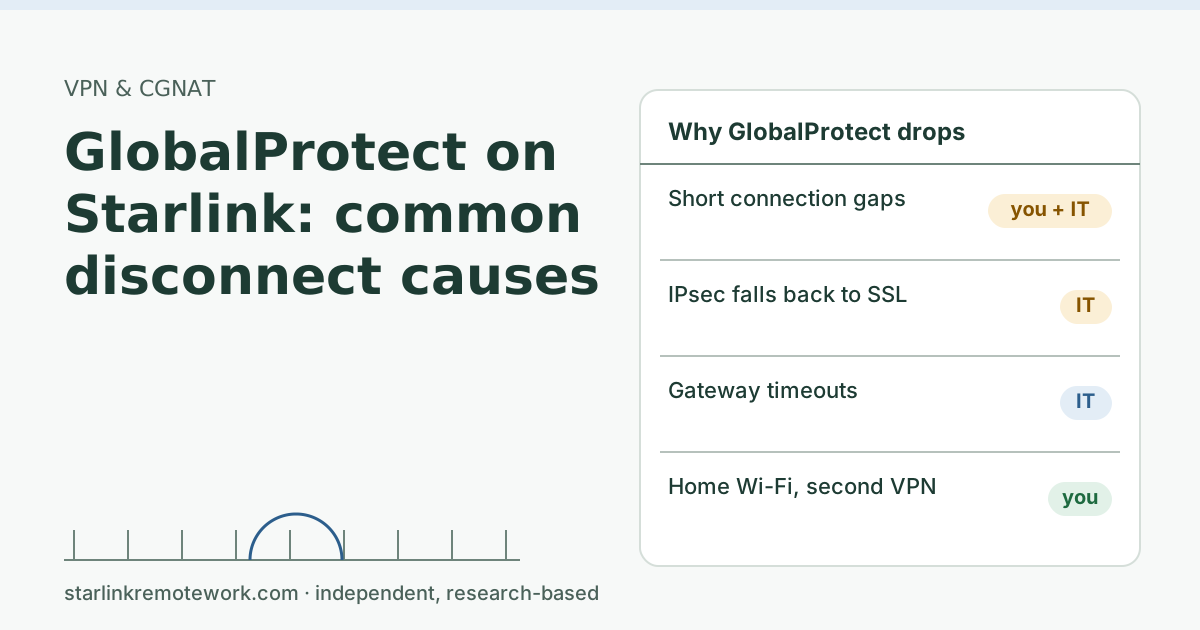
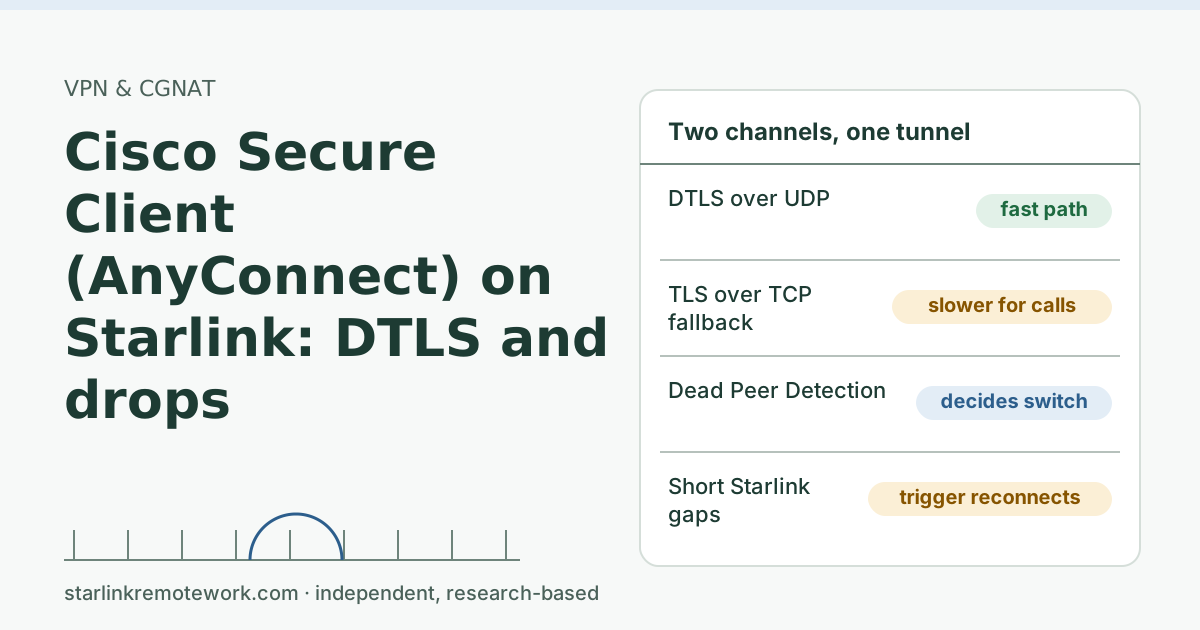
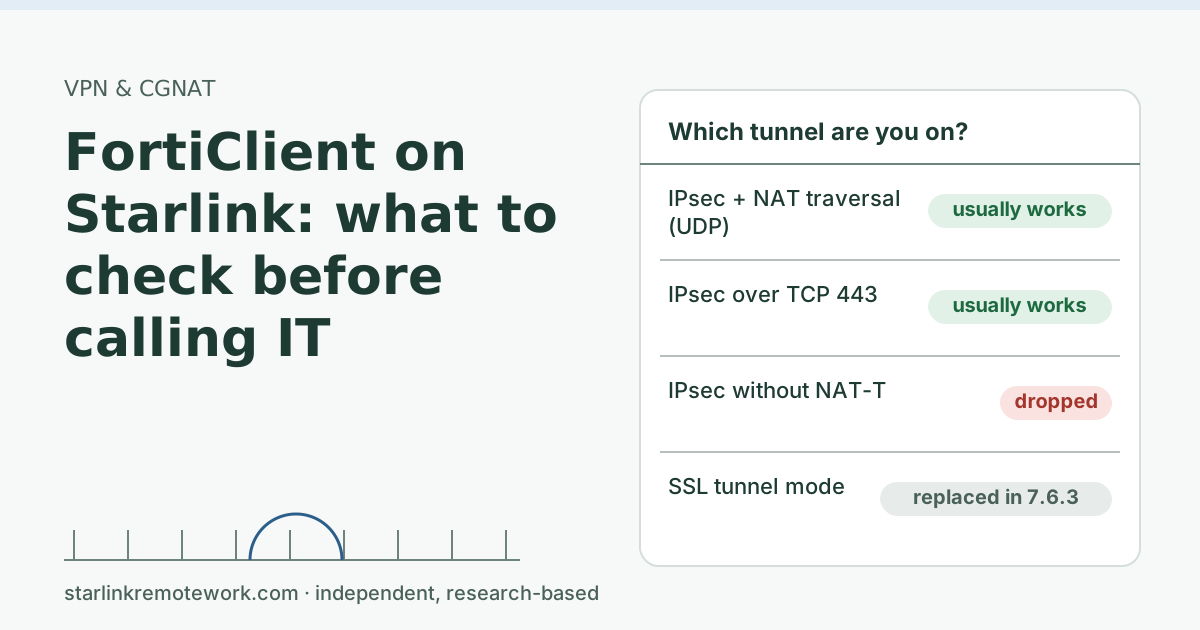
- Use the client-specific guide: GlobalProtect, Cisco Secure Client or FortiClient.
- For how CGNAT affects each VPN type, read our VPN guide and the CGNAT guide.
Questions people ask
Why does my VPN disconnect every hour?
Usually a timer: the tunnel rekeys its encryption keys, a session lifetime set by IT expires, or an idle timeout closes a quiet path. Connection outages don’t follow a schedule, so a steady interval points away from the line.
Is Starlink causing my VPN to drop every hour?
Probably not directly. Starlink outages are irregular. But Starlink’s CGNAT can forget a quiet VPN path, so keepalive settings matter more than on a line with a public IP. Check the Starlink app’s outage list at the drop times.
What is a VPN keepalive?
A small packet the VPN sends when there is no other traffic, so NAT devices and firewalls keep the path open. IPsec NAT traversal’s standard keepalive default is one every 20 seconds.
What is VPN rekeying?
Tunnels replace their encryption keys on a schedule. In IKEv2 an SA is rekeyed by creating a new one and deleting the old one. A well-behaved rekey is invisible; a rekey that fails can drop the tunnel at a regular interval.
How do I prove my VPN drops on a schedule?
Write down each drop time for several days, then subtract consecutive times. Gaps that cluster around one value, like 60 minutes or 8 hours, are strong evidence of a timer.
Can I change my work VPN’s timers?
No. Rekey lifetimes, session lifetimes, idle timeouts and keepalives are set by your company on the gateway or in your VPN profile. Your job is to give IT clear timing evidence.
Sources
- How can I monitor my Starlink's performance? (Starlink support), checked Oct 5, 2026
- What IP address does Starlink provide? (Starlink support), checked Oct 5, 2026
- DHCP Configuration (Starlink support), checked Oct 5, 2026
- Does Starlink work with VPNs? (Starlink support), checked Oct 5, 2026
- IETF RFC 4787: NAT Behavioral Requirements for Unicast UDP (REQ-5 mapping timer), retrieved Oct 6, 2026
- IETF RFC 5382: NAT Behavioral Requirements for TCP (established idle-timeout), retrieved Oct 6, 2026
- IETF RFC 3948: UDP Encapsulation of IPsec ESP Packets (NAT-keepalive), retrieved Oct 6, 2026
- IETF RFC 7296: Internet Key Exchange Protocol Version 2 (rekeying, liveness checks), retrieved Oct 6, 2026
- Cisco: ASA 9.22 VPN configuration guide, AnyConnect connections (idle timeout, keepalive, DPD), retrieved Oct 6, 2026
- Palo Alto Networks: Configure a GlobalProtect Gateway (login lifetime, inactivity logout), retrieved Oct 6, 2026
Research-based: written from vendor documentation, Starlink support pages and standards, not from our own measurements. Starlink rules and prices on this page come from our dated fact file and show the day they were checked; they change, so confirm before you rely on one.Links to Starlink’s plan pages here use the site owner’s own referral link; the owner may get a referral reward and your price is the same. No affiliate links (how we make money). General information, not professional IT, legal or medical advice. Independent · not affiliated with SpaceX or Starlink. Spotted an error? Tell us.