Key takeaways
- GlobalProtect tries an IPsec tunnel first when IT enables it, and uses SSL only if IPsec can’t be set up. Behind CGNAT, IPsec must travel inside UDP (NAT traversal) to work.
- Starlink says VPNs must support NAT traversal and that SSL-based VPNs typically cross CGNAT best. GlobalProtect has both options; IT chooses which are allowed.
- Most drops on Starlink are short outages long enough to break the tunnel. Timeouts and login lifetimes are set by IT on the gateway, not by you.
- Starlink can’t troubleshoot VPNs. Your IT team can, if you give them times, logs and your connection type. GlobalProtect 6.2 and later can send a diagnostic report if IT enables it.
On this page
- How GlobalProtect connects, in plain terms
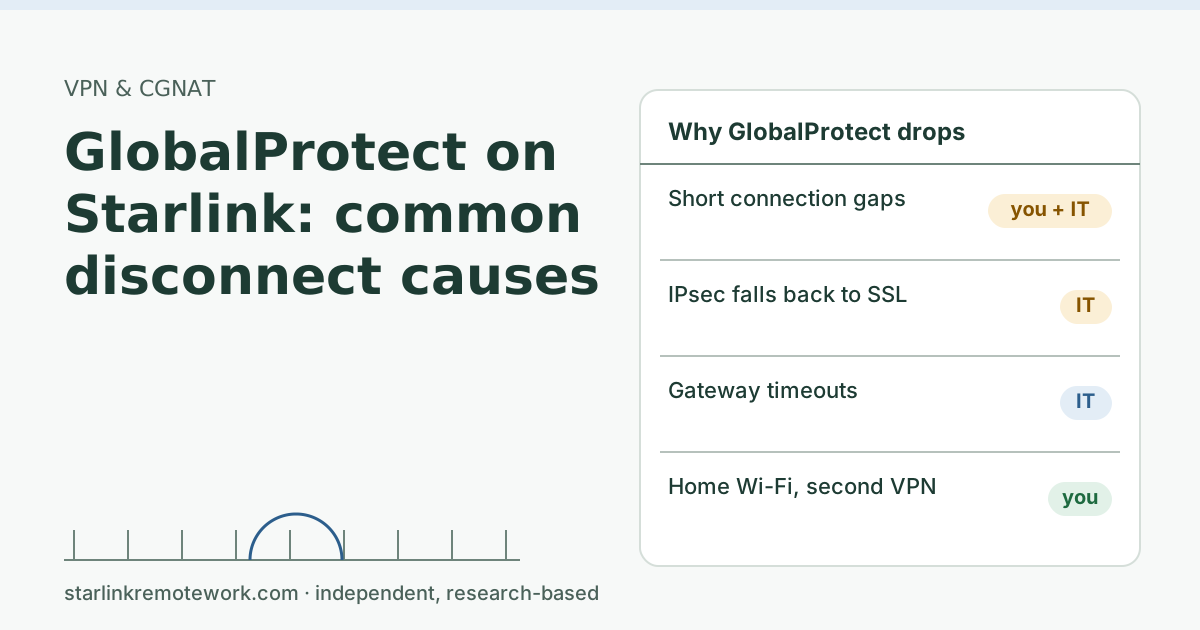
- The four common causes of drops
- A worked example: reading your own drop log
- Split tunneling and your calls
- What you can do today
- What to send IT
- Common mistakes
- When Starlink is the wrong line for this job
- What we don’t know
- What to do next
- Questions people ask
- Sources
GlobalProtect generally works on Starlink, because it connects outward to your company’s gateway and Starlink’s CGNAT allows outbound connections. When it drops, the usual causes are a short connection gap long enough to break the tunnel, an IPsec tunnel that can’t hold its path through NAT, timeouts your IT team set on the gateway, or weak home Wi-Fi. You can rule out your own Wi-Fi and other VPNs; the tunnel settings belong to IT, so the most useful thing you can do is hand them precise evidence.
How GlobalProtect connects, in plain terms
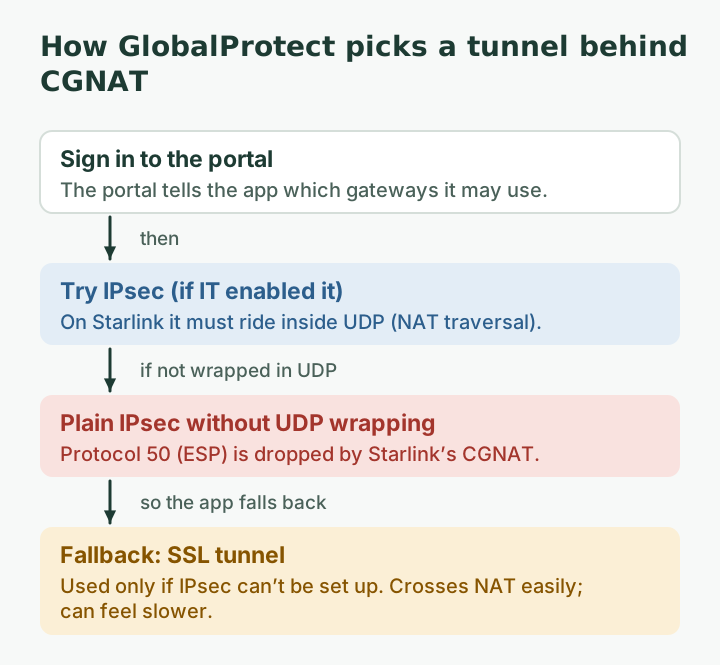
GlobalProtect signs you in to your company’s portal, which tells the app which gateways it may use. The app then builds a tunnel to a gateway. Palo Alto’s gateway documentation describes two tunnel types:
- IPsec, when IT enables it (“Enable IPSec” with a crypto profile). This usually performs best for real-time traffic.
- SSL, which Palo Alto says is “used only if the endpoint fails to establish an IPSec tunnel” when both are enabled. IT can also force SSL only by turning IPsec off.
That fallback matters on Starlink. Starlink’s VPN guidance says: Starlink says VPNs over TCP or UDP work; the VPN must support NAT traversal; SSL-based VPNs typically traverse CGNAT best. And it is specific about what CGNAT drops: CGNAT drops VPNs relying on IP protocols 47 (GRE), 50 (ESP), 51 (AH) and 115 (L2TP). Plain IPsec uses protocol 50 (ESP), which CGNAT drops, so on Starlink an IPsec tunnel only works when it is wrapped in UDP (NAT traversal). If that wrapping isn’t possible, GlobalProtect falls back to SSL, which crosses NAT easily but can feel slower on calls.
The four common causes of drops
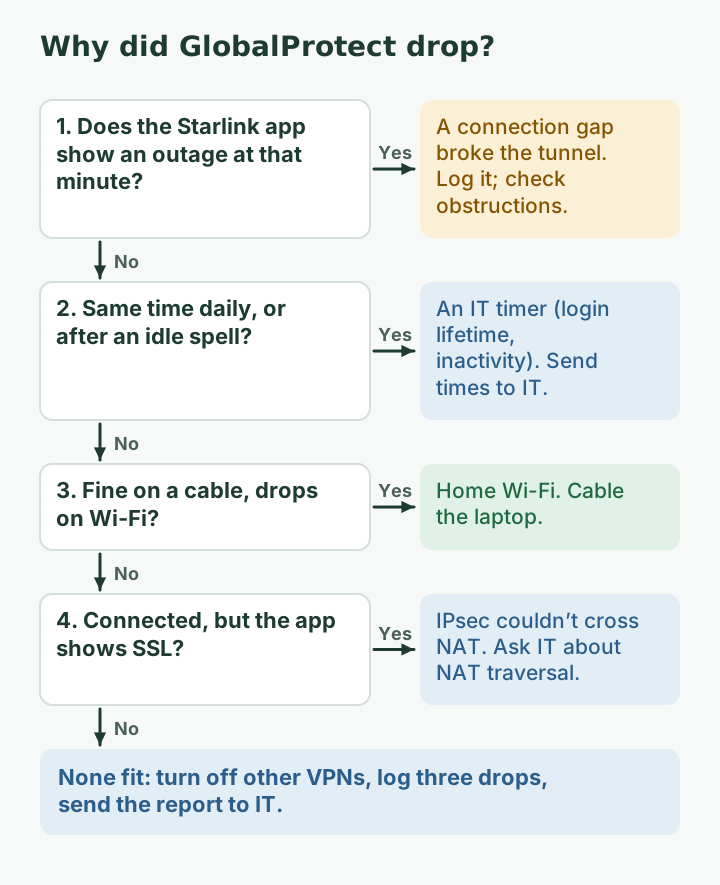
1. Short outages that break the tunnel
A Starlink connection can have brief gaps (an obstructed moment, a hand-off between satellites). A video call freezes and recovers; a VPN tunnel may decide the gateway is gone and reconnect, which feels like a drop. Check the Starlink app’s outage list at the time of a disconnect: The Starlink app's Statistics page shows speed, uptime, latency, outages and alerts (when on the Starlink router).
2. The IPsec path through CGNAT goes quiet
NAT devices forget a mapping when nothing passes through it for a while. IPsec’s UDP wrapping includes “NAT-keepalive” packets for exactly this reason; the IETF standard says their “sole purpose” is “to keep NAT mappings alive,” with a default of one every 20 seconds when nothing else is sent. If keep-alives are slow or blocked somewhere, the tunnel can stall and the client reconnects, sometimes landing on SSL instead.
3. Timeouts and lifetimes set by IT
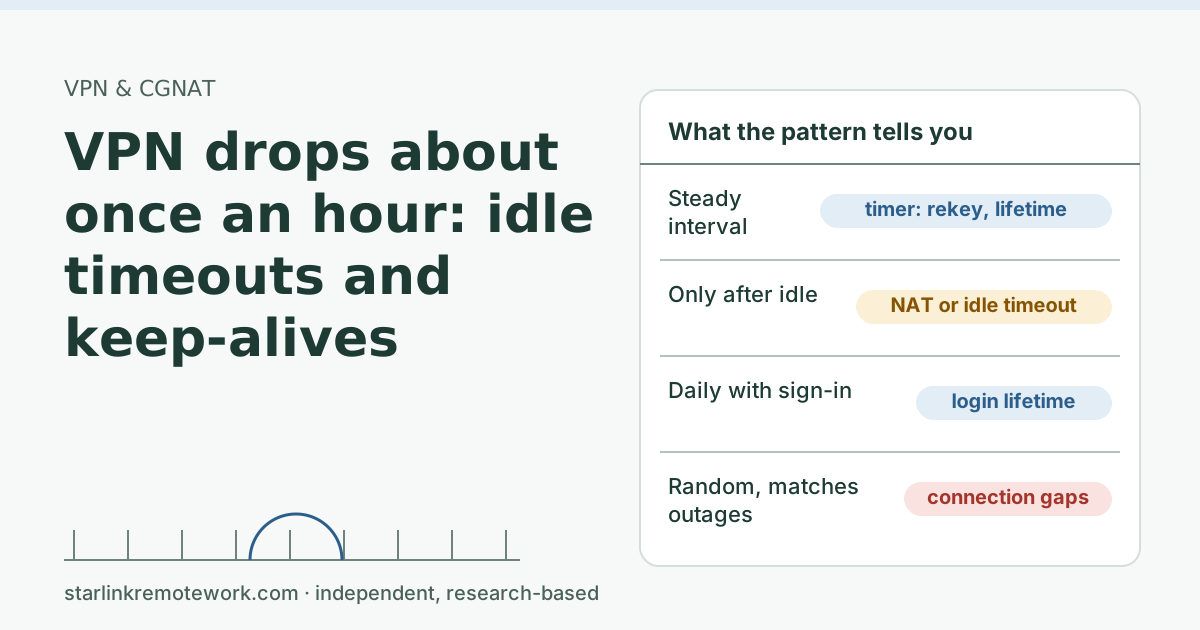
Palo Alto lets administrators set “Login Lifetime and Inactivity Logout” for endpoint sessions, and an authentication cookie lifetime (default 24 hours, per Palo Alto’s docs). A drop that happens at the same time of day, or after the same idle period, is often a timer like this, not your connection. Read VPN drops about once an hour for how to spot timer-shaped drops.
4. Home Wi-Fi and competing VPNs
Weak Wi-Fi loses packets and the tunnel reacts. A personal VPN running at the same time as GlobalProtect can fight over routes. Turn off any other VPN and test on a cable.
| What you notice | Likely cause | Who can fix it |
|---|---|---|
| Drops at random times, Starlink app shows outages then | Short connection gaps | You (obstructions, cable); IT (reconnect behavior) |
| Connected, but calls feel slow and the app shows SSL | IPsec failed, SSL fallback | IT (NAT traversal, IPsec settings) |
| Drops at the same time daily, or after an idle spell | Login lifetime or inactivity timer | IT |
| Only on Wi-Fi | Home Wi-Fi | You |
| Only when another VPN is on | Competing VPN | You |
A worked example: reading your own drop log
Suppose you log a week of drops (these rows are invented to show the method):
| Day | Drop time | Starlink app at that minute | On Wi-Fi or cable | Notes |
|---|---|---|---|---|
| Mon | 9:12 | Outage, a few seconds | Wi-Fi | During a call |
| Mon | 17:00 | Nothing | Wi-Fi | Asked to sign in again |
| Tue | 13:41 | Outage, a few seconds | Wi-Fi | |
| Tue | 17:00 | Nothing | Wi-Fi | Asked to sign in again |
| Wed | 10:05 | Nothing | Wi-Fi, far from router | Calls choppy all morning |
Read it in groups. The 17:00 drops with a sign-in prompt and no Starlink outage look like a session lifetime set on the gateway; that goes to IT. The Monday and Tuesday daytime drops line up with Starlink outages; those point to the dish’s view or normal short gaps, and a backup line is the fix if they hurt. The Wednesday morning is Wi-Fi. One week of notes splits a vague “the VPN keeps dropping” into three separate, fixable problems.
Split tunneling and your calls
If your Teams or Zoom calls run through GlobalProtect, every voice packet takes a detour to the company gateway and back, and each tunnel hiccup freezes the call. Microsoft’s own Teams network guidance recommends sending Teams traffic around the VPN (split tunneling), noting that VPNs “are typically not designed or configured to support real-time media.” GlobalProtect supports split tunneling; whether your company uses it is a security decision for IT. It is a fair, specific question to ask, especially on a satellite line.
What you can do today
- Use a cable for the work laptop, or sit close to the router.
- Turn off any personal VPN while GlobalProtect is connected.
- Note the time of each drop and check the Starlink app’s outage list for the same minute.
- Check which tunnel you are on. The GlobalProtect app’s connection details often show the gateway and tunnel type; if your copy shows SSL when colleagues get IPsec, tell IT.
- Don’t reboot the dish mid-day to “fix” the VPN; it turns a seconds-long drop into minutes.
What to send IT
A good ticket gets fixed; a vague one gets “restart your router.” Include:
- Dates and times of three or more drops, and how long each lasted.
- Whether the Starlink app showed an outage at those times.
- Your connection type: Starlink Residential, behind CGNAT (router outside address in 100.64.0.0/10; see the 100.64 test), with native IPv6.
- Whether you were on Wi-Fi or a cable, and whether another VPN was running.
- The gateway name and tunnel type shown in the app, if visible.
- A diagnostic report, if your company allows it. On GlobalProtect 6.2 or later for Windows, Palo Alto’s steps are: open the app from the system tray, use the menu on the status panel, choose Report an Issue, and allow the app to run diagnostics and include logs. Your admin has to enable this first.
IT Details for your IT person
Starlink Residential IPv4 is CGNAT (100.64.0.0/10), and Starlink states that CGNAT drops IP protocols 47, 50, 51 and 115, so ESP must be UDP-encapsulated. If the gateway or client can’t do NAT-T reliably, clients will fall back to SSL when both are enabled ("SSL-VPN is used only if the endpoint fails to establish an IPSec tunnel"). Check NAT-T keepalive intervals relative to unknown CGNAT UDP timeouts (RFC 3948 default is 20 s), review Inactivity Logout and Login Lifetime, and consider split tunneling for Teams/Zoom media, which Microsoft recommends. Starlink provides a standard 1,500 bytes MTU. Residential CGNAT plans are limited to 1,200 sessions at once. Starlink does not offer static IPs; a public IPv4 is opt-in on Local/Global Priority only and can still change.
Common mistakes
- Asking Starlink to fix the VPN. Starlink says it cannot troubleshoot VPN connection issues and the Starlink app may not work properly with a VPN on.
- Assuming a public IP will fix it. Switching to a Public IP may help an incompatible VPN, but Starlink does not guarantee VPN compatibility even then. And A public IPv4 is optional and only available on Local Priority and Global Priority plans.
- Running two VPNs. It almost never ends well.
- Testing only once. VPN drops come and go; three logged incidents beat one anecdote.
When Starlink is the wrong line for this job
If your role requires the VPN all day and your company won’t adjust tunnel settings or allow split tunneling, short Starlink gaps will keep interrupting you. In that case fiber or cable is the better primary line where available, and a cellular backup on a dual-WAN router covers outages. Ask IT before you move if your employer has rules about connection types; our employer-paid setup guide has a checklist.
What we don’t know
We haven’t run GlobalProtect on a Starlink line, and every company configures it differently: gateways, tunnel type, timers and split tunneling are all IT choices. Starlink doesn’t publish its CGNAT timeouts. The Work-Day Reliability Report will count outages long enough to break a VPN session (over 60 seconds) on one logged connection once it has data.
What to do next
- Work through the ladder above on your next drop and log three incidents.
- Read our main VPN guide for how CGNAT affects each VPN type.
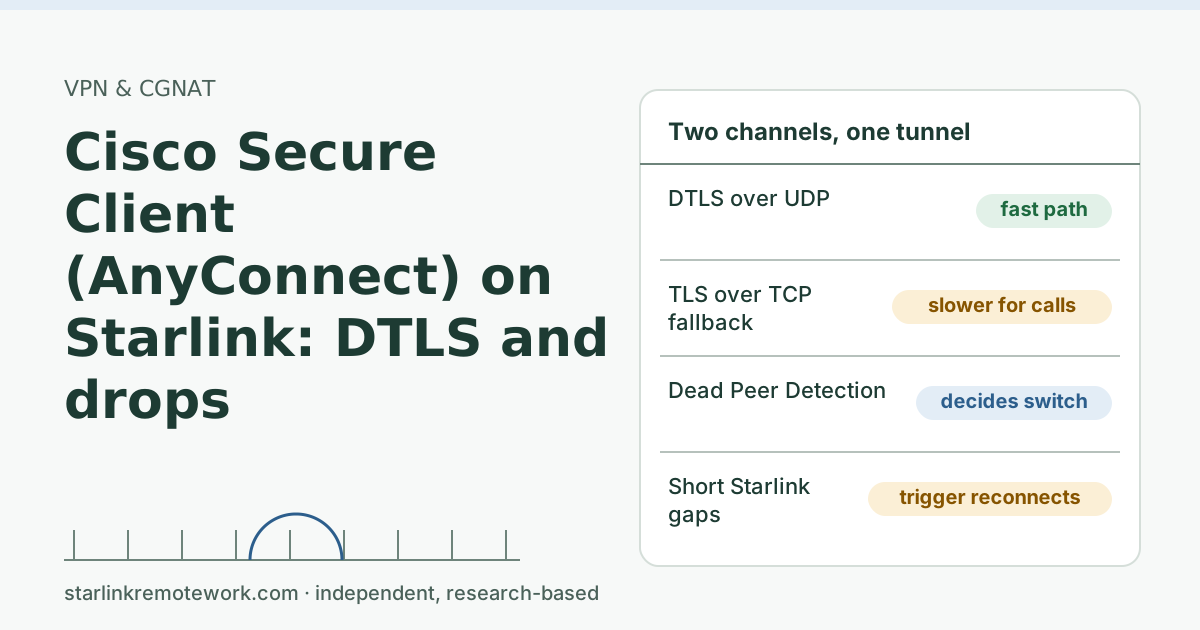
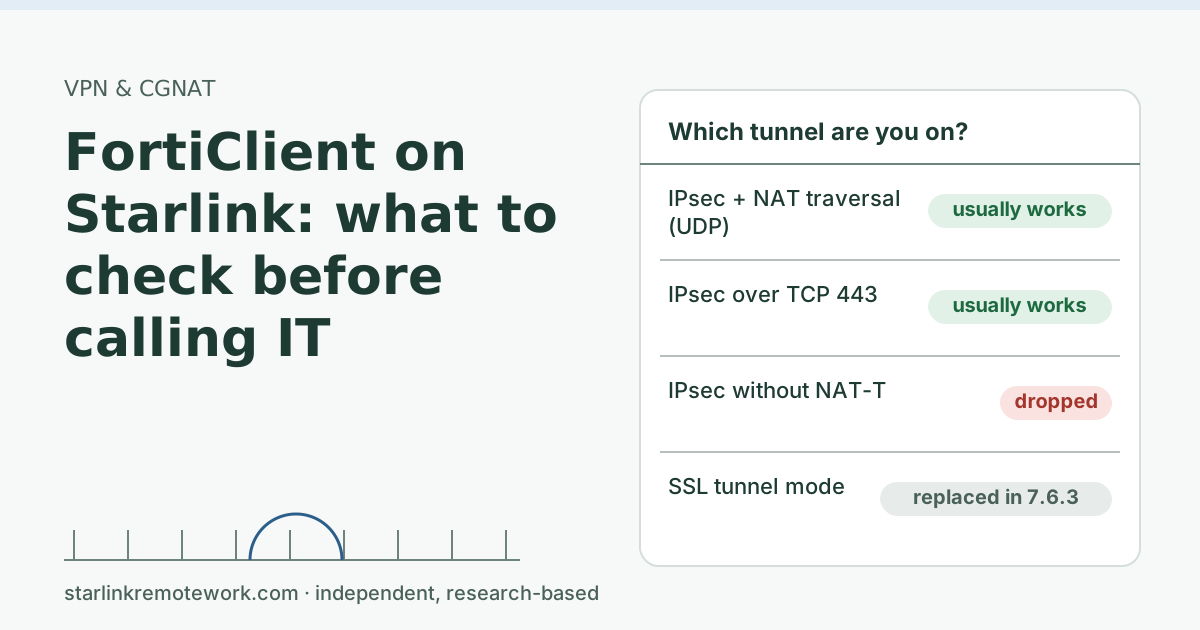
- If your company uses Cisco or Fortinet instead, see Cisco Secure Client on Starlink or FortiClient on Starlink.
Questions people ask
Does GlobalProtect work with Starlink?
Generally yes. GlobalProtect connects outward to your company’s gateway, which works behind CGNAT. Problems usually come from short outages, IPsec settings that don’t cross NAT, or timeouts set on the gateway.
Why does GlobalProtect keep disconnecting on Starlink?
The common causes are brief connection gaps that break the tunnel, an IPsec tunnel that can’t keep its path through CGNAT and falls back or drops, inactivity or login timeouts set by IT, and weak home Wi-Fi.
Should GlobalProtect use IPsec or SSL on Starlink?
IPsec (wrapped in UDP) usually performs better for calls when it works. SSL is the fallback and crosses NAT more easily but can feel slower for real-time traffic. Your IT team controls which is allowed.
Can I fix GlobalProtect settings myself?
Mostly not. The tunnel type, gateways, timeouts and split tunneling are set by your company. You can fix your own Wi-Fi, avoid other VPNs running at the same time, and send good evidence to IT.
Will a public IP from Starlink fix GlobalProtect?
It might help a VPN that can’t cross NAT, but Starlink doesn’t guarantee VPN compatibility even with a public IP, and a public IPv4 is only offered on Priority plans.
How do I send GlobalProtect logs to IT?
On GlobalProtect 6.2 or later for Windows, if your admin enabled it, open the app from the system tray, use the menu on the status panel, choose Report an Issue and allow diagnostics. Otherwise ask IT how they want logs.
Sources
- Does Starlink work with VPNs? (Starlink support), checked Oct 5, 2026
- Will enterprise site-to-site VPN or SDWAN appliances work on Starlink? (Starlink support), checked Oct 5, 2026
- How can I monitor my Starlink's performance? (Starlink support), checked Oct 5, 2026
- What is the MTU size support for Starlink? (Starlink support), checked Oct 5, 2026
- What are CGNAT session limits and how do they affect my connection? (Starlink support), checked Oct 5, 2026
- What IP address does Starlink provide? (Starlink support), checked Oct 5, 2026
- Palo Alto Networks: Configure a GlobalProtect Gateway (IPsec and SSL, timeouts, cookies), retrieved Oct 6, 2026
- Palo Alto Networks: Report an Issue from the GlobalProtect App for Windows, retrieved Oct 6, 2026
- IETF RFC 3948: UDP Encapsulation of IPsec ESP Packets (NAT-keepalive), retrieved Oct 6, 2026
Research-based: written from vendor documentation, Starlink support pages and standards, not from our own measurements. Starlink rules and prices on this page come from our dated fact file and show the day they were checked; they change, so confirm before you rely on one.Links to Starlink’s plan pages here use the site owner’s own referral link; the owner may get a referral reward and your price is the same. No affiliate links (how we make money). General information, not professional IT, legal or medical advice. Independent · not affiliated with SpaceX or Starlink. Spotted an error? Tell us.