Key takeaways
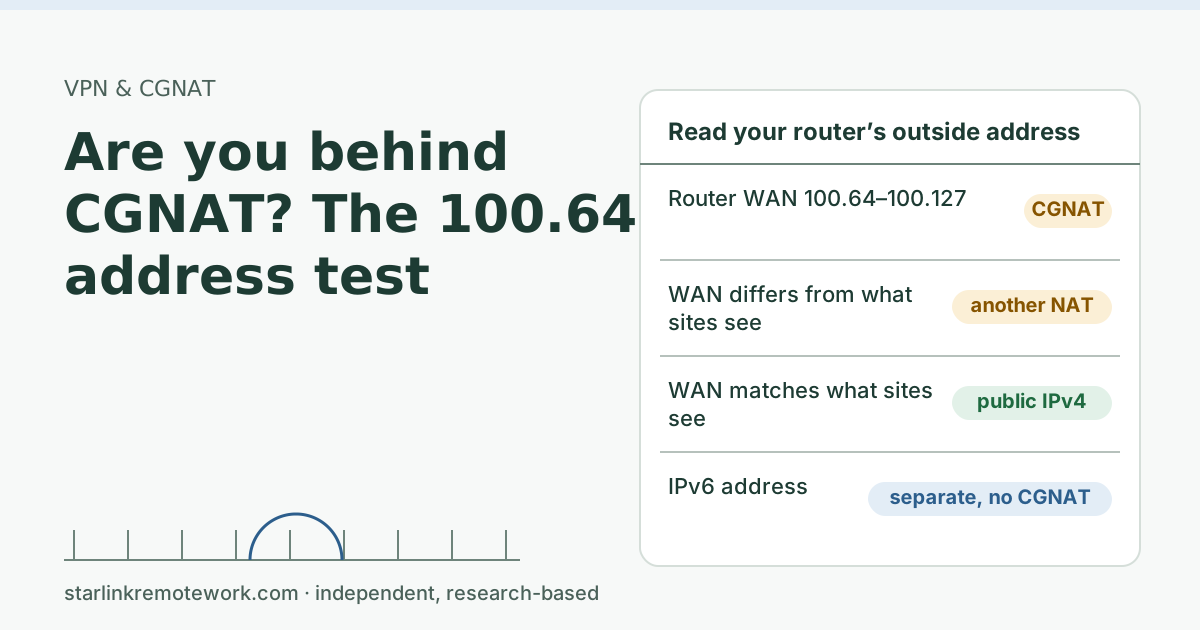
- The quick test: if your router’s outside (WAN) address is in 100.64.0.0 to 100.127.255.255, you are behind carrier-grade NAT. That block is reserved for CGNAT by the IETF.
- The confirming test: if the address websites show you differs from your router’s outside address, something upstream is translating your traffic.
- Starlink says it plainly: By default, Starlink IPv4 uses carrier-grade NAT (CGNAT) with private addresses from 100.64.0.0/10.
- Being behind CGNAT doesn’t stop outbound work like browsing, calls or most VPNs. It stops other people connecting in to you: hosting, port forwarding and some peer-to-peer features.
- IPv6 is separate. Native IPv6 is supported on all Starlink routers, kits and plans; IPv6-capable router clients get IPv6 addresses.
On this page
- What CGNAT is, in one picture
- The test: two addresses and a comparison
- Double NAT is a different thing
- Why providers use CGNAT at all
- What the answer means on Starlink
- What CGNAT changes for your work
- Edge cases
- Before you contact IT or Starlink
- Common mistakes
- What to do with the answer
- What we don’t know
- Questions people ask
- Sources
You are behind carrier-grade NAT (CGNAT) if your router’s outside address is between 100.64.0.0 and 100.127.255.255, or if that address doesn’t match what a “what is my IP” website shows you. On Starlink Residential the answer for IPv4 is yes: Starlink says the default IPv4 setup uses CGNAT with addresses from 100.64.0.0/10. That doesn’t break browsing, calls or most work VPNs. It does mean nobody on the internet can start a connection to you over IPv4, so hosting, port forwarding and some peer-to-peer features won’t work without a workaround.
What CGNAT is, in one picture
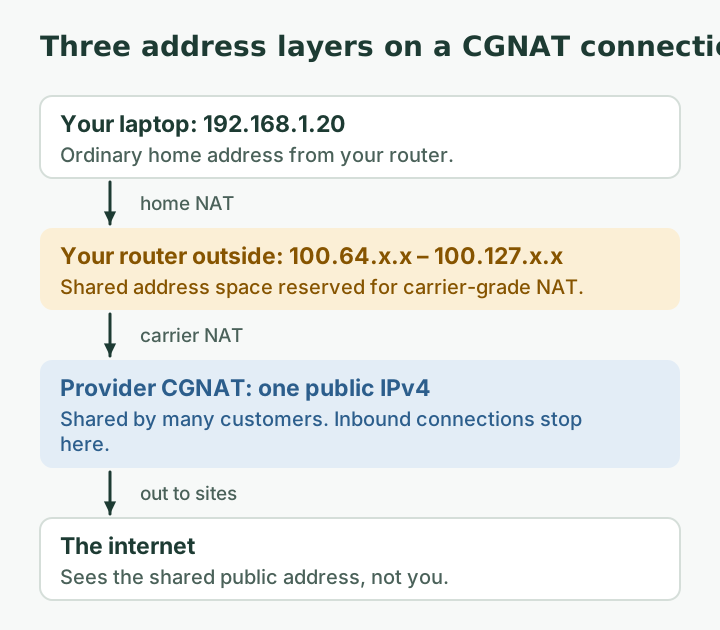
At home, your router already does one layer of address translation: your laptop has a private address like 192.168.1.20, and the router shares its outside address among all your devices. With CGNAT, your provider does a second layer: your router’s “outside” address is itself private, and the provider shares one real public address across many customers.
The IETF set aside a block of addresses just for that middle layer. RFC 6598 says: “The Shared Address Space address range is 100.64.0.0/10.” Written out, that is every address from 100.64.0.0 to 100.127.255.255. If you see one of those on your router’s outside, you are in that middle layer.
The test: two addresses and a comparison
Step 1: find your router’s outside (WAN) address
- If you use your own router (behind the Starlink one or with Starlink in bypass mode): log in to its admin page and look for “WAN,” “Internet,” or “Status.” Note the IPv4 address shown there.
- If you use only the Starlink router: it has few settings to look at, so use the trace method below.
The trace method (works with any router). On a Windows computer, open Command Prompt and run:
tracert -d 1.1.1.1On a Mac or Linux computer, open Terminal and run:
traceroute -n 1.1.1.1Look at the first few hops. Your own router appears first (often 192.168.x.x). If a hop shortly after that is between 100.64.0.0 and 100.127.255.255, there is a CGNAT layer between you and the internet. Some hops may show asterisks; that is normal.
Step 2: find what the internet sees
Search “what is my IP” in any search engine, or open a what-is-my-IP website. Note the IPv4 address it shows.
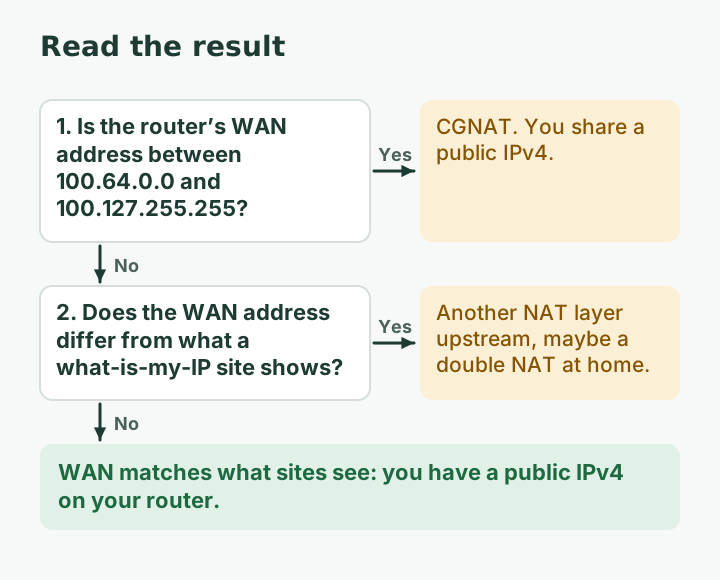
Step 3: compare
| What you found | What it means |
|---|---|
| Router WAN address is 100.64.x.x to 100.127.x.x | CGNAT. You share a public IPv4 with other customers |
| Router WAN differs from the what-is-my-IP address (and isn’t 100.64 to 100.127) | Some other upstream translation, possibly a double NAT in your own house |
| Router WAN matches the what-is-my-IP address | You have a public IPv4 on your router |
| What-is-my-IP shows an IPv6 address (with colons) | Your device prefers IPv6. Look for the IPv4 result separately |
A worked example (illustrative output)
Here is roughly what the trace looks like on a CGNAT connection. The addresses are examples, and hop times are left out:
 1  192.168.1.1        <- your router (home NAT)
 2  100.64.0.1         <- inside 100.64.0.0/10: carrier-grade NAT
 3  *  *  *            <- a hop that doesn't answer; normal
 4  203.0.113.9        <- provider network beyond the CGNAT
 5  1.1.1.1            <- destination
Hop 2 is the giveaway. On a connection with a public address on the router, hop 2 would already be a public address, and the router’s WAN page would match what websites show.
Checking from a phone
You can do step 2 (what the internet sees) on a phone browser on your Wi-Fi. Step 1 is harder on a phone, because phones rarely show traceroute. If you only have a phone, open your own router’s app or admin page if you have one; otherwise borrow a laptop for two minutes.
Double NAT is a different thing
People mix up CGNAT and double NAT. Double NAT happens inside your house: your own router sits behind the Starlink router, and both translate addresses. Your router’s WAN then shows a 192.168.x.x address handed out by the Starlink router, not a 100.64 one. It is fixable at home, for example with bypass mode. Bypass mode (Starlink app > Settings) turns off the Starlink router's Wi-Fi so a third-party router can connect; exit by factory reset. CGNAT happens at the provider and you can’t remove it on a Residential plan. On Starlink with your own router and no bypass mode, you can have both at once: three translation layers in total.
Why providers use CGNAT at all
There aren’t enough IPv4 addresses for every customer to have one. The IETF’s requirements for carrier-grade NAT (RFC 6888) are frank about the cost: CGNAT introduces “substantial limitations in communications between subscribers and with the rest of the Internet.” Providers accept that because the alternative is not connecting new customers over IPv4 at all, and they hand out IPv6, which has plenty of addresses, alongside it.
What the answer means on Starlink
On a Residential plan, expect the CGNAT result for IPv4. Starlink’s own support pages spell out the rules:
- By default, Starlink IPv4 uses carrier-grade NAT (CGNAT) with private addresses from 100.64.0.0/10.
- The default CGNAT policy blocks all inbound connections (no inbound ports).
- Residential and Roam plans use CGNAT.
- 1,200 sessions at once: CGNAT plans are capped there, with new sessions dropping the oldest.
- Starlink does not offer static IPs; addresses can change (relocation, software updates, network changes).
- A public IPv4 is optional and only available on Local Priority and Global Priority plans.
And the separate IPv6 story: Native IPv6 is supported on all Starlink routers, kits and plans; IPv6-capable router clients get IPv6 addresses. 56 prefix-length IPv6 doesn’t use CGNAT, which is why it can be a way around some limits, as long as the other end also speaks IPv6.
What CGNAT changes for your work
| Task | Behind CGNAT | Why |
|---|---|---|
| Browsing, email, cloud apps | Works | You start every connection |
| Zoom, Teams, Meet calls | Works | Apps connect out to the provider’s servers |
| Work VPN (most modern types) | Usually works | Starlink lists SSTP, OpenVPN and WireGuard as working well with CGNAT |
| Old VPN types (PPTP, L2TP, IPsec without NAT-T) | Often fails | Client VPN protocols Starlink lists as generally not working well with CGNAT: PPTP and L2TP. Also GRE and IPsec without NAT-T for site-to-site. |
| Hosting a website, game server or camera at home | Fails over IPv4 | Inbound connections are blocked |
| Port forwarding | Fails over IPv4 | The Starlink router cannot port forward; you need a third-party router plus a Public IP on your plan. |
| Some websites and games | Extra CAPTCHAs, odd location | Many people share your public address |
The IETF’s own document on address sharing (RFC 6269) lists the trade-offs: inbound connections “will not work in the general case,” shared addresses mean a site may see “many login attempts from the same address,” and geolocation points to “wherever the prefix of the CGN appears to be; very often that will be in a different city than the subscriber.” If that last one is biting you, read why CAPTCHAs show up everywhere on Starlink.
Edge cases
- Your own router shows a 192.168 WAN address. That is the Starlink router’s inside network: double NAT at home. Run the trace from a computer to see the CGNAT hop beyond it.
- You are on a Priority plan with a public IP turned on. Starlink’s steps: Public IP is opt-in: in your starlink.com account, edit 'IP Policy', select 'Public IP', save, and reboot the Starlink. Your router’s WAN should then match what websites see. It is still not static: Even with a public IP, relocating the Starlink or software updates may change the IPv4 address and IPv6 prefix.
- A what-is-my-IP site shows an IPv6 address only. Your device is using IPv6 by preference. Many sites have an IPv4-only version of the test; use that for the comparison.
- The result changes from day to day. Your shared public address can change. 5 min
Before you contact IT or Starlink
Write down your router’s WAN address, the what-is-my-IP address, the date, and the trace output. Those four items answer most of the first-line questions. If the issue is a VPN, add the VPN client name and version. Starlink notes it can’t troubleshoot VPNs for you: Starlink says it cannot troubleshoot VPN connection issues and the Starlink app may not work properly with a VPN on. Your IT team is usually the right first stop for work tools.
Common mistakes
- Reading the laptop’s own address. 192.168.x.x on your laptop is normal on every home network; it says nothing about CGNAT.
- Comparing an IPv6 result with an IPv4 router address. They will never match. Compare IPv4 with IPv4.
- Assuming CGNAT is why everything is slow. CGNAT is about who can connect to whom, not speed. Slowness and freezes have other causes; see why Zoom freezes, then catches up.
- Setting up port forwarding anyway. It can’t pass the provider’s layer. Use a tunnel instead.
- Putting a device in the router’s DMZ. Same problem, and it lowers your home router’s protection.
What to do with the answer
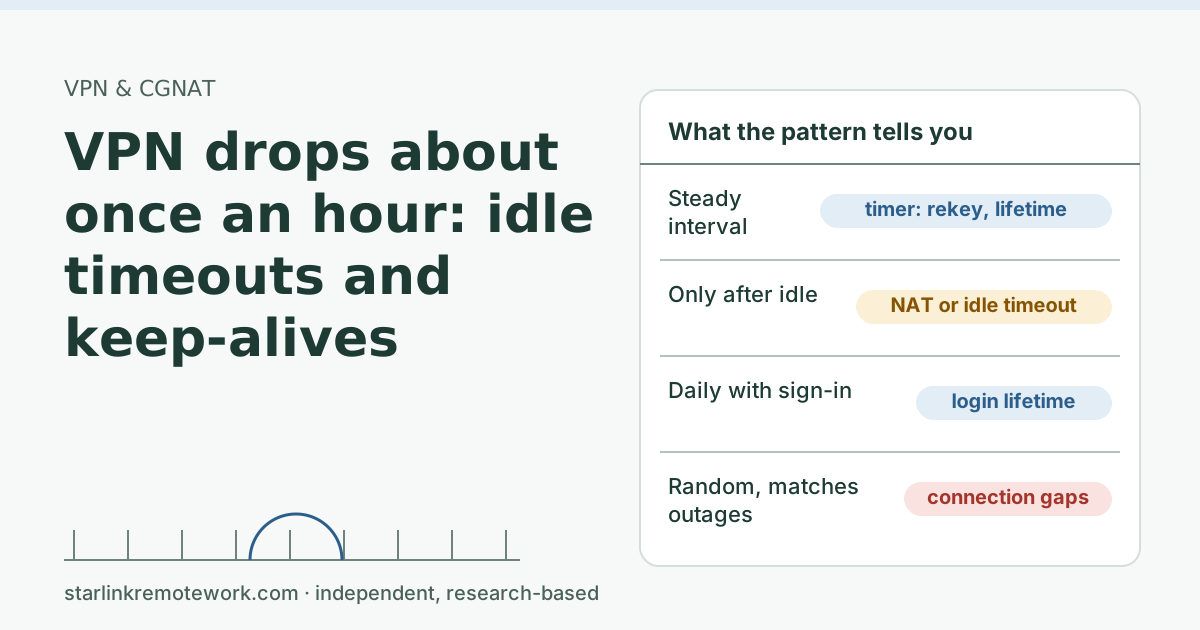
- You only browse, call and use a modern work VPN: nothing to do. If the VPN misbehaves, see our VPN guide and VPN drops about once an hour.
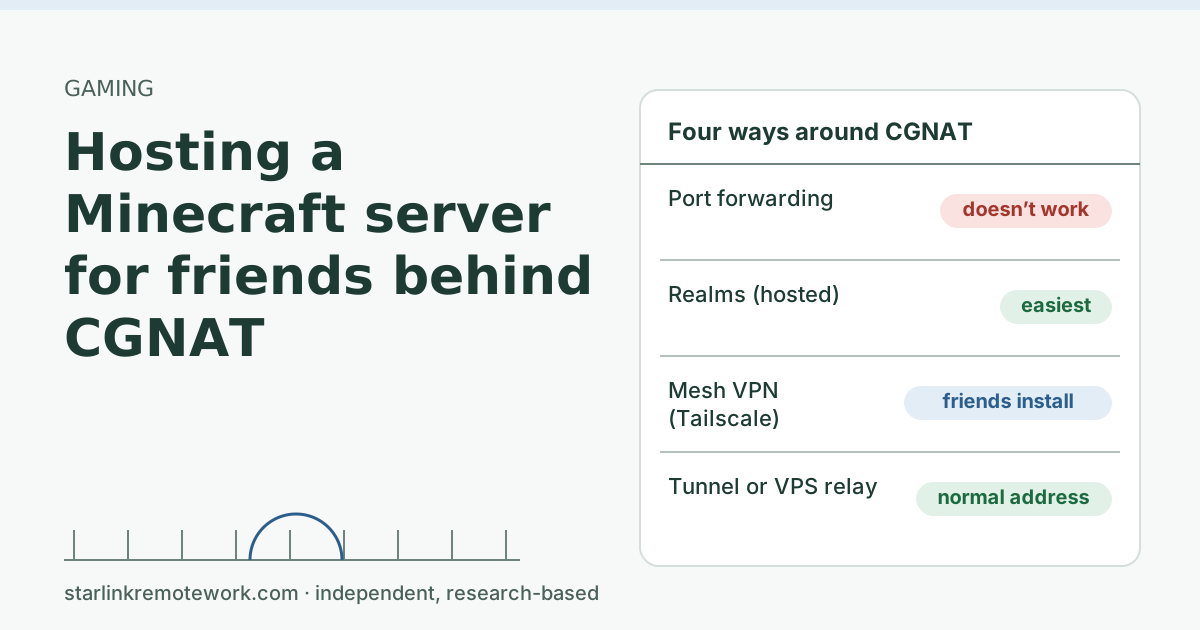
- You need to reach something at home from outside: use an outbound tunnel or mesh VPN, or IPv6 if both ends support it. Our CGNAT and public IP guide compares the options; for a game server, see hosting a Minecraft server behind CGNAT.
- Your employer requires a public or fixed address: talk to IT before relying on Starlink. A public IPv4 exists only on Priority plans, and it is not static.
What we don’t know
Starlink doesn’t publish how many customers share each public IPv4 address, or its CGNAT mapping timeouts. Traceroute output can also vary: some networks hide hops, so a missing 100.64 hop is not proof you have a public address. When in doubt, the comparison in step 3 is the reliable test. The Work-Day Reliability Report records which plan and IP setup the logged connection uses, so its numbers can be read in that context once published.
Questions people ask
How do I know if I’m behind CGNAT?
Look at your router’s outside (WAN) address. If it is between 100.64.0.0 and 100.127.255.255, or if it differs from the address a what-is-my-IP website shows, you are behind carrier-grade NAT.
Does Starlink use CGNAT?
Yes, for IPv4 on Residential and Roam plans. Starlink says the default IPv4 configuration uses CGNAT with private addresses from 100.64.0.0/10, and that the default CGNAT policy blocks all inbound connections.
What does a 100.64 IP address mean?
It is from 100.64.0.0/10, a block the IETF reserved as shared address space for carrier-grade NAT. Your router got it from your provider, which translates it to a public address shared with other customers.
Can I get out of CGNAT on Starlink?
Starlink offers an opt-in public IPv4 only on Local Priority and Global Priority plans. It doesn’t offer static IPs. Many people avoid needing one by using IPv6 or an outbound tunnel.
Is CGNAT bad for working from home?
For most remote work, no. Browsing, calls and outbound VPNs work. It is a problem if you need to host something, accept inbound connections, or rely on a VPN type that can’t cross NAT.
Is a 192.168 address CGNAT?
No. 192.168.x.x, 10.x.x.x and 172.16 to 172.31 are ordinary private ranges used inside homes and offices. CGNAT is about the address your router gets from the provider on its outside.
Sources
- What is bypass mode? (Starlink support), checked Oct 5, 2026
- What IP address does Starlink provide? (Starlink support), checked Oct 5, 2026
- IP Address (Starlink support), checked Oct 5, 2026
- What are CGNAT session limits and how do they affect my connection? (Starlink support), checked Oct 5, 2026
- Does Starlink work with VPNs? (Starlink support), checked Oct 5, 2026
- Can I port forward with the Starlink router? (Starlink support), checked Oct 5, 2026
- How do I set my IP address to a public IP? (Starlink support), checked Oct 5, 2026
- DHCP Configuration (Starlink support), checked Oct 5, 2026
- IETF RFC 6598: IANA-Reserved IPv4 Prefix for Shared Address Space (100.64.0.0/10), retrieved Oct 6, 2026
- IETF RFC 6888: Common Requirements for Carrier-Grade NATs, retrieved Oct 6, 2026
- IETF RFC 6269: Issues with IP Address Sharing, retrieved Oct 6, 2026
Research-based: written from vendor documentation, Starlink support pages and standards, not from our own measurements. Starlink rules and prices on this page come from our dated fact file and show the day they were checked; they change, so confirm before you rely on one.Links to Starlink’s plan pages here use the site owner’s own referral link; the owner may get a referral reward and your price is the same. No affiliate links (how we make money). General information, not professional IT, legal or medical advice. Independent · not affiliated with SpaceX or Starlink. Spotted an error? Tell us.