Key takeaways
- On Starlink Residential, friends can’t connect in to a server at your house over IPv4. The default CGNAT policy blocks all inbound connections (no inbound ports). Port forwarding won’t fix it.
- Easiest: Realms, the subscription server service hosted by Mojang. Nothing runs at your house, but Java Realms can’t run mods or plugins.
- Small private group: a mesh VPN such as Tailscale. No ports to open, but every friend installs the app.
- Friends join with a normal address: a tunnel service such as playit.gg, or your own small VPS relay. These work without port forwarding.
- Running the server at home on Starlink also uses your upload. Keep it off during work calls.
On this page
- Why port forwarding doesn’t work here
- The four options compared
- If the server runs at your house: mind the upload
- Security basics for a home-hosted server
- How this compares with a public IP
- A worked example: three friends, Java, a few mods
- Edge cases
- Common mistakes
- What we don’t know
- What to do next
- Questions people ask
- Sources
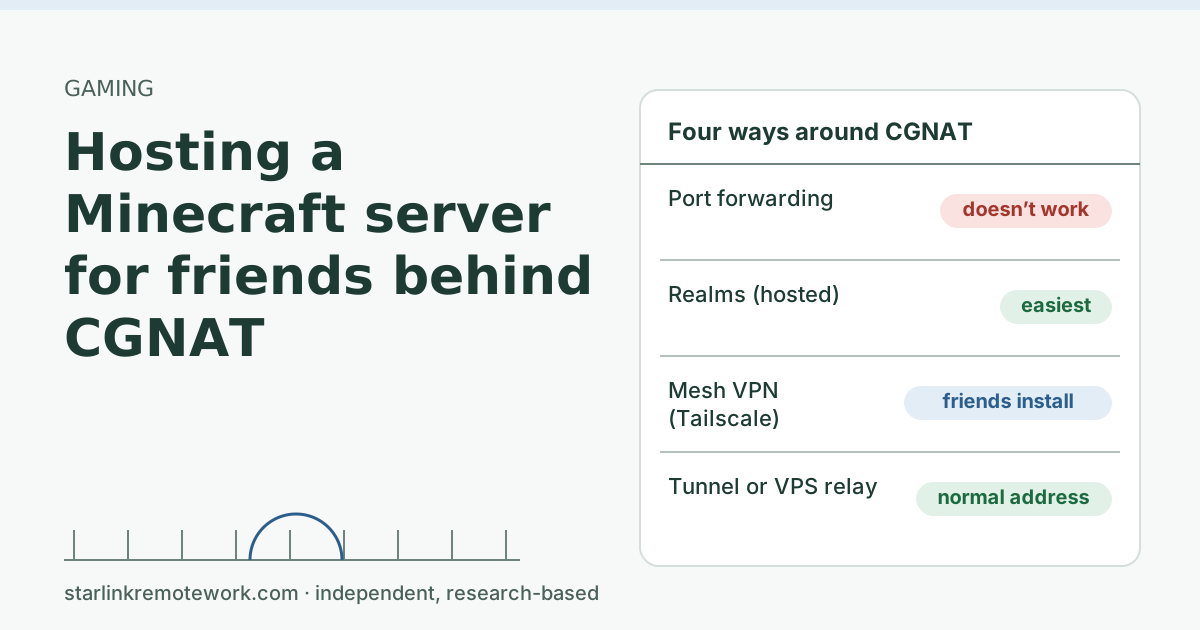
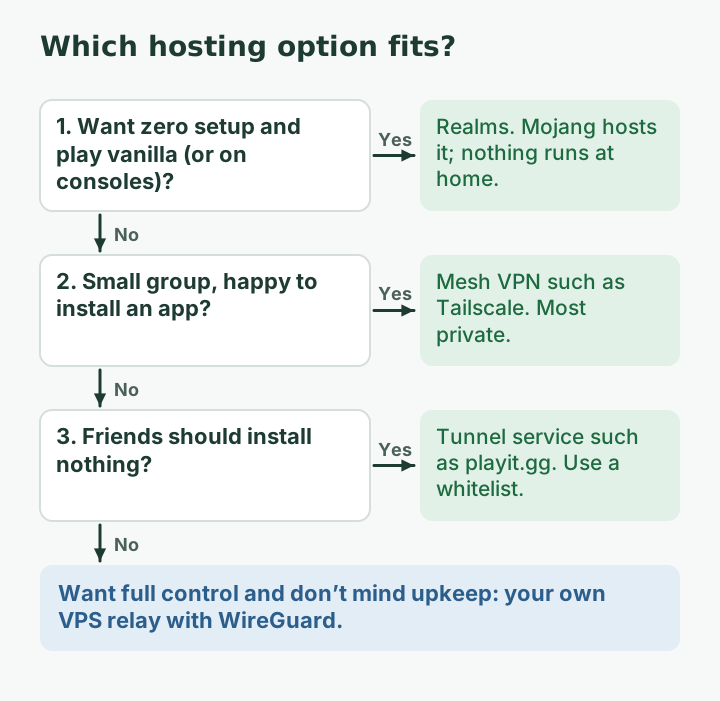
You can host a Minecraft server for friends on Starlink, but not by port forwarding: Starlink Residential’s carrier-grade NAT blocks all inbound connections, so friends’ connections never reach your house. The fix is to make the connection go outward instead. Four ways work: Realms (Mojang hosts it, nothing at your house), a mesh VPN like Tailscale (friends install an app), a tunnel service like playit.gg (friends get a normal address to join), or your own small VPS relay. Which is best depends on how many friends, whether you use mods, and how much fiddling you enjoy.
Why port forwarding doesn’t work here
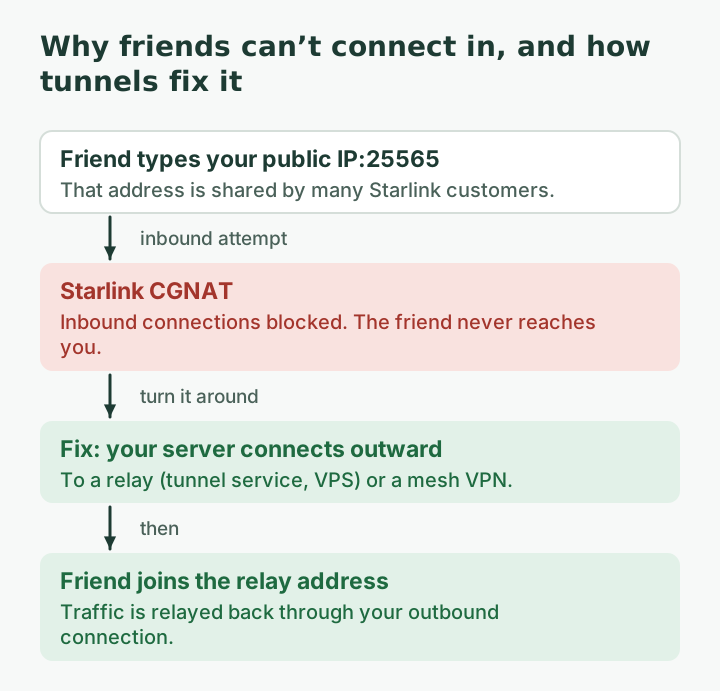
A normal home server works like this: friends type your public address and port (Java’s default is 25565), your router forwards that port to the computer running the server, and they’re in. On Starlink Residential, every step of that breaks:
- By default, Starlink IPv4 uses carrier-grade NAT (CGNAT) with private addresses from 100.64.0.0/10.
- The default CGNAT policy blocks all inbound connections (no inbound ports).
- The Starlink router cannot port forward; you need a third-party router plus a Public IP on your plan.
- A public IPv4 is optional and only available on Local Priority and Global Priority plans.
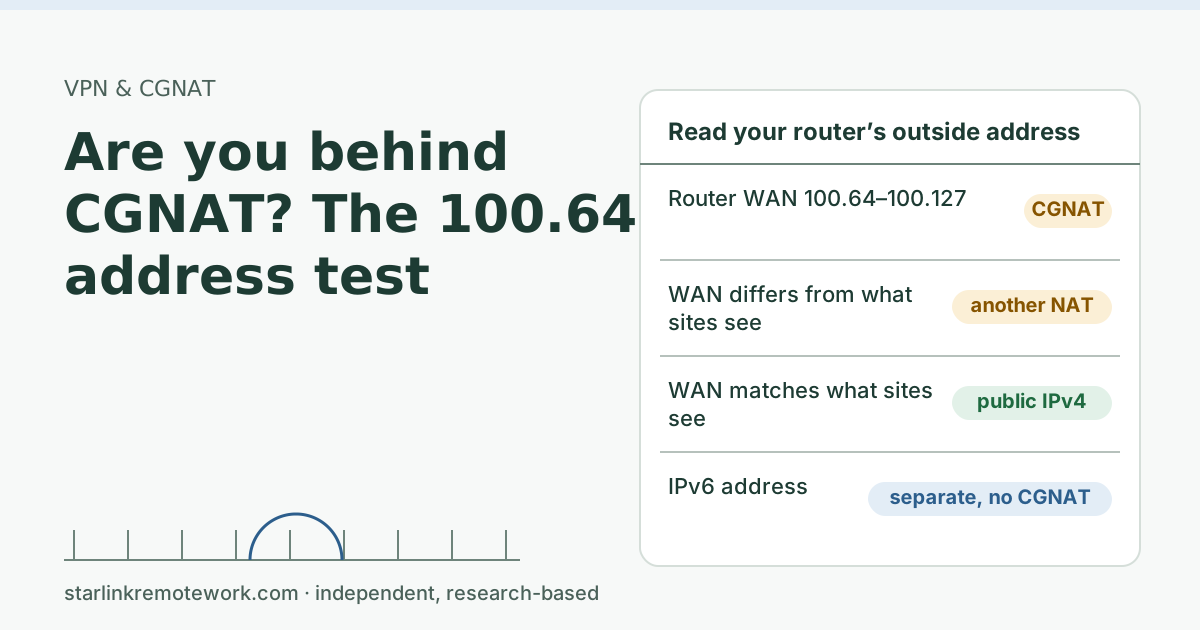
So the “public address” a what-is-my-IP site shows you belongs to many Starlink customers at once, and Starlink won’t pass an unsolicited connection from a friend through to you. The IETF summed up this kind of address sharing years ago: “inbound connections to well-known port numbers will not work in the general case.” If you want to confirm you’re behind CGNAT, the 100.64 address test takes two minutes.
The four options compared
| Option | Runs at your house? | Friends need to install | Mods and plugins | Effort |
|---|---|---|---|---|
| Realms (Mojang) | No | Nothing extra | Not on Java Realms | Lowest |
| Mesh VPN (Tailscale) | Yes | Tailscale, and accept your invite | Yes | Low to medium |
| Tunnel service (playit.gg) | Yes | Nothing extra | Yes | Low to medium |
| Your own VPS relay | Yes (relay elsewhere) | Nothing extra | Yes | High |
Option 1: Realms
Realms is the subscription server service “hosted by Mojang Studios.” Only the owner pays; “other players can be invited to a Realm for free.” According to the Minecraft Wiki, Bedrock Realms Core supports 2 additional players and Realms Plus 10, Java Realms 10, and “mods and plugins cannot be installed” on Java Realms. Java and Bedrock Realms are separate.
Choose it if: you want the least fuss, play vanilla, and have a small group. Nothing at your house needs to stay on, and your Starlink upload isn’t involved.
Option 2: A mesh VPN such as Tailscale
A mesh VPN puts your server and your friends’ devices on one private network that connects outward from each side, so no ports are opened to the internet. Tailscale’s own guide uses a Bedrock server on Linux: install Tailscale on the server, then players add the server using its Tailscale address (a 100.x.y.z address). Tailscale notes that without it, reaching a home server means “paying for third-party hosting, or opening ports in the firewall.” The guide also notes Bedrock players need Xbox Live accounts.
Choose it if: your group is small and willing to install an app. It is the most private option: only invited people can even see the server.
Option 3: A tunnel service such as playit.gg
A tunnel service runs a small program next to your server that connects outward to the service’s network. Friends join an address the service gives you, and the traffic is relayed to your server. playit.gg describes itself as “a global proxy that lets you host a server without port forwarding” and lists Minecraft Java and Bedrock on its free tier, with a paid premium tier too.
Choose it if: friends should join with a normal address and install nothing. Be aware you are trusting the service with your server’s traffic, and the public address means strangers can find it too, so use a whitelist.
Option 4: Your own VPS relay
Rent a small cloud server with a public IPv4, connect your home server to it with a VPN tunnel (WireGuard is common), and forward the Minecraft port on the VPS through the tunnel. Friends join the VPS’s address. It is the most flexible, and the most work: you maintain the VPS, its security updates and its firewall. Our CGNAT and public IP guide covers the general pattern.
Choose it if: you like running servers and want full control, or you want to host several services this way.
If the server runs at your house: mind the upload
A home-hosted server sends the world to every connected player, using your upload. On Starlink that upload is shared with everything else in the house, including work calls. Starlink’s US Residential spec for upload: Residential 100 Mbps: download capped at 100 Mbps (spec 80-100 Mbps), upload 15-35 Mbps. A few friends on a small vanilla world is light; a crowded modded world with players flying around new terrain is not. If someone works from home, pause the server during work hours, or use Realms so the load is elsewhere. Our uploads guide explains why a busy upload makes calls freeze.
Also keep the server computer patched, and turn on a whitelist so only invited players can join. The Minecraft Wiki notes that online-mode (account verification) defaults to on; leave it on.
Security basics for a home-hosted server
Any server you run at home is a computer that strangers may try to reach, especially once a tunnel gives it a public address. A short checklist:
- Run the server on a spare computer or a separate user account, not the laptop you use for work or banking.
- Keep the whitelist on (Java calls it white-list, Bedrock calls it allow-list) and add friends by name.
- Leave online-mode on, so only verified accounts can join.
- Download server software and mods only from their own project pages, and keep them updated.
- Back up the world folder before updates and mod changes. A backup saved to a cloud drive overnight also keeps the upload off work hours.
- Turn the server off when nobody is playing. It saves power and upload, and it closes the door.
How this compares with a public IP
If you had a public IPv4 address, you could forward the port on your own router and skip the relay. On Starlink that means a Priority plan, and even then Even with a public IP, relocating the Starlink or software updates may change the IPv4 address and IPv6 prefix. so friends would need a dynamic DNS name to keep finding you. For a game with a few friends, any of the four options above is simpler and cheaper.
A worked example: three friends, Java, a few mods
You want to play a lightly modded Java world with three friends on weeknights. Realms is out (no mods on Java Realms). Your friends are comfortable installing things, and you want privacy. A mesh VPN fits: run the server on a spare PC, install Tailscale there and on each friend’s computer, invite them, and they join with the server’s Tailscale address. Nothing is exposed to the internet. Check Tailscale’s current plan terms for your group size before you start. If one friend refuses to install anything, switch to a tunnel service with a whitelist instead.
Edge cases
- Bedrock on consoles. Consoles can’t install Tailscale or tunnel clients, and joining custom servers on consoles is restricted. Realms is usually the practical choice for console players.
- IPv6. Native IPv6 is supported on all Starlink routers, kits and plans; IPv6-capable router clients get IPv6 addresses. Bedrock servers can listen on IPv6 (default port 19133), but whether friends can reach you over IPv6 depends on their connection and on any firewall in the path. We haven’t verified that inbound IPv6 works reliably through the Starlink router, so we don’t recommend relying on it.
- Session limits. Starlink says hitting the session limit can drop VoIP calls, freeze video meetings and cause gaming/VPN issues. A small server won’t get near that, but a house full of devices plus a busy server might.
Common mistakes
- Forwarding 25565 on your router. It does nothing behind CGNAT.
- Putting the server PC in the DMZ. Same problem, and it exposes the PC on your home network.
- Publishing a tunnel address without a whitelist. Public addresses get scanned.
- Running a busy server during work calls. Upload is the bottleneck on a home connection.
What we don’t know
We haven’t run these services on a Starlink line, and their free tiers, limits and prices change; check each one’s current terms. Player counts and Realms details come from the Minecraft Wiki rather than Mojang’s own page, which didn’t load for us. The Work-Day Reliability Report measures work-hour latency and upload on one connection once it has data, not game hosting.
What to do next
- Pick an option with the ladder above.
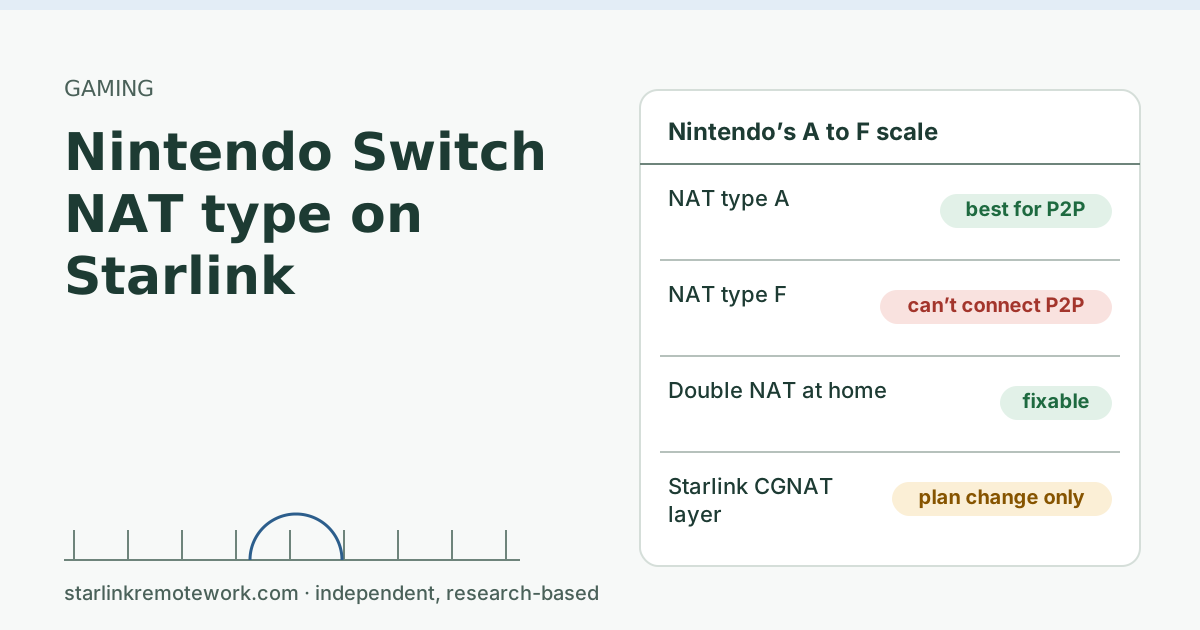
- If console NAT types are your problem too, see Nintendo Switch NAT type on Starlink and the console NAT guide.
- For the honest overall gaming verdict, read is Starlink good for gaming.
Questions people ask
Can I host a Minecraft server on Starlink?
Yes, but not with port forwarding on a Residential plan, because Starlink’s CGNAT blocks inbound connections. Use Realms, a mesh VPN like Tailscale, a tunnel service like playit.gg, or a VPS relay.
Why can’t my friends join my Minecraft server on Starlink?
Your IPv4 address is shared through carrier-grade NAT, and Starlink says the default CGNAT policy blocks all inbound connections. Your friends’ connection attempts never reach your house.
Does port forwarding work on Starlink for Minecraft?
Not on Residential. Starlink says its router can’t port forward and that you need a third-party router plus a public IP, which is only offered on Priority plans.
What port does a Minecraft server use?
Java Edition servers listen on TCP port 25565 by default. Bedrock Edition servers use 19132 for IPv4 and 19133 for IPv6 by default.
Is playit.gg free for Minecraft?
playit.gg lists both Minecraft Java and Bedrock among games supported on its free tier, and says it lets you host without port forwarding. It also offers a paid premium tier.
Do my friends need Tailscale to join my Minecraft server?
Yes. With Tailscale, each player joins your private network, so every friend installs Tailscale and is invited. In return you open no ports to the internet.
Sources
- What IP address does Starlink provide? (Starlink support), checked Oct 5, 2026
- IP Address (Starlink support), checked Oct 5, 2026
- Can I port forward with the Starlink router? (Starlink support), checked Oct 5, 2026
- Starlink Specifications (US, published 2026-03-11), checked Oct 5, 2026
- What are CGNAT session limits and how do they affect my connection? (Starlink support), checked Oct 5, 2026
- Minecraft Wiki: server.properties (default ports, online-mode), retrieved Oct 6, 2026
- Minecraft Wiki: Realms, retrieved Oct 6, 2026
- Tailscale: Run a Minecraft server with Tailscale, retrieved Oct 6, 2026
- playit.gg: host a game server without port forwarding, retrieved Oct 6, 2026
Research-based: written from vendor documentation, Starlink support pages and standards, not from our own measurements. Starlink rules and prices on this page come from our dated fact file and show the day they were checked; they change, so confirm before you rely on one.Links to Starlink’s plan pages here use the site owner’s own referral link; the owner may get a referral reward and your price is the same. No affiliate links (how we make money). General information, not professional IT, legal or medical advice. Independent · not affiliated with SpaceX or Starlink. Spotted an error? Tell us.