Key takeaways
- Latency is the time a packet takes to travel. Jitter is how much that time varies from one packet to the next.
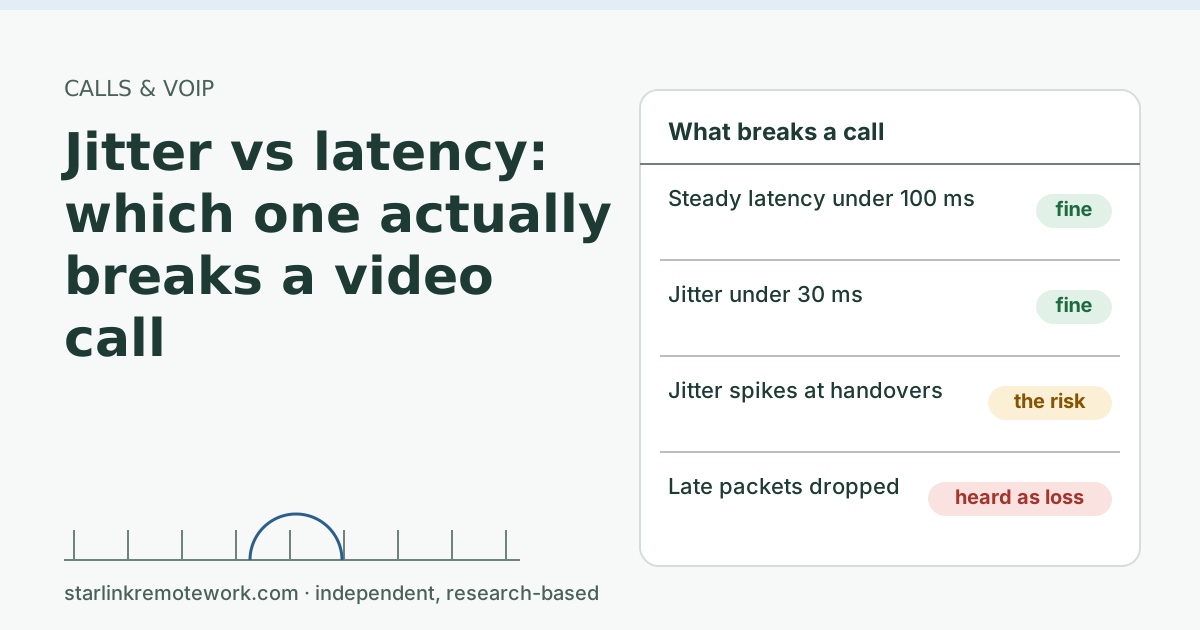
- Calls cope with steady latency. The ITU’s planning guide says one-way delay below 150 ms feels essentially transparent for most uses, and Starlink’s reported US median is 25.7 ms.
- Jitter forces the app to hold packets in a buffer. A bigger buffer smooths audio but adds delay; a packet that arrives after the buffer gives up counts as lost.
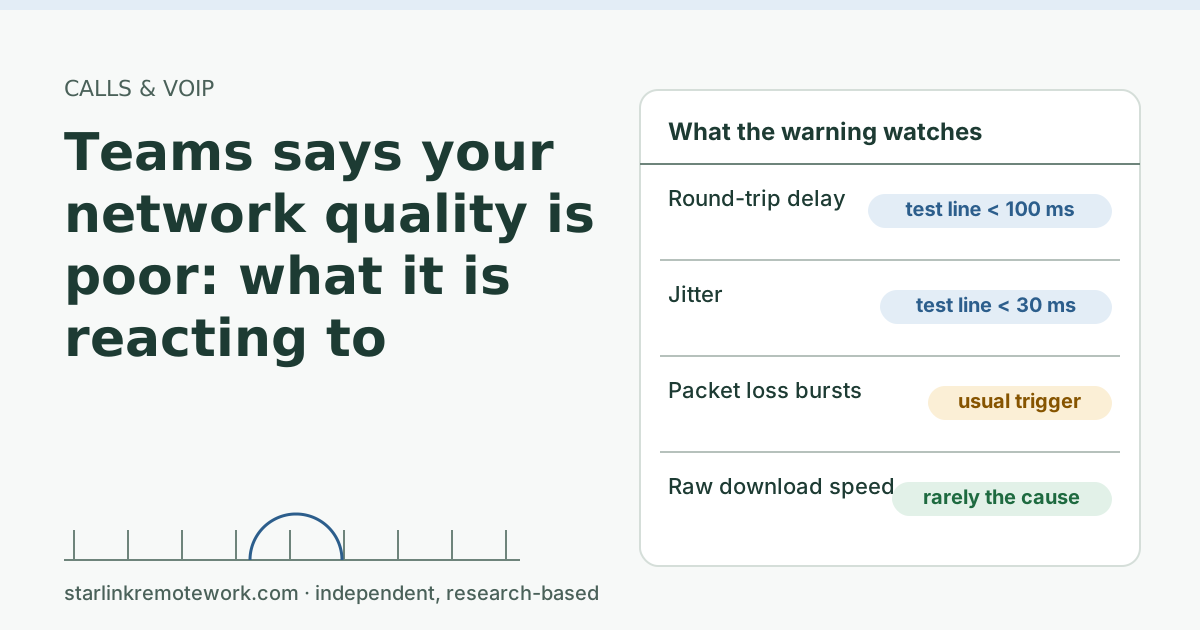
- Microsoft’s test passes Teams with latency under 100 ms and jitter under 30 ms. On Starlink the risk is short jitter spikes at satellite handovers, not the average.
- Most jitter you can fix sits at home: Wi-Fi, a full upload, or a VPN. The handover part you can’t change, only plan around.
On this page
- The two numbers in plain words
- Why calls tolerate steady delay
- Why jitter is harder
- What jitter looks like on Starlink
- Where your jitter is coming from
- How to check your own numbers
- A worked example: reading jitter from a ping log
- Edge cases
- Common mistakes
- What we don’t know
- What to do next
- Questions people ask
- Sources
Jitter breaks video calls far more often than latency does. Latency is how long a packet takes to cross the network; jitter is how much that time changes from one packet to the next. A call app copes well with a steady delay: conversation feels a touch slower, and that is all. Jitter is harder, because the app must either wait for late packets, which adds delay, or give up on them, which sounds like loss. On Starlink, average latency is comfortably inside the call apps’ limits. The weak spot is short jitter spikes, mostly at satellite handovers, on top of whatever your home Wi-Fi and uploads add.
The two numbers in plain words
Latency is travel time. Apps and tools usually show the round trip: out to a server and back, in milliseconds. Our glossary has the short version.
Jitter is the wobble in that travel time. If one audio packet takes 30 ms, the next 32 ms and the next 31 ms, jitter is tiny. If they take 30, 75 and 35 ms, jitter is large even though the average looks fine. The standard for real-time media, RTP (RFC 3550), defines interarrival jitter as “the mean deviation (smoothed absolute value) of the difference D in packet spacing at the receiver compared to the sender.” In short: how far packets drift from the even spacing they were sent with. See the jitter glossary entry for more.
| Latency | Jitter | |
|---|---|---|
| What it measures | Travel time of each packet | How much travel time varies |
| What it feels like when high | Slow back-and-forth, people talk over each other | Choppy or robotic audio, video stutters |
| How apps cope | Nothing to cope with if steady | Hold packets in a jitter buffer, or drop late ones |
| Microsoft’s Teams test pass line | Under 100 ms | Under 30 ms |
| Main home causes | Distance to the server, a far VPN gateway | Wi-Fi, full upload, VPN, other traffic |
Why calls tolerate steady delay
Human conversation has some slack in it. The ITU’s planning guide for voice networks, G.114, says that if one-way delay can be kept below 150 ms, “most applications, both speech and non-speech, will experience essentially transparent interactivity.” It also sets 400 ms as a limit not to exceed for general network planning.
Compare that with Starlink’s own report of a US median peak-hour latency of 25.7 ms (round trip, June 2025), or Ookla’s US median of 39 ms in Q1 2026. Even after adding the call server’s distance and the app’s own processing, a steady Starlink path leaves plenty of room. Latency on its own is rarely why a call on Starlink goes wrong.
Why jitter is harder
Audio is sent as a steady drumbeat of packets. To play it back smoothly, the receiving app needs packets to arrive on the same beat. When they don’t, it has a jitter buffer: a short waiting area that holds a few packets so it can release them evenly.
The buffer creates a trade-off with no free option:
- Small buffer: low delay, but any packet that arrives later than the buffer allows is treated as lost. You hear a clip or a robotic patch.
- Large buffer: smooth playback, but everything is delayed by the buffer’s length. Conversation gets that “walkie-talkie” feel and people start talking over each other.
Modern call apps adjust the buffer as conditions change. That works when jitter changes slowly. It struggles with sudden spikes, because the buffer is sized for the last few seconds, not for the spike that just arrived.
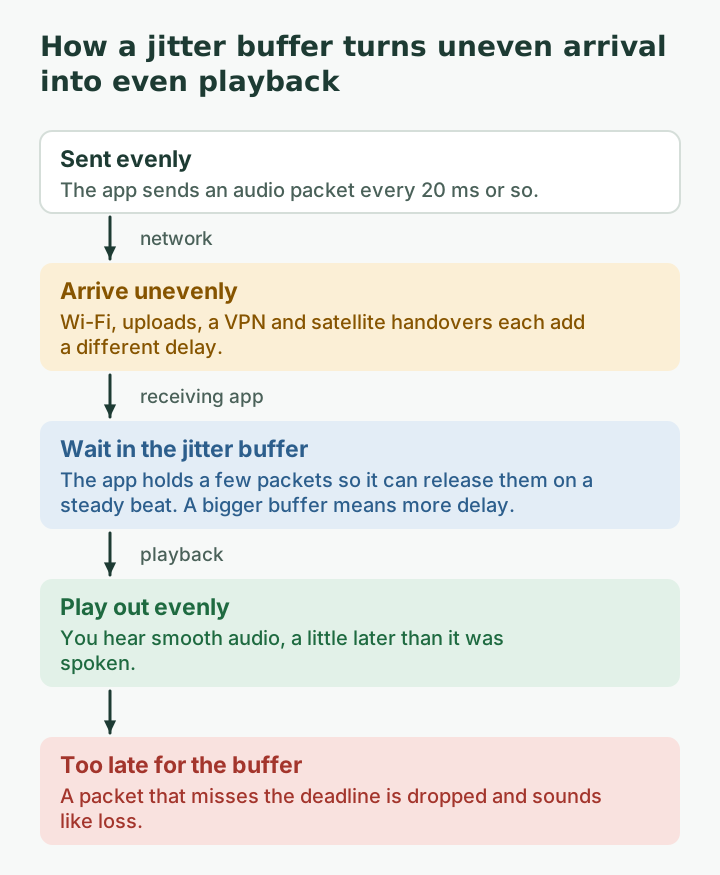
This is why loss and jitter often show up together in call statistics. A packet that arrives too late to play is, from your ear’s point of view, the same as a packet that never arrived. Our post on whether 1% packet loss is bad for calls explains how the app hides some of those gaps.
What jitter looks like on Starlink
APNIC’s Geoff Huston published a detailed look at Starlink’s behavior in 2024. Three findings matter for calls:
- A regular cycle. “The minimum latency changes regularly every 15 seconds,” which he links to the dish being assigned to a different satellite.
- Spikes at the switch. He saw “a major increase in latency at the point when the user is assigned to a different spacecraft,” with the worst case in his data “a shift from 30ms to 80ms.”
- Moderate jitter in between. Within each tracking interval, the average variation between successive round trips was 6.7 ms.
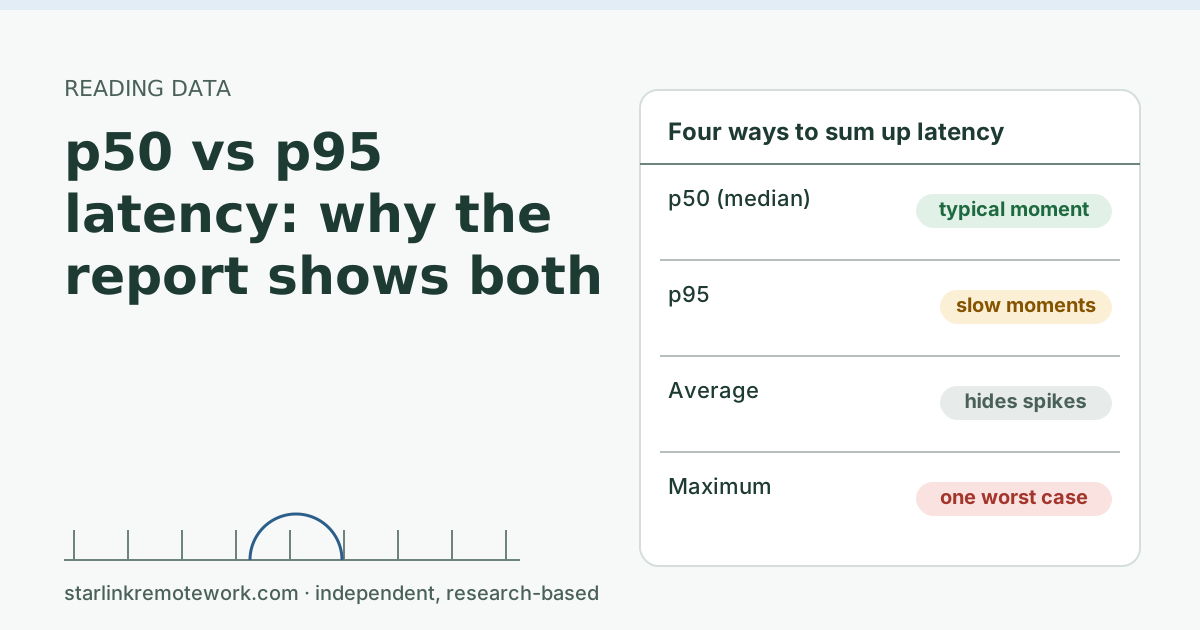
Read together: most of the time, Starlink jitter is small and well inside Microsoft’s 30 ms pass line. Every so often, a handover produces a jump of tens of milliseconds, sometimes with a lost packet or two. An adaptive jitter buffer handles many of those jumps. The ones it doesn’t handle are the brief stutters people describe. If you want to see how a typical figure can hide those bad moments, read p50 vs p95 latency.
Huston’s data isn’t from a US connection, and conditions change as the network grows. Treat the shape as the lesson, not the exact numbers.
Where your jitter is coming from
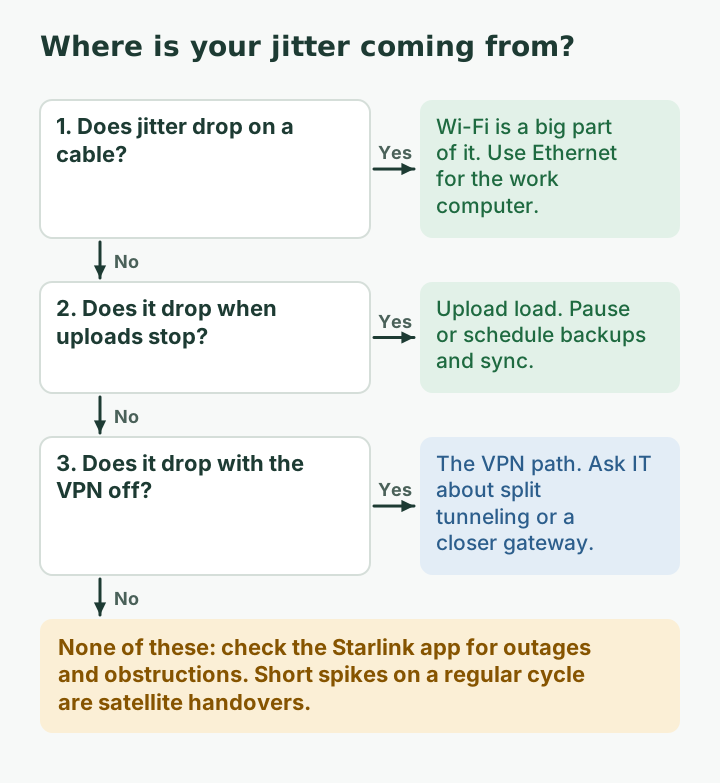
Not all jitter is the satellite’s. In many homes, most of it is added before the traffic reaches the dish.
| Source | Typical sign | Can you fix it? |
|---|---|---|
| Wi-Fi (distance, walls, interference) | Jitter falls sharply on a cable | Yes: Ethernet for the work computer |
| A full upload (cloud backup, photo sync, a big file) | Jitter and latency climb while something uploads | Yes: pause or schedule uploads; see the uploads guide |
| Work VPN | Worse with the VPN on, better with it off | Often: ask IT about split tunneling for calls |
| Other people streaming or gaming | Worse in the evening or after school | Partly: schedule, or keep heavy use off call hours |
| Satellite handovers | Short spikes on a regular cycle, everything else ruled out | No; plan around it |
How to check your own numbers
- During a call: Zoom’s statistics panel and Teams’ call health show latency, jitter and loss for the current call. Note the time if they jump.
- Outside a call: run a ping for five minutes (
ping -n 300 1.1.1.1on Windows,ping -c 300 1.1.1.1on a Mac). Jitter isn’t printed directly, but you can see it: look at how much the times jump between lines. Big swings from line to line are jitter. - Compare: repeat on a cable, then with the VPN off, then with uploads paused. Change one thing at a time.
- Match outages: compare the times of big jumps with the Starlink app’s statistics page. If it lists an outage at that moment, the dish side was involved.
A worked example: reading jitter from a ping log
Here is the kind of thing to look for. The times are illustrative, not a measurement from any one line:
reply time=31 ms
reply time=33 ms
reply time=30 ms
reply time=78 ms   <- jump of about 48 ms
reply time=36 ms
reply time=32 ms
Request timed out  <- a lost reply next to the jump
reply time=34 ms
The average of the replies is about 39 ms, comfortably under Microsoft’s latency line. A tool that only reports the average would call this line healthy. But the jump from 30 to 78 ms and back, with a lost reply nearby, is exactly the kind of moment a jitter buffer may not absorb. On a call, it could be a clipped word.
Now picture the same log where every line sits between 30 and 36 ms. The average is lower, but the bigger difference is that nothing jumps. That line would carry calls cleanly even if its average were 60 ms, because steady delay is easy for the app to plan around.
Two habits make your own logs more useful. Count the jumps of more than about 30 ms in five minutes. That isn’t the same calculation as an app’s jitter figure, but it is a simple, conservative way to spot the moments a call is most likely to struggle with. And note whether jumps repeat on a rhythm. A jump roughly every 15 seconds, with a cable in use and nothing uploading, fits the handover pattern Huston described. Jumps that cluster when someone starts a backup or a game download point to the home side instead.
Edge cases
- High latency but steady. A far VPN gateway can add a lot of latency without much jitter. Calls feel slow but sound clean. Ask IT whether a closer gateway exists.
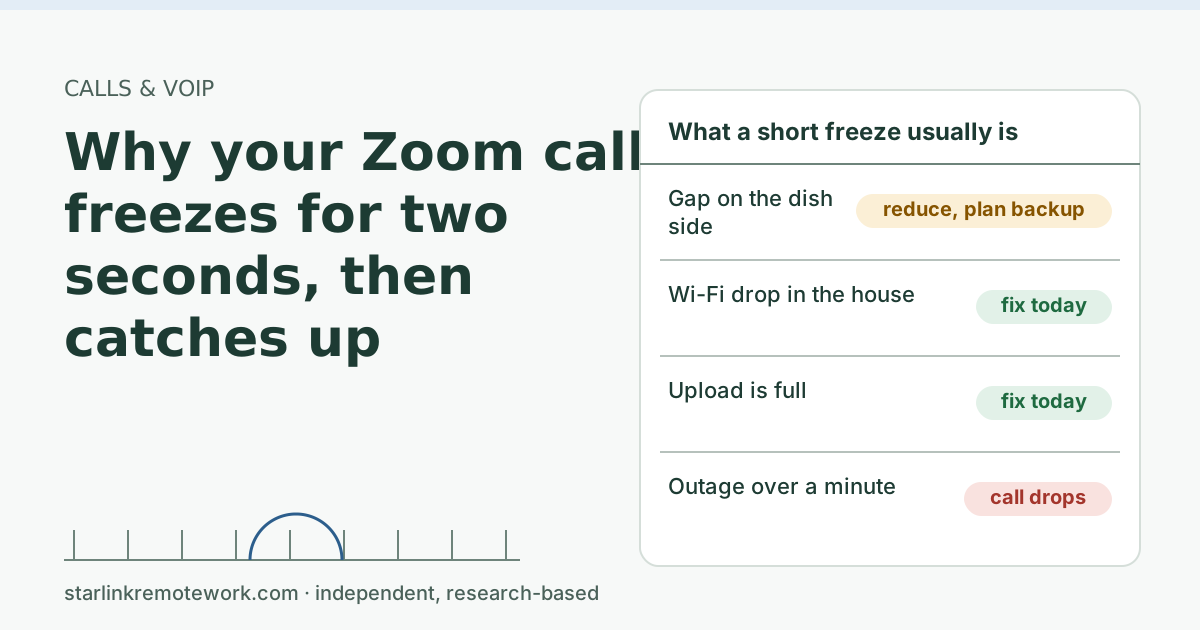
- Low jitter but a frozen picture. If audio is fine and only video freezes, the app may be cutting video to protect audio during a busy upload.
- Jitter only at the same minute each hour. That pattern points to something scheduled, such as a backup job or a VPN timer. See VPN drops about once an hour.
- Jitter that is fine on tests but bad on calls. Short tests between calls may miss spikes that happen under load. Test while an upload is running to see the worst case.
Common mistakes
- Chasing latency. Steady latency under the app’s line is rarely the problem.
- Reading the average jitter only. Spikes are what break calls.
- Testing on Wi-Fi and blaming the dish. Always repeat on a cable first.
- Buying a faster plan to fix jitter. Extra download speed doesn’t steady packet timing.
- Turning on every “gaming” router feature at once. Change one setting, test, and keep a note.
What we don’t know
Call apps don’t publish exactly how their jitter buffers adapt, so nobody outside those companies can say precisely how much jitter a given call survives. Starlink doesn’t publish jitter figures by region or hour. The owner’s logger measures jitter to three targets every minute, and the Work-Day Reliability Report will show it by work hour once months are complete. The video calls guide covers the app settings that help on a line with occasional spikes.
What to do next
- Run the four checks above and fix the home causes first.
- If short handover stutters remain and your job is customer-facing calls all day, keep a dial-in number handy and consider a backup line; the Failover Builder sizes one.
- If loss shows up alongside the jitter, read Is 1% packet loss bad for calls? next.
Questions people ask
Is jitter or latency worse for video calls?
For most calls, jitter is worse. A steady delay just makes conversation feel slightly slower. Jitter makes packets arrive unevenly, so the app either waits longer or drops late packets, which you hear as choppy audio.
What is a good jitter for Zoom or Teams?
Microsoft’s network test passes Teams when UDP jitter is under 30 ms. Lower is better. Short spikes matter more than the average, because the app has to cope with the worst moments.
What latency is acceptable for a video call?
The ITU’s G.114 planning guide says keeping one-way delay below 150 ms gives essentially transparent interactivity for most applications. Microsoft’s Teams test passes latency under 100 ms. Starlink’s reported median is well inside both.
Why does Starlink have jitter?
Part of it comes from the satellites moving. APNIC’s Geoff Huston measured the minimum latency shifting about every 15 seconds as the dish switches satellites, with latency spikes at those moments. Home Wi-Fi and busy uploads add more.
How do I reduce jitter on calls?
Use a wired connection for the work computer, stop large uploads during calls, and ask IT whether call traffic can skip the VPN. Those three fix most of the jitter you can control.
Does a jitter buffer add delay?
Yes. The app holds packets for a short time so it can play them out evenly. The more jitter it sees, the longer it may hold them, which adds to the delay you feel in conversation.
Sources
- Microsoft Learn – Microsoft 365 network connectivity test tool, checked Oct 5, 2026
- ITU-T G.114 (05/2003) One-way transmission time, checked Oct 5, 2026
- Starlink network update (starlink.com/updates/network-update; text read from page bundle), checked Oct 5, 2026
- Ookla: Starlink Hits New Highs in the U.S. (published 2026-05-05, modified 2026-06-23) (secondary), checked Oct 5, 2026
- Geoff Huston (APNIC), ISP Column: A Transport Protocol's View of Starlink (May 2024) (secondary), checked Oct 5, 2026
- ITU-T Recommendation G.114: One-way transmission time, retrieved Oct 6, 2026
- IETF RFC 3550: RTP, A Transport Protocol for Real-Time Applications (interarrival jitter), retrieved Oct 6, 2026
- Microsoft Learn: Microsoft 365 network connectivity test tool, retrieved Oct 6, 2026
- Microsoft Learn: Prepare your organization's network for Teams, retrieved Oct 6, 2026
- Geoff Huston (APNIC), ISP Column: A Transport Protocol's View of Starlink, retrieved Oct 6, 2026
Research-based: written from vendor documentation, Starlink support pages and standards, not from our own measurements. Starlink rules and prices on this page come from our dated fact file and show the day they were checked; they change, so confirm before you rely on one.Links to Starlink’s plan pages here use the site owner’s own referral link; the owner may get a referral reward and your price is the same. No affiliate links (how we make money). General information, not professional IT, legal or medical advice. Independent · not affiliated with SpaceX or Starlink. Spotted an error? Tell us.