Key takeaways
- A full-tunnel VPN sends call audio and video to the company’s VPN gateway first, then out to the call service. That adds distance, a busy device and extra encryption to the most delay-sensitive traffic you have.
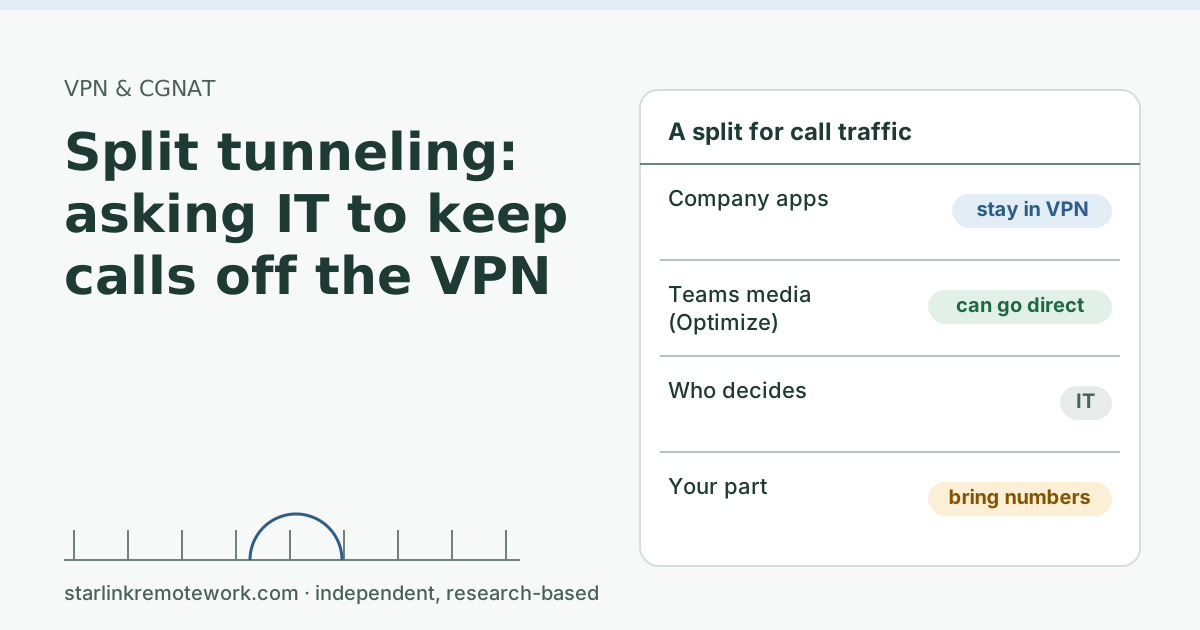
- Microsoft recommends that remote workers on a VPN have Teams, SharePoint and Exchange Online traffic routed through a split tunnel, focused on a small set of Microsoft addresses it marks Optimize.
- Split tunneling is IT’s decision, not a setting you should hunt for yourself. Your job is to bring evidence: call stats with the VPN on and off.
- On Starlink, a VPN can still work fine for everything else. Starlink says VPNs over TCP or UDP work; the VPN must support NAT traversal; SSL-based VPNs typically traverse CGNAT best.
- If IT says no, there are still steps: pick the nearest gateway, keep uploads off call hours, and use a cable.
On this page
If your Teams or Zoom calls sound worse with the work VPN on, ask IT about split tunneling for call traffic. In a full-tunnel setup, every packet, including call audio and video, travels to your company’s VPN gateway first and only then out to the call service. Split tunneling lets that call traffic go straight from your home to the service while company systems stay inside the tunnel. This isn’t a fringe idea: Microsoft recommends it for Teams, SharePoint and Exchange Online when remote workers use a VPN. It is still IT’s decision, so the useful thing you can do is bring them clear evidence.
Full tunnel vs split tunnel
A work VPN builds an encrypted tunnel from your laptop to a gateway run by your company or its security provider. What goes into that tunnel is set by policy:
- Full tunnel (forced tunnel): everything goes in. Your call to a colleague travels from your home to the VPN gateway, out to Microsoft or Zoom, and back the same way.
- Split tunnel: some traffic goes in, some goes direct. A common setup sends company systems through the tunnel and lets selected cloud services, such as Teams media, go straight out of your home connection.
Microsoft describes the full-tunnel habit frankly: “The use of forced tunneled VPNs for connecting to distributed and performance-sensitive cloud applications is suboptimal, but the negative effects have been accepted by some enterprises so as to maintain the security status quo.”
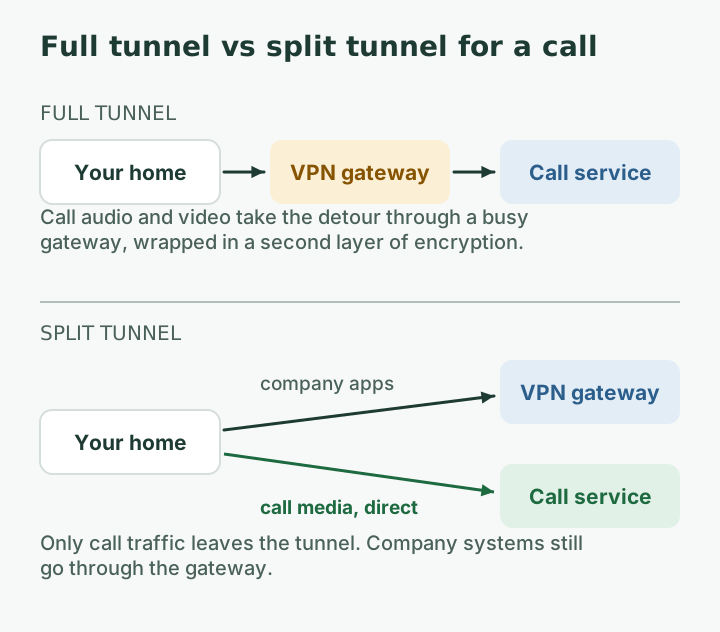
Why a full tunnel hurts calls
Calls are the most timing-sensitive traffic on your connection. A full tunnel adds three things that work against them:
- A longer path. If the VPN gateway is in another region, every packet makes a detour before it reaches the call service. More distance means more delay.
- A busy middle box. The VPN gateway handles everyone’s traffic. When it is loaded, packets queue and arrive unevenly. That is jitter, and jitter is what breaks calls. Our post on jitter vs latency explains why.
- Double encryption and overhead. Call media is already encrypted by the app. The VPN wraps it again, which adds bytes to every packet and work for both ends.
On a Starlink line that already has short jitter spikes at satellite handovers, removing a controllable source of delay and wobble leaves more room for the part you can’t change.
What Microsoft recommends
Microsoft’s guidance on VPN split tunneling for Microsoft 365 says: “For customers who connect their remote worker devices to the corporate network or cloud infrastructure over VPN, Microsoft recommends that the key Microsoft 365 scenarios Microsoft Teams, SharePoint, and Exchange Online are routed over a VPN split tunnel configuration.”
The recommendation is narrow on purpose. It targets endpoints Microsoft labels Optimize in its published address list. Microsoft says these endpoints are Microsoft-owned, have dedicated published IP addresses, change rarely, are “bandwidth and/or latency sensitive,” and account for “around 70-80% of the volume of traffic to the Microsoft 365 service.” Teams media is in that group.
On security, Microsoft says its recommended setup “follows the least privilege principle for VPN traffic exceptions” and that traffic sent direct to those endpoints “is encrypted, validated for integrity by Microsoft 365 client application stacks and scoped to IP addresses dedicated to Microsoft 365 services.” It also says Microsoft recommends basing the split on the documented IP ranges rather than on domain names, because name-based rules may not cover key scenarios.
| What changes with Microsoft’s recommended split | What stays the same |
|---|---|
| Teams media and other Optimize endpoints go direct from your home | Company file shares, internal apps and admin tools stay in the tunnel |
| Lower delay and less jitter on calls, when the gateway was the bottleneck | General web browsing can stay in the tunnel if IT wants it there |
| Less load on the company’s VPN gateway | Sign-in and access rules still apply, because the service checks who you are |
For Zoom, Webex or another call app, the same idea applies, but the address lists and vendor guidance differ. IT will know which one your company uses.
How to ask IT, with evidence
IT teams get many “the VPN is slow” tickets. A specific, measured request gets further. Here is a sequence that works.
Step 1: measure with the VPN on
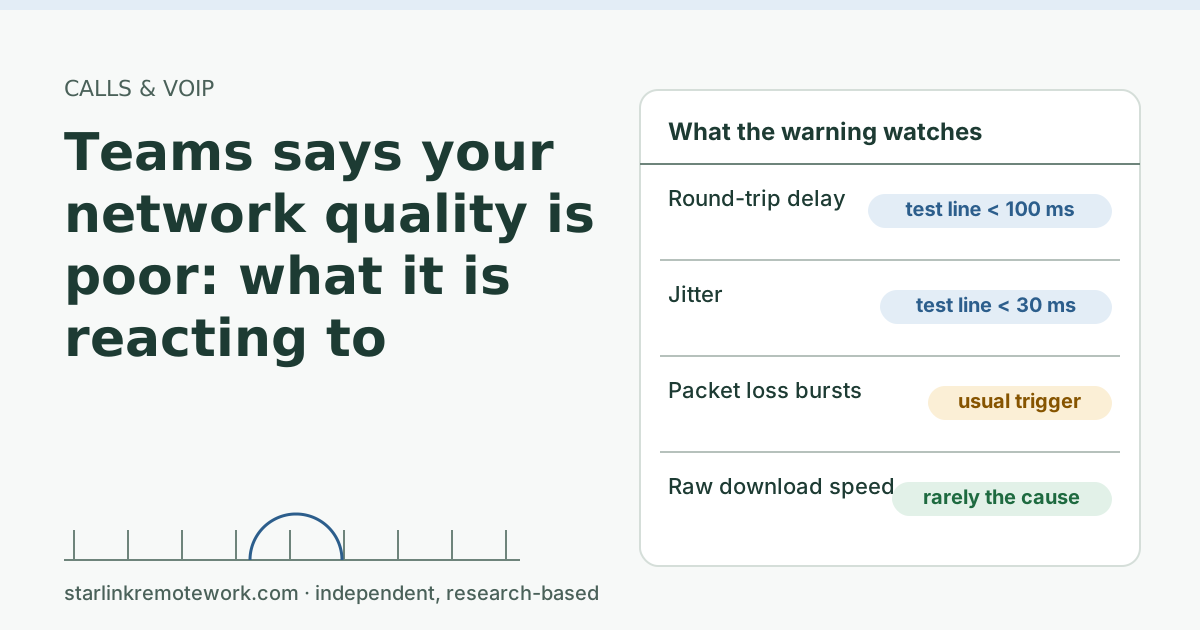
Join a test call or a real one. In Teams, open call health during the meeting; in Zoom, open the statistics panel. Write down latency, jitter and packet loss, and the time. The Teams poor network quality post shows where to find them.
Step 2: measure with the VPN off, if your policy allows it
Only do this if company policy allows the VPN to be disconnected for a few minutes, for example on a call that doesn’t touch company data. Same call type, same room, same cable. Write down the same three numbers.
Step 3: write the ticket
Keep it short and factual:
- “On calls with the VPN connected, Teams shows jitter of X ms and loss of Y% (screenshots attached, times noted). With the VPN off, the same call shows X ms and Y%.”
- “My connection is Starlink with CGNAT. Other traffic over the VPN works.”
- “Microsoft’s guidance recommends split tunneling for Teams Optimize endpoints. Is that possible for our VPN, or is there a closer gateway I should use?”
If the numbers barely change with the VPN off, say so. That is useful too: it tells both of you the VPN isn’t the main cause, and the fix lies elsewhere.
If IT says no
Some companies require every packet to go through inspection, for regulatory or contract reasons. That is a legitimate choice. You can still improve calls:
- Pick the nearest gateway, if your VPN client offers a list. A closer gateway means a shorter detour.
- Use a cable for the work computer. Wi-Fi jitter adds to VPN jitter.
- Keep uploads off call hours. Cloud backup and photo sync fill the upload that call media needs. The uploads guide covers this.
- Ask whether the call app can use its own path when you join from a personal phone for non-sensitive meetings, if policy allows.
- Check the VPN type. Starlink lists the client VPN types that work well behind its CGNAT: Client VPN protocols Starlink lists as generally working well with CGNAT: SSTP, OpenVPN, WireGuard. Our VPN guide explains what to ask if yours is an older type.
Questions IT may ask, and useful answers
IT will want to know the problem is real and the request is narrow. Expect questions like these:
- “Which app?” Name it: Teams, Zoom, Webex or another. The address lists and vendor guidance differ by app, so IT needs to know which one to look up.
- “Is it every call or some calls?” Say what you saw. “Every afternoon call over 30 minutes” is more useful than “calls are bad.”
- “What is your connection?” Starlink, wired or Wi-Fi, and whether your own router sits in front of the Starlink router. Mention that Starlink uses CGNAT for IPv4, so IT can rule out inbound-connection needs.
- “Have you tried a different gateway?” If the client offers several, try the nearest one first and report the result. It may solve the problem with no policy change.
- “Does it happen with the VPN off?” Your before-and-after numbers answer this directly.
- “Is anything else using the line?” Check for cloud backups, photo sync and streaming during the test, and say so.
Keep the tone collaborative. You are giving IT data they can use, not asking them to lower security. A narrow split for call media, based on the vendor’s own published address list, is a request many IT teams already know how to evaluate.
Edge cases
- Zero-trust clients instead of a classic VPN. Some companies use a security client that inspects traffic in the cloud instead of at the office. The same question applies: does call media bypass inspection, and is the inspection point near you?
- Teams in a browser. Microsoft notes split tunneling works for Teams in a browser “with caveats,” and that Microsoft Edge 96 and later can respect the system routing table for peer-to-peer traffic when a specific policy is turned on. Other browsers may not.
- Your personal VPN on top of the work one. Two VPNs at once often breaks things. Turn the personal one off for work.
- The VPN drops rather than just slowing calls. That is a different problem, often timers. See VPN drops about once an hour.
Common mistakes
- Editing routes on a company laptop yourself. Microsoft’s pages include test scripts for IT. They are not for employees, and changing routes can break policy and support.
- Asking to “turn off the VPN.” Ask for a split for call traffic. It is a much smaller request.
- Sending a ticket with no numbers. Screenshots with times are what make a request actionable.
- Blaming Starlink’s CGNAT for slow calls. CGNAT affects which VPN types connect, not call quality once connected. Starlink also notes it can’t troubleshoot VPNs for you: Starlink says it cannot troubleshoot VPN connection issues and the Starlink app may not work properly with a VPN on.
What we don’t know
We can’t say how much any one company’s VPN adds, because gateways, locations and inspection settings differ. Microsoft’s address lists change over time, which is why IT should pull them from Microsoft’s published web service rather than from a blog post. The owner’s logger tests a WireGuard session weekly, and the Work-Day Reliability Report will show VPN session drops alongside call-quality minutes once months are complete.
What to do next
- Measure a call with the VPN on, and off if allowed, and save screenshots with times.
- Send IT the short ticket above.
- Meanwhile, use a cable and keep uploads off call hours. If calls still break during outages, the Failover Builder covers a backup line.
Questions people ask
What is split tunneling on a VPN?
It is a VPN setting that sends some traffic through the encrypted tunnel to the company and lets other traffic go straight to the internet. For calls, it usually means Teams or Zoom media goes direct while company systems stay inside the tunnel.
Does Microsoft recommend split tunneling for Teams?
Yes. Microsoft’s guidance for remote workers on a VPN recommends routing Microsoft Teams, SharePoint and Exchange Online over a split tunnel, focused on the endpoints it labels Optimize, which it says carry around 70 to 80 percent of Microsoft 365 traffic volume.
Is split tunneling a security risk?
It depends on how it is done, which is why it is IT’s call. Microsoft’s recommended version only sends a short list of Microsoft-owned addresses direct, says that traffic is encrypted, and leaves everything else in the tunnel.
Why are my Teams calls worse on the VPN?
With a full tunnel, call media travels to the company’s VPN gateway before reaching Microsoft. That adds distance and delay, the gateway may be busy, and media is wrapped in a second layer of encryption. Each step can add jitter.
Can I turn on split tunneling myself?
Usually not, and you shouldn’t try on a company device. The VPN policy is set by IT. Ask them, and bring call statistics with the VPN on and off so they can see the difference.
Does split tunneling help on Starlink specifically?
It helps on any connection, but it matters more when the line already has occasional jitter spikes. Removing the extra trip through the VPN gateway takes away one source of delay and variation you can control.
Sources
- Does Starlink work with VPNs? (Starlink support), checked Oct 5, 2026
- Microsoft Learn: Overview: VPN split tunneling for Microsoft 365, retrieved Oct 6, 2026
- Microsoft Learn: Implementing VPN split tunneling for Microsoft 365, retrieved Oct 6, 2026
- Microsoft Learn: Prepare your organization's network for Teams, retrieved Oct 6, 2026
- Starlink support: Does Starlink work with VPNs?, retrieved Oct 6, 2026
Research-based: written from vendor documentation, Starlink support pages and standards, not from our own measurements. Starlink rules and prices on this page come from our dated fact file and show the day they were checked; they change, so confirm before you rely on one.Links to Starlink’s plan pages here use the site owner’s own referral link; the owner may get a referral reward and your price is the same. No affiliate links (how we make money). General information, not professional IT, legal or medical advice. Independent · not affiliated with SpaceX or Starlink. Spotted an error? Tell us.