Key takeaways
- The warning reflects Teams’ own live view of your media path: round-trip delay, jitter and packet loss matter far more than Mbps.
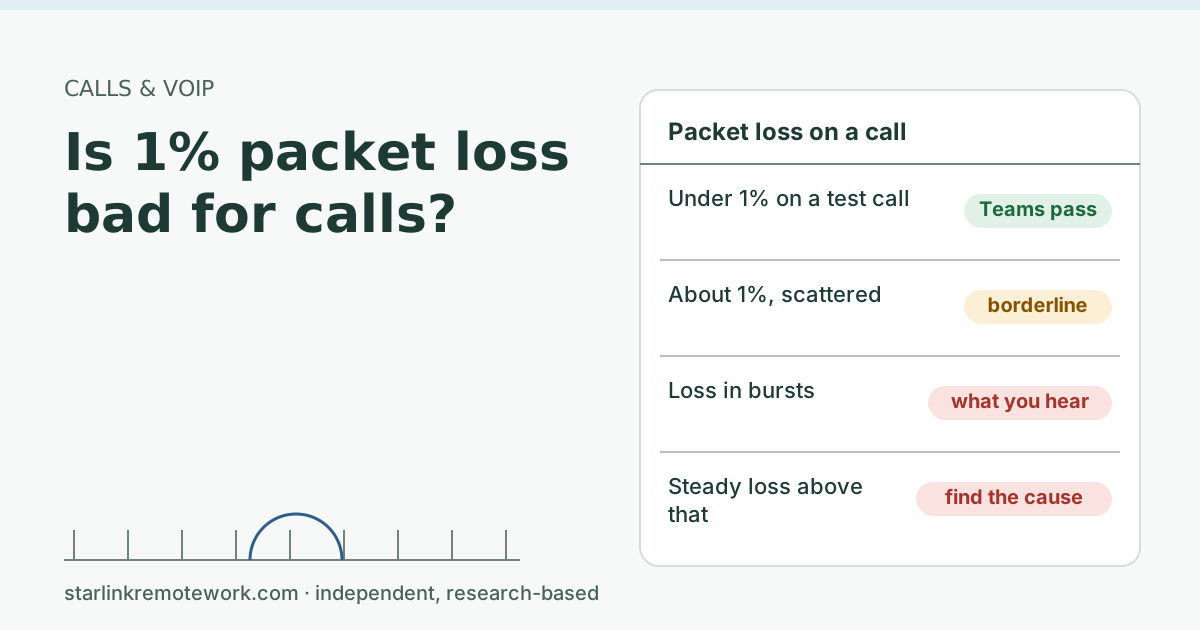
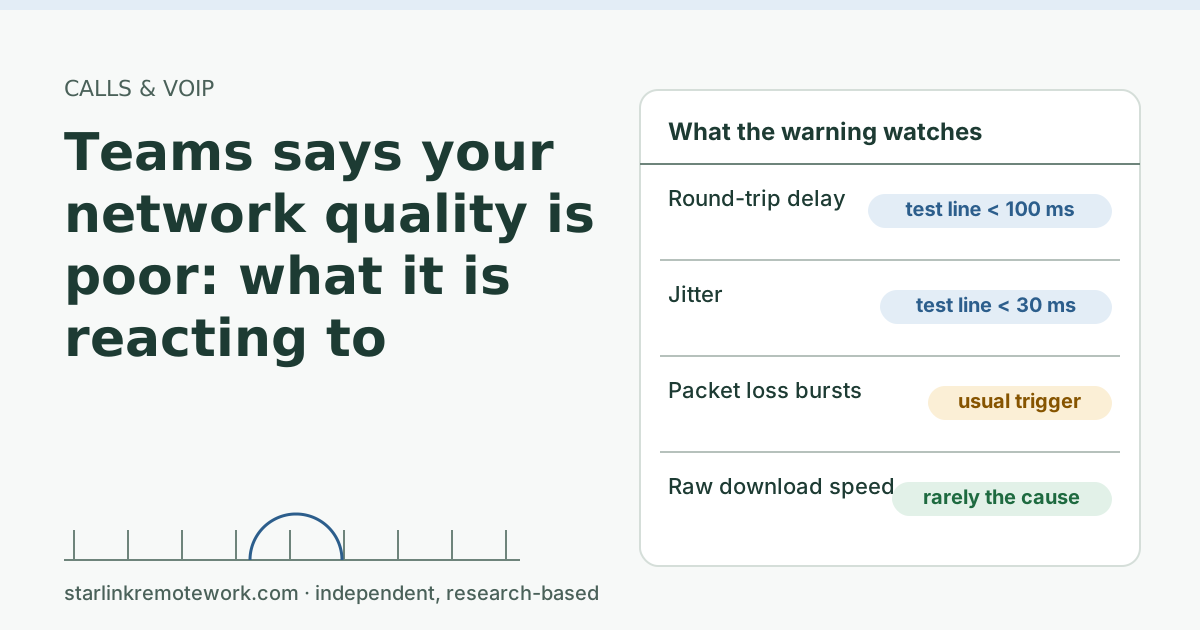
- Microsoft’s connectivity test passes Teams when UDP latency is under 100 ms, jitter under 30 ms and loss under 1%. Starlink’s typical numbers sit inside those; short loss bursts are what trip the banner.
- Microsoft lists Wi-Fi and VPNs as two common reasons real-time media struggles. Test on a cable and off the VPN before blaming the satellite.
- If the banner shows up daily at the same time, look for a scheduled upload or backup in the house first.
On this page
When Teams says your network quality is poor, it is reacting to how your call’s packets are arriving, not to how fast your internet tests. Late packets (high delay), uneven packets (jitter) and missing packets (loss) are what trigger it. On a Starlink connection the usual culprits are short bursts of loss from the dish side, home Wi-Fi, a full upload, or a work VPN in the path, and a ten-minute check tells you which.
What the warning is reacting to
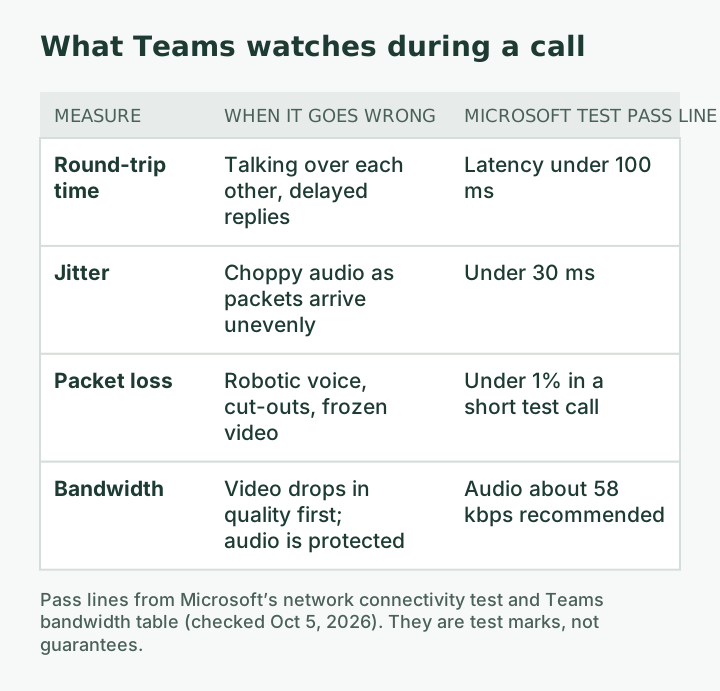
Teams measures the media stream it is actually sending and receiving, all through the call. Microsoft doesn’t publish the exact rule that pops the banner, so we won’t pretend to know it. What Microsoft does publish is the list of things its own tools watch for each call, and they are the same things that make audio choppy:
- Round-trip time: how long a packet takes to reach the other end and come back. Microsoft notes that high round-trip time “can cause audio latency.”
- Jitter: variation in packet delay. “When jitter is too high, audio can become choppy.”
- Packet loss: packets that never arrive. Microsoft’s own troubleshooting list says calls that “have static and cut out, or voices sound like robots” could be jitter or packet loss.
- Bandwidth: Teams adapts to what it can get and, when bandwidth runs short, “prioritizes audio quality over video quality.”
Those quotes come from Microsoft Learn’s network preparation guide and the admin troubleshooting guide, both linked below.
For a concrete line in the sand, Microsoft’s network connectivity test passes Teams when UDP latency is under 100 ms, jitter under 30 ms and packet loss in a short test call under 1%. Those are pass marks for a test, not a promise that every call above them fails or every call below them is perfect.
How Starlink compares to those lines
Starlink reports a US median peak-hour latency of 25.7 ms, and Ookla measured a US median of 39 ms in Q1 2026. Both sit well under the Teams latency line. Geoff Huston at APNIC measured average jitter of 6.7 ms, also well inside. His long-term loss measurement, a little over 1%, is the one that sits right at the Teams pass mark, and that loss tends to come in short bursts rather than a gentle trickle.
That is the honest picture: the average Starlink connection meets Teams’ numbers, and the banner appears during the bursts. These are published third-party figures, not our measurements. The Work-Day Reliability Report will grade one real connection minute by minute once the owner’s logger completes a month.
Find the cause in ten minutes
You need the next call that shows the banner, the Starlink app, and ideally a second device on a cable.
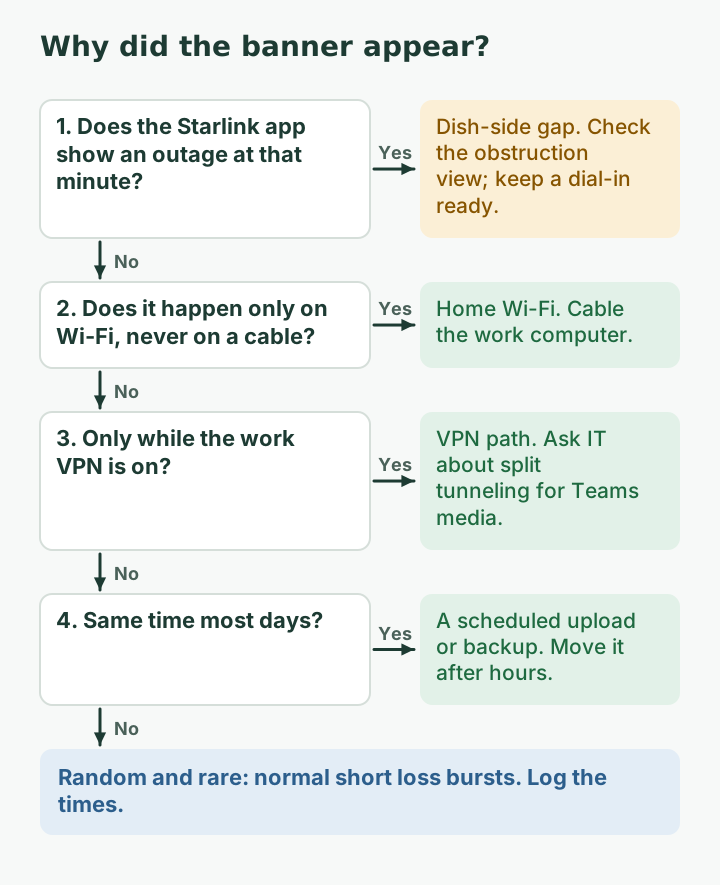
- Note the time the banner appears and whether audio, video or screen sharing suffered.
- Look at the Starlink app’s outage list for an entry at that minute. The Starlink app's Statistics page shows speed, uptime, latency, outages and alerts (when on the Starlink router).
- Run a continuous ping on a wired device during calls (
ping -t 1.1.1.1on Windows,ping 1.1.1.1on a Mac). If it shows timeouts at the same moment, the gap was on the line, not your laptop. - Repeat a call on a cable. If the banner goes away, Wi-Fi was the problem.
- Repeat a call with the VPN off (if your employer allows a test call without it). If the banner goes away, the VPN path is the problem.
- Ask the house what was uploading. Cloud backups and photo syncs are the classic 4 pm surprise.
| Banner pattern | Likely cause | What to try first |
|---|---|---|
| Appears with an outage in the Starlink app | Dish-side gap (obstruction or hand-off) | Check the app’s obstruction view; keep a dial-in number ready |
| Only on Wi-Fi, never on a cable | Home Wi-Fi | Cable the work computer, or use 5 GHz near the router |
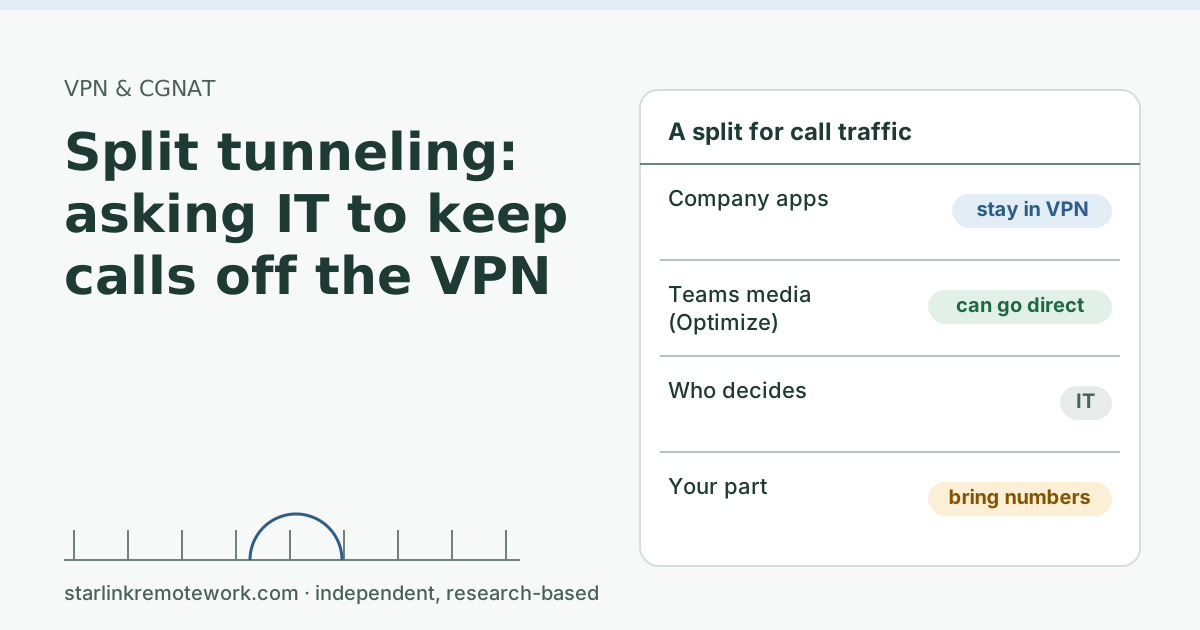
| Only when connected to the work VPN | VPN path | Ask IT about split tunneling for Teams media |
| Same time most days | Scheduled upload or backup | Move the job outside work hours |
| Only in big meetings with video on | Bandwidth or your computer | Turn off incoming video; close heavy apps |
| Random and rare | Normal short bursts | Log times; compare with the report later |
A worked example: two calls and a backup
Here is how a busy afternoon can trip the banner even though every single piece “fits.” The figures are vendor and Starlink published numbers, not measurements of any one home.
- Microsoft recommends 1500 kbps for a 1:1 Teams video call, and for meetings it recommends 2,500 kbps up and 4,000 kbps down per person. Teams audio alone is about 58 kbps.
- Starlink’s US spec for Residential upload: Residential 100 Mbps: download capped at 100 Mbps (spec 80-100 Mbps), upload 15-35 Mbps.
Two people in Teams meetings send about 5 Mbps between them at the recommended rate. That is well inside even the low end of the upload range. Now a laptop starts a cloud backup that will take whatever upload it can get. The backup fills the queue, every call packet waits in line behind backup data, and delay and loss rise for both callers within seconds. Teams sees late and missing packets and shows the banner, even though nobody’s internet “ran out of speed” in the usual sense.
Pause the backup and the queue drains in seconds; the banner goes away. That is why “what was uploading?” is on the checklist, and why our two remote workers guide spends so long on upload habits.
Fixes in order of cost
Free:
- Pause OneDrive, Dropbox, Google Drive and phone photo backups during calls, or set them to run after hours.
- Turn off incoming video in large meetings, and send your own video only when it matters. Teams already favors audio when bandwidth is short.
- Close other video tabs and streams on your work computer.
- Ask IT about split tunneling. Microsoft’s own recommendation is to “provide an alternate path for Teams traffic that bypasses the virtual private network,” because VPNs “are typically not designed or configured to support real-time media,” may not support UDP, add encryption on top of already-encrypted media, and can route you to a Microsoft entry point “further away from the end user, introducing extra latency and jitter.”
Cheap:
- A network cable to the work computer. Microsoft also notes that Wi-Fi networks “aren’t necessarily designed or configured to support real-time media.”
- A wired headset instead of Bluetooth.
Bigger:
- Clear obstructions shown in the Starlink app (mounting is outside this article).
- A backup line for days with important calls. Read what failover does in the first seconds before you buy, so you know what it can and can’t save.
IT Details for your IT person
In the Teams admin center (Manage users > user > Meetings & calls), the participant view shows session-level jitter, packet loss, round-trip time, connectivity type (Ethernet or Wi-Fi), server reflexive IP and location based on public IP. Issues are labeled with a root cause area: Network, Compute, Device or Media. Microsoft notes that issues flagged while a meeting is in progress are based on target values and "doesn’t necessarily mean the user experienced degraded media quality."
Starlink Residential IPv4 sits behind CGNAT, so the public IP and its geolocation will not match the user’s town. Starlink says hitting the session limit can drop VoIP calls, freeze video meetings and cause gaming/VPN issues. Microsoft’s guide also asks networks to keep UDP NAT mappings stable ("Make sure your firewall doesn’t change the mapped Network Address Translation (NAT) addresses or ports for UDP").
Common mistakes
- Upgrading speed to fix the banner. More Mbps rarely helps; the banner is about gaps and jitter.
- Testing only with a speed test. Run a ping during a real call instead, or use Microsoft’s connectivity test, which reports latency, jitter and loss for Teams.
- Leaving the VPN on for everything when IT already offers a split-tunnel profile.
- Ignoring the house. A teenager’s console update or a phone backing up 4K video can fill the upload in seconds.
When Starlink is the wrong line for Teams-heavy work
If fiber or cable is available, take it, and use satellite as a backup at most. If you run back-to-back customer calls where a two-second dropout is a problem, plan for a second line and a phone dial-in in every invite. If your employer’s VPN can’t split Teams traffic and also struggles behind CGNAT, raise it with IT before you move: see our VPN guide.
What we don’t know
Microsoft doesn’t publish the banner’s trigger rule, and Teams’ in-app tools change between versions, so menu names may differ on your copy. We also can’t yet tell you how often a Starlink line would trip the banner during a workday. That is what the report’s “call-ready minutes” will measure once logged data exists.
What to do next
- Run the six-step check on your next banner.
- If the banner lines up with VPN reconnects every hour or so, read VPN drops about once an hour.
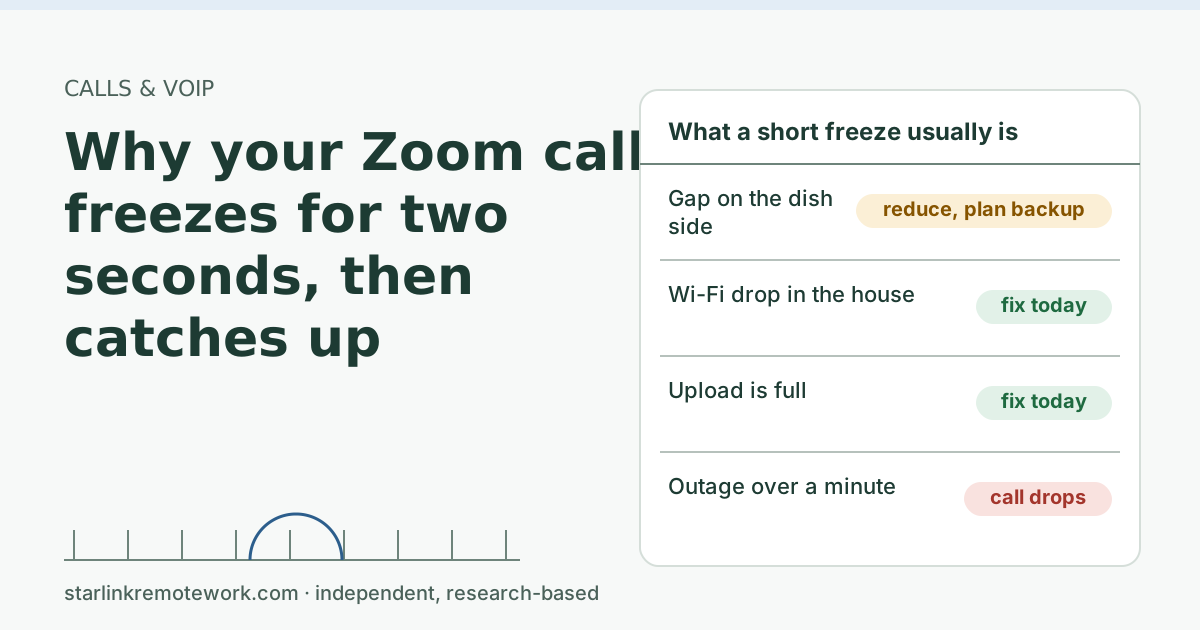
- For Zoom’s version of the same problem, see why Zoom freezes, then catches up.
- For the full call guide, including vendor bandwidth tables, see Zoom and Teams calls on Starlink.
Questions people ask
What does “your network quality is poor” mean in Teams?
It means the Teams app saw your audio or video packets arriving late, unevenly or not at all for long enough to affect the call. It is about delay, jitter and packet loss, not your download speed.
Why do I get the Teams poor network warning when my speed test is fine?
A speed test measures average throughput over a few seconds. The warning reacts to short bursts of loss or jitter that a speed test averages away. A line can test fast and still drop packets for a second at a time.
Does Teams work on Starlink?
Usually, yes. Teams audio needs about 58 kbps and 1:1 video about 1500 kbps recommended, both small next to Starlink’s upload. The weak spot is brief dropouts, which is what the warning flags.
Should I turn off my camera when Teams says the network is poor?
It helps if the cause is a full upload or limited bandwidth, because Teams protects audio first and video uses most of your upload. It does not help if the connection is dropping out entirely.
Can my IT team see why my Teams calls were poor?
Yes. Microsoft’s Teams admin center shows per-session jitter, packet loss, round-trip time and connection type for each participant, and labels likely root causes as network, compute (your device) or device (mic, speaker, camera).
Does a VPN cause the Teams poor network banner?
It can. Microsoft recommends sending Teams traffic around the VPN (split tunneling) because VPNs often aren’t built for real-time media, add encryption on top of already encrypted media, and can route you to a farther Microsoft entry point.
Sources
- Microsoft Learn – Microsoft 365 network connectivity test tool, checked Oct 5, 2026
- Starlink network update (starlink.com/updates/network-update; text read from page bundle), checked Oct 5, 2026
- Ookla: Starlink Hits New Highs in the U.S. (published 2026-05-05, modified 2026-06-23) (secondary), checked Oct 5, 2026
- Geoff Huston (APNIC), ISP Column: A Transport Protocol's View of Starlink (May 2024) (secondary), checked Oct 5, 2026
- How can I monitor my Starlink's performance? (Starlink support), checked Oct 5, 2026
- Microsoft Learn – Prepare your organization's network for Teams (ms.date 2026-05-26), checked Oct 5, 2026
- Starlink Specifications (US, published 2026-03-11), checked Oct 5, 2026
- What are CGNAT session limits and how do they affect my connection? (Starlink support), checked Oct 5, 2026
- Microsoft Learn: Prepare your organization's network for Teams, retrieved Oct 6, 2026
- Microsoft Learn: Monitor and troubleshoot Teams meetings and calls from the Teams admin center, retrieved Oct 6, 2026
Research-based: written from vendor documentation, Starlink support pages and standards, not from our own measurements. Starlink rules and prices on this page come from our dated fact file and show the day they were checked; they change, so confirm before you rely on one.Links to Starlink’s plan pages here use the site owner’s own referral link; the owner may get a referral reward and your price is the same. No affiliate links (how we make money). General information, not professional IT, legal or medical advice. Independent · not affiliated with SpaceX or Starlink. Spotted an error? Tell us.