Key takeaways
- On iPhone, Apple’s path is Settings, Cellular, Wi-Fi Calling, then turn on Wi-Fi Calling on This Phone. When it is active, Control Center shows “Wi-Fi” next to your carrier name.
- On Android the menu differs by maker and carrier. Verizon’s advice is the simplest: open Settings, search for “Wi-Fi Calling” and turn it on.
- The setting being on is not proof. Prove it with a test call while cellular is unavailable, and check that texts arrive too.
- Wi-Fi calling runs in an encrypted tunnel to your carrier. Your network must pass IPsec (UDP 500 and 4500). Starlink blocks neither. Outbound TCP/25 (SMTP) and TCP/445 (SMB) are blocked for all customers.
On this page
- Why this matters more on a rural Starlink connection
- iPhone: turn it on and confirm it
- Android: turn it on and confirm it
- Prove it works: the five-minute test
- When it won’t switch on or keeps dropping off
- Edge cases worth checking
- Common mistakes
- Keep a written note
- When Wi-Fi calling isn’t enough
- What we don’t know
- What to do next
- Questions people ask
- Sources
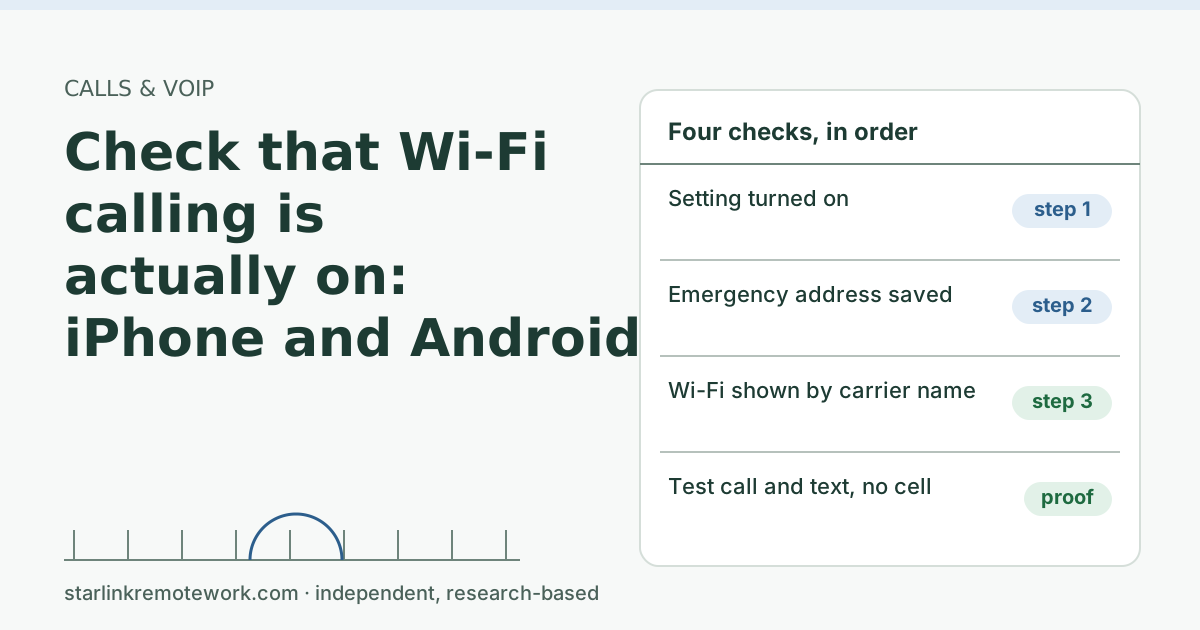
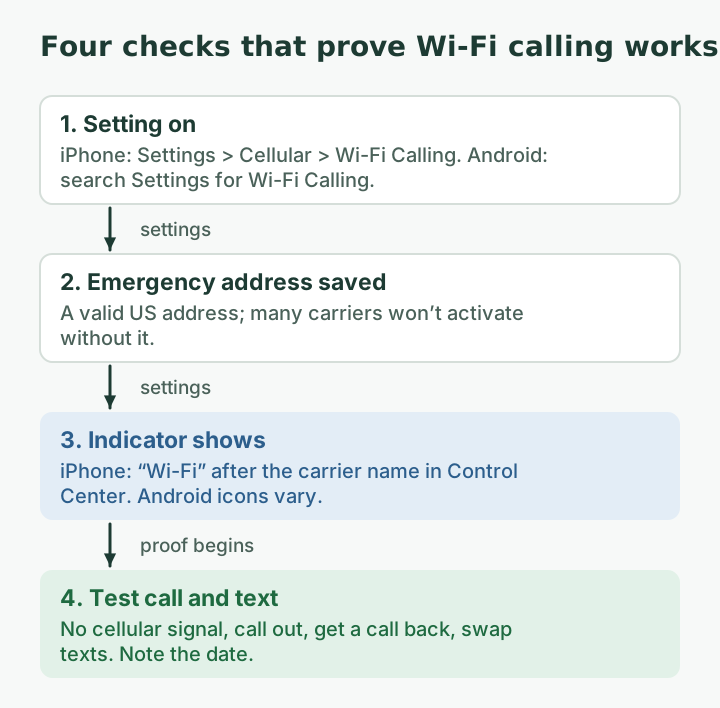
To check that Wi-Fi calling is really on, turn on the setting, save your emergency address, look for the Wi-Fi indicator next to your carrier name, and then place a test call with no cellular signal. On iPhone the setting is under Settings, Cellular, Wi-Fi Calling. On Android it moves around by maker and carrier, so search Settings for “Wi-Fi Calling.” The setting alone proves nothing: in a no-signal house, the test call and a test text are what tell you the phone will actually work.
Why this matters more on a rural Starlink connection
At a home with weak or no cell coverage, a phone without working Wi-Fi calling quietly falls back to “No Service.” You won’t get calls, texts with login codes may not arrive, and you might not notice until someone says they couldn’t reach you. Wi-Fi calling sends your carrier calls and (on many carriers) texts over your internet connection instead of a cell tower.
Two Starlink-specific notes before the steps:
- Starlink says Wi-Fi Calling is sensitive to IP geolocation; it advises checking IP location and contacting your carrier first. Because Starlink’s public IPv4 address is shared and may geolocate to a city far away, a carrier can occasionally treat you as being somewhere else. See our Wi-Fi calling guide for that problem.
- For VoIP/Wi-Fi Calling problems Starlink says to contact your carrier first, then open a Starlink ticket with IP and ping results.
iPhone: turn it on and confirm it
Apple’s steps, from its support article:
- Open Settings and tap Cellular.
- If you have more than one SIM or eSIM, tap the line you want to use.
- Tap Wi-Fi Calling and turn on Wi-Fi Calling on This Phone. Tap Enable.
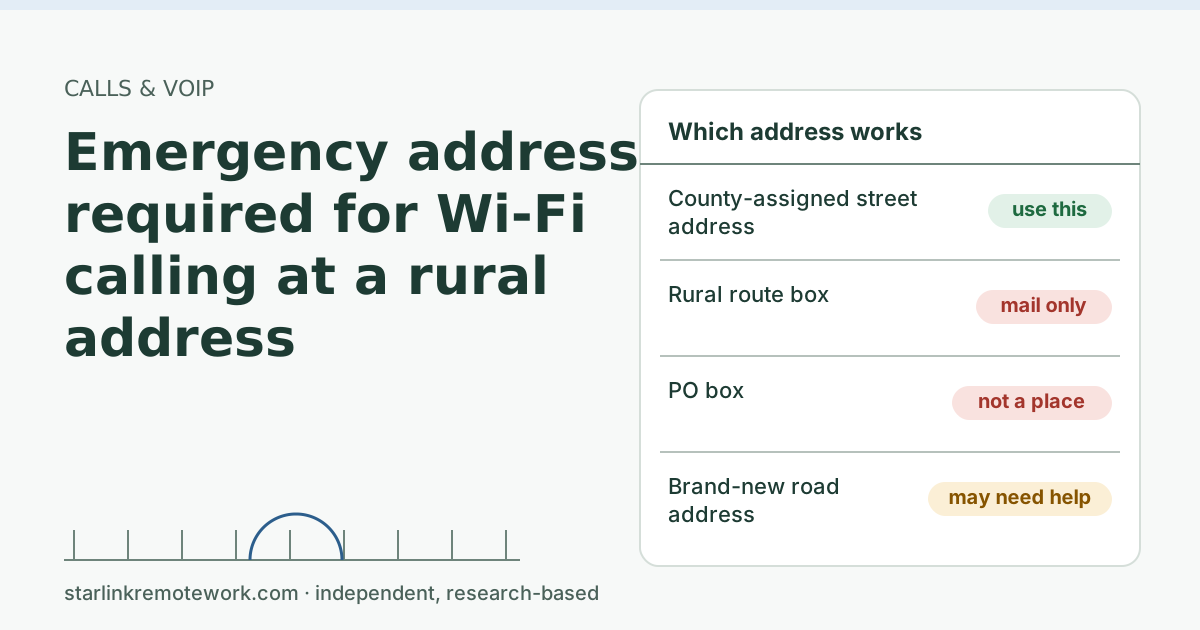
- If asked, enter or confirm your address for emergency services. (If that step fails at a rural address, see emergency address required.)
How to tell it’s active: Apple says you will see “Wi-Fi” in the status bar after your carrier name when you open Control Center.
Apple also notes that Wi-Fi Calling depends on your carrier offering it. If the option is missing, your carrier or plan may not support it on that phone, or the phone may need a carrier settings update.
Android: turn it on and confirm it
Android phones put the switch in different places depending on the maker (Samsung, Google, Motorola and others) and the carrier’s software. Rather than guess at menus for every model, use the method Verizon gives for all Android phones:
- Open Settings.
- Use the search box to search for Wi-Fi Calling.
- Turn it on, and complete the emergency address step if asked.
How to tell it’s active: most Android phones show a Wi-Fi calling icon or the words “Wi-Fi Calling” near the carrier name in the status area or notification shade. Verizon notes that its calling button shows a Wi-Fi icon when a call will go over Wi-Fi. Icons vary by phone, so the test call below is the real proof.
Prove it works: the five-minute test
Do this on a normal day, not during an outage.
- Make sure the phone is on your Starlink Wi-Fi, not a guest network that blocks devices from talking out on unusual ports.
- Remove cellular from the picture. In a no-signal house it is already gone. Elsewhere, a common method is to turn on airplane mode, then turn Wi-Fi back on.
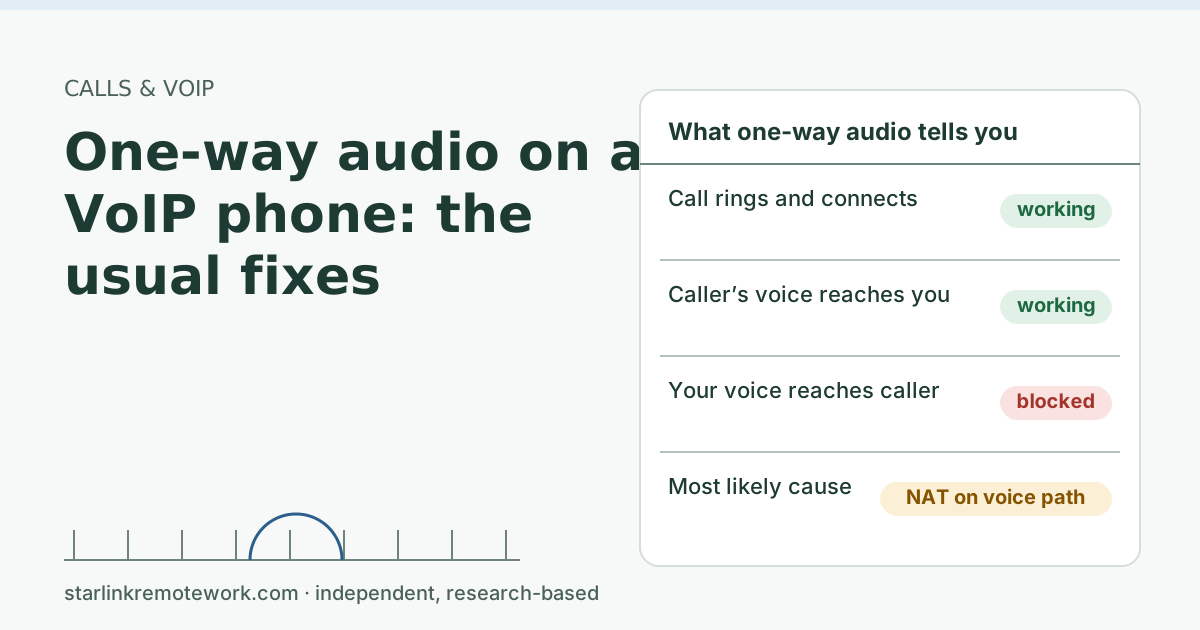
- Call a landline or another person’s cell. Talk for at least a minute. Check both directions of audio.
- Ask them to call you back. An incoming call proves the phone is registered with the carrier over Wi-Fi.
- Ask them to send a text, and send one back. Verizon says its Wi-Fi Calling covers texts as well as calls; other carriers vary. Two-factor codes by text depend on this.
- Write down the date you tested. Retest after phone updates, carrier changes or router changes.
| What happened in the test | What it means | Next step |
|---|---|---|
| Calls and texts both ways work | Wi-Fi calling is working | Retest after updates |
| Outgoing works, incoming never rings | Not staying registered | Restart the phone; check for carrier settings update; ask the carrier |
| Calls work, texts don’t arrive | Texting path not covered or misconfigured | Check carrier messaging settings; ask the carrier |
| “No Service” and no Wi-Fi indicator | Wi-Fi calling isn’t active | Check carrier support, emergency address, VPN |
| Calls connect but audio is choppy | Line quality, not the setting | Run a ping test; see the troubleshooting below |
When it won’t switch on or keeps dropping off
Work through these in order. Most people find the cause in the first four.
- Carrier and plan support. Prepaid plans, some carriers’ budget brands and some imported phones don’t offer Wi-Fi calling. Check your carrier’s Wi-Fi calling page for your plan.
- Emergency address. Many carriers won’t activate Wi-Fi calling until a valid US address is saved. Verizon says you must “confirm, update, or enter the US address.”
- Updates. Install the latest phone software and any carrier settings update.
- A VPN on the phone. Phone VPNs and Wi-Fi calling’s own encrypted tunnel can clash. Turn the VPN off and test.
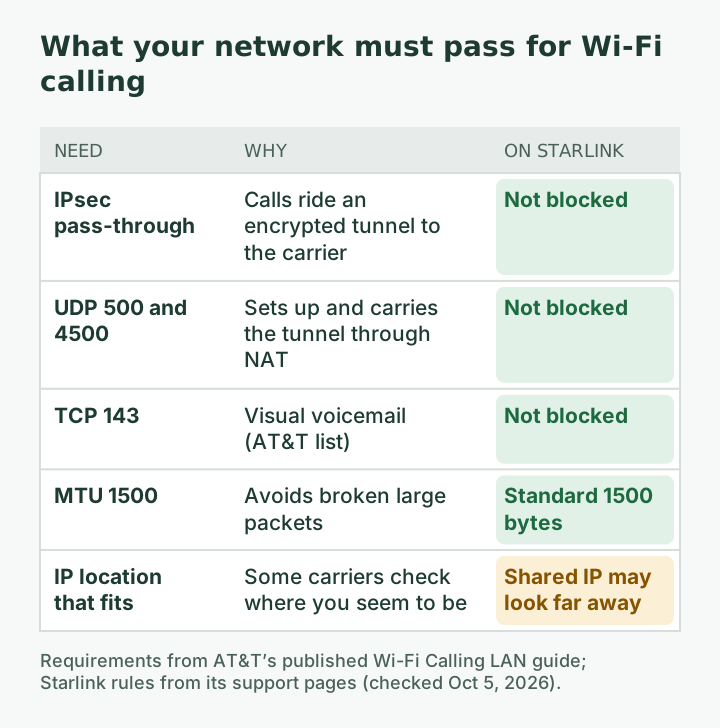
- Your router passes IPsec. Wi-Fi calling travels in an IPsec tunnel to the carrier. AT&T’s published network requirements list IPsec pass-through and open UDP ports 500 and 4500 (plus TCP 143 for visual voicemail), and an MTU of 1500. Starlink provides 1,500 bytes MTU, and the only outbound ports it blocks are these: Outbound TCP/25 (SMTP) and TCP/445 (SMB) are blocked for all customers. If you added your own router or firewall, check that it isn’t blocking IPsec.
- Restart in order. Phone first. If that fails, the router you control. Don’t reboot the Starlink dish in the middle of the workday unless the whole connection is down.
- Call your carrier, then Starlink if the carrier points at the connection. Starlink’s guidance asks you to note latency over 200 ms or packet loss in a 30-second ping test.
IT Details for your IT person
Carrier Wi-Fi calling (VoWiFi) builds an IKEv2/IPsec tunnel from the handset to the carrier’s ePDG. AT&T’s requirements: IPsec pass-through, UDP 500 and 4500 (IKEv2 and NAT-T), TCP 143 (IMAP, visual voicemail), MTU 1500, and reachability of epdg.epc.att.net, sentitlement2.mobile.att.net and vvm.mobile.att.net. Starlink Residential IPv4 is behind CGNAT, so the tunnel runs NAT-T over UDP 4500. IP geolocation of the shared address can differ from the subscriber’s location; carriers that use IP location for entitlement may reject or challenge activation.
Edge cases worth checking
- Two SIMs or an eSIM plus a physical SIM. Wi-Fi calling is set per line. Check the line your work or family actually calls.
- Mesh Wi-Fi and outbuildings. The phone needs a solid Wi-Fi link where you take calls. A weak mesh node in the barn can make calls choppy even though the setting is fine.
- Guest networks. Some guest networks isolate devices or filter traffic. Test on the network you will really use.
- Visitors. A visitor’s phone needs Wi-Fi calling switched on and an emergency address saved on their own account. Tell guests before they need to make a call.
- Changing carriers. A new carrier means a new activation and a new emergency address. Run the test again on day one.
- Phone updates. Big operating system updates sometimes reset carrier settings. Retest after updating.
Common mistakes
- Trusting the toggle. A switch that’s on, with no indicator, means it is not working.
- Testing next to a window with one bar of signal. The phone may use cellular and fool you. Test with cellular out of the picture.
- Forgetting the second line. Dual-SIM phones set Wi-Fi calling per line.
- Leaving an old emergency address from a previous home. It decides where 911 calls are routed.
Keep a written note
Write three things on a card near the router or in your phone’s notes: the date of your last successful test, the emergency address you saved, and your carrier’s support number. When something breaks months from now, those three facts save the first fifteen minutes of every support call, and they remind other people in the house that the phone depends on the internet.
When Wi-Fi calling isn’t enough
Wi-Fi calling stops when the internet stops. In a no-signal house that means no phone during a Starlink outage or a power cut. If the phone is a lifeline (an older parent, medical needs, on-call work), plan a second path: a cellular booster where there is some outdoor signal, a backup internet line, or a landline-style service with its own backup. The Failover Builder shows what a backup line takes, and what failover does in the first seconds explains what it can and can’t save.
What we don’t know
Carrier support, menus and texting behavior change often, and we haven’t tested each carrier on a Starlink line. Where this article and your carrier’s support page disagree, your carrier is right for your phone.
What to do next
- Run the five-minute test today and note the date.
- If the emergency address step fails, read emergency address required for Wi-Fi calling.
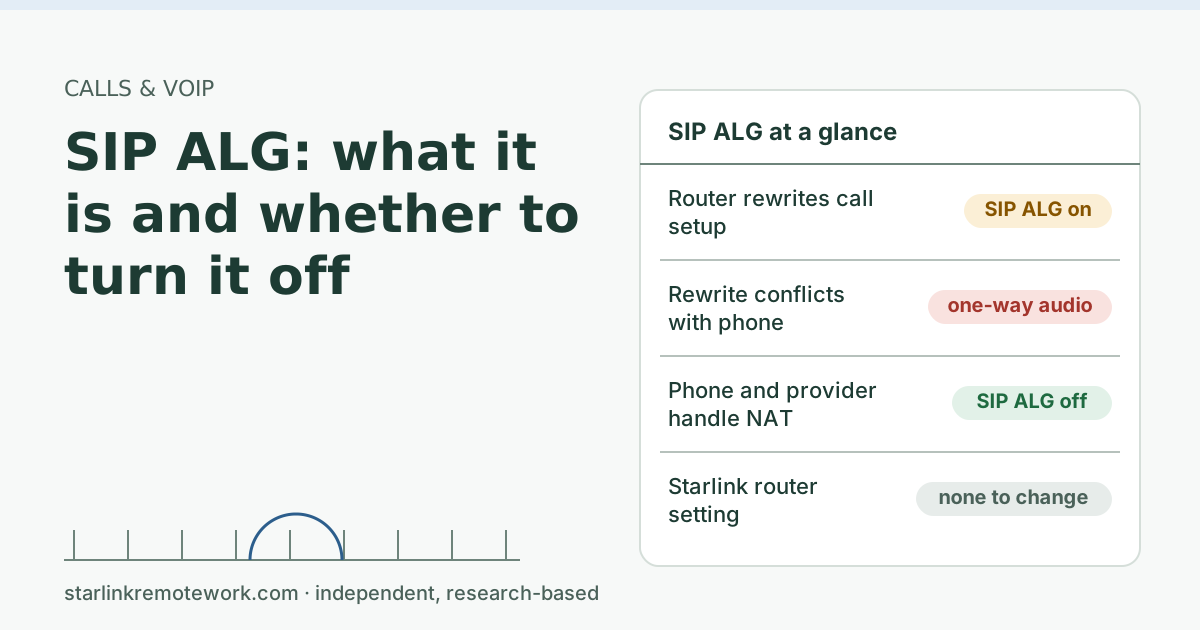
- If you also have a VoIP desk phone, see one-way audio fixes and SIP ALG.
- For more on how calls work on a satellite link, see the Zoom and Teams calls guide.
Questions people ask
How do I know if Wi-Fi calling is working on my iPhone?
Open Control Center. Apple says you will see “Wi-Fi” in the status bar next to your carrier name when Wi-Fi Calling is active. Then place a test call with cellular unavailable to be sure.
How do I turn on Wi-Fi calling on Android?
Open Settings and search for “Wi-Fi Calling”, then turn it on. That is Verizon’s own instruction, and it works across makers because the menu location varies by phone and carrier.
Does Wi-Fi calling work with Starlink?
It can. Wi-Fi calling needs a working internet connection that passes IPsec traffic, and Starlink does not block the ports it uses. Starlink notes that Wi-Fi Calling is sensitive to IP geolocation, so some carriers may reject or route calls oddly.
Why won’t Wi-Fi calling turn on?
Common reasons: your carrier or plan doesn’t support it on that phone, the emergency address hasn’t been saved or validated, the phone needs a carrier settings update, or a VPN or router setting blocks the IPsec tunnel.
Do texts work over Wi-Fi calling?
On many carriers, yes. Verizon says Wi-Fi Calling covers voice calls, texts and video calls. Test it: ask someone to text you while cellular is unavailable.
Does 911 work over Wi-Fi calling?
It can, using the emergency address you registered. Verizon says 911 calls try cellular first, and if cellular isn’t available they route using your registered address, which may not be where you are if you moved.
Do I need to turn off cellular to test Wi-Fi calling?
In a house with no signal, cellular is already unavailable, so a normal call is the test. Elsewhere, test somewhere without signal. Airplane mode with Wi-Fi turned back on is a common way to force it.
Sources
- Additional FAQs - Troubleshooting (VoIP and WiFi Calling Issues) (Starlink support), checked Oct 5, 2026
- What is the MTU size support for Starlink? (Starlink support), checked Oct 5, 2026
- What IP address does Starlink provide? (Starlink support), checked Oct 5, 2026
- Apple Support: Make a call with Wi-Fi Calling on iPhone, retrieved Oct 6, 2026
- Verizon Support: Wi-Fi Calling FAQs, retrieved Oct 6, 2026
- AT&T Support: Wi-Fi Calling LAN and VPN configuration, retrieved Oct 6, 2026
Research-based: written from vendor documentation, Starlink support pages and standards, not from our own measurements. Starlink rules and prices on this page come from our dated fact file and show the day they were checked; they change, so confirm before you rely on one.Links to Starlink’s plan pages here use the site owner’s own referral link; the owner may get a referral reward and your price is the same. No affiliate links (how we make money). General information, not professional IT, legal or medical advice. Independent · not affiliated with SpaceX or Starlink. Spotted an error? Tell us.