Key takeaways
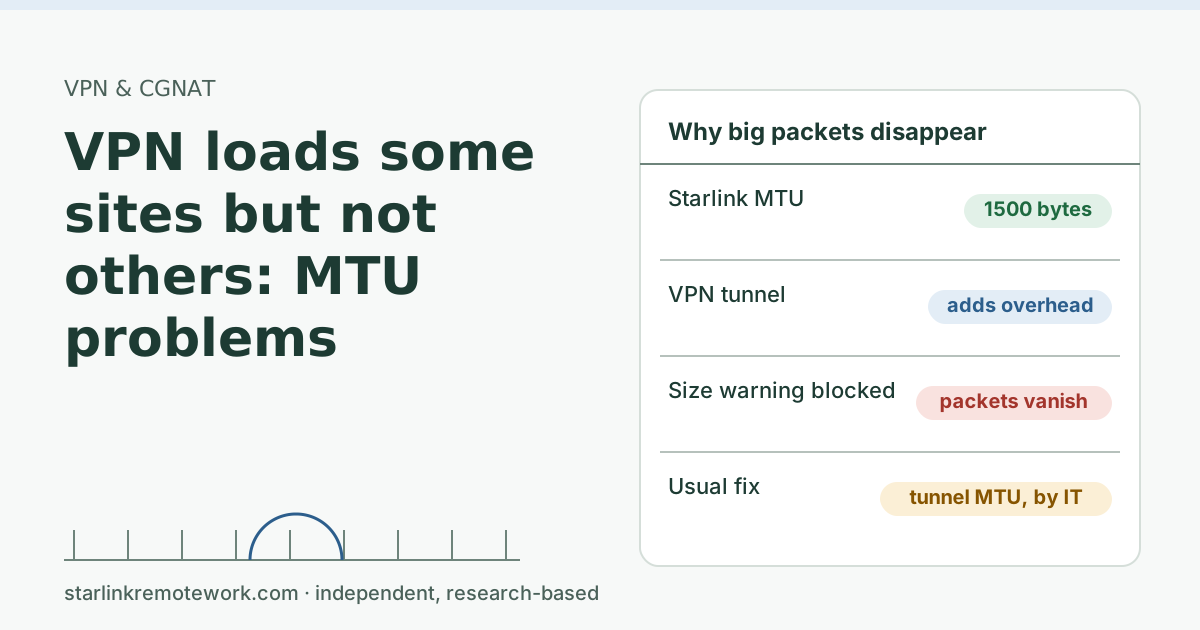
- Starlink says it provides a standard 1,500 bytes MTU, so the Starlink link itself is rarely the odd one out. The VPN tunnel is what shrinks the space for each packet.
- When a packet is too big, a router is supposed to send back a warning so the sender shrinks it. If a firewall drops that warning, big packets disappear and connections hang. The IETF calls this a PMTUD black hole.
- The tell-tale sign: pings and logins work, but large pages, file uploads or remote desktops stall partway.
- A five-minute ping test with the don’t-fragment flag finds the largest packet that gets through. Bring that number to IT.
- The fix is usually on the VPN side: a smaller tunnel MTU or MSS clamping, which IT sets. Don’t change your laptop’s MTU on a managed device.
On this page
If your work VPN connects but some sites, files or apps hang partway while others work, suspect an MTU problem. Every link has a maximum packet size, its MTU. Starlink says it provides a standard 1,500 bytes MTU, the same as most home broadband. A VPN wraps each packet in extra headers, so the space left for your data shrinks. If a packet is too big and the network’s “too big, please shrink” warning is blocked somewhere, that packet silently disappears. Small packets keep working, so logins and simple pages are fine, but anything that sends large packets stalls. A five-minute ping test tells you whether this is happening, and IT can usually fix it on the VPN side.
What MTU is, in one paragraph
Data crosses the internet in packets. Each link has a largest size it will carry in one piece: its maximum transmission unit, in bytes. Ethernet’s usual MTU is 1,500 bytes, and Starlink’s support page says: “Starlink provides a standard 1500 byte MTU for internet access.” When a packet meets a link with a smaller MTU, it must be split into pieces or the sender must be told to send smaller packets.
What a VPN does to packet size
A VPN puts your packet inside another packet. The outer packet carries the VPN’s own headers, encryption data and sometimes a UDP or TCP wrapper. All of that comes out of the same 1,500 bytes.
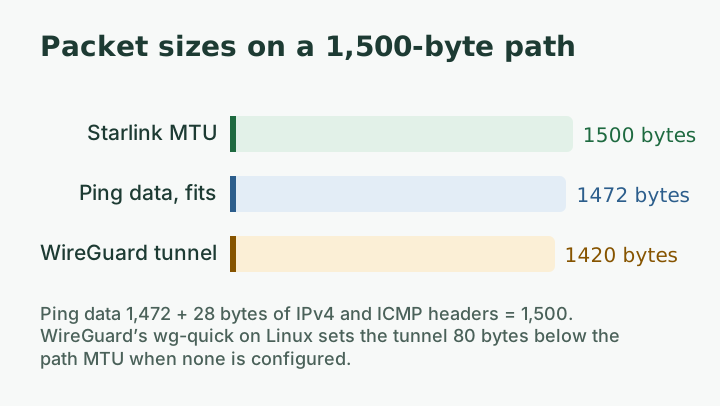
That is why VPN software sets its own, smaller MTU on the tunnel. One public example is WireGuard’s wg-quick script on Linux: if no MTU is configured, it takes the MTU of the route to the server and sets the tunnel 80 bytes lower, which gives 1,420 on a standard 1,500-byte path. Corporate VPN clients make similar choices, sometimes in the client and sometimes on the gateway.
The IETF’s document on tunnel packet size issues (RFC 4459) sums up the core problem every tunnel faces: “how does the source select the maximum packet size so that the packets will fit, even encapsulated, in the smallest Maximum Transmission Unit (MTU) of the traversed path in the network.”
Why packets vanish instead of shrinking
The internet has a way to handle this, called Path MTU Discovery (RFC 1191). The sender marks packets “don’t fragment.” If a packet is too big for some link, the router there drops it and sends back an ICMP message saying, in effect, “too big, the limit here is this.” The sender shrinks its packets and tries again.
It breaks when that ICMP message never arrives. RFC 2923 describes it plainly: “many routers fail to send the ICMP messages,” and “Firewalls are often misconfigured to suppress all ICMP messages.” Without the message, the sender “never discovers that it needs to reduce the size of those packets. Its packets are disappearing into a PMTUD black hole.”
The same RFC explains why this is so confusing to diagnose: “This failure is especially difficult to debug, as pings and some interactive TCP connections to the destination host work. Bulk transfers fail with the first large packet and the connection eventually times out.”
The symptoms, side by side
| Works | Hangs or fails |
|---|---|
| VPN connects and signs in | Some web pages load halfway, then spin |
| Small pages, chat messages | Large file downloads or uploads stall at the start |
| Ping to a company server | Remote desktop connects, then freezes on a busy screen |
| Email headers appear | Opening a large attachment never finishes |
If your problems match the right-hand column and get better when the VPN is off, MTU moves to the top of the suspect list. If everything is slow, or the VPN drops completely, look elsewhere first: see VPN drops about once an hour or our VPN guide.
The five-minute test
You are looking for the largest packet that crosses the path in one piece. Run these with the VPN connected, against an address IT gives you inside the company network, and then against a public address such as 1.1.1.1 for comparison.
Windows (Command Prompt):
ping -f -l 1472 1.1.1.1Mac (Terminal):
ping -D -s 1472 1.1.1.1-f (Windows) and -D (Mac) set “don’t fragment.” -l and -s set the data size. 1,472 bytes of data plus 28 bytes of IPv4 and ICMP headers is exactly 1,500.
- Start at 1472. If you get replies, the path carries full-size packets.
- If you get “Packet needs to be fragmented” or timeouts, drop to 1400, then step up or down by 10 until you find the largest size that gets a reply.
- Add 28 to that size. That is the path MTU for IPv4 through the tunnel.
- Write down both numbers, VPN on and VPN off, with the time.
Reading the result
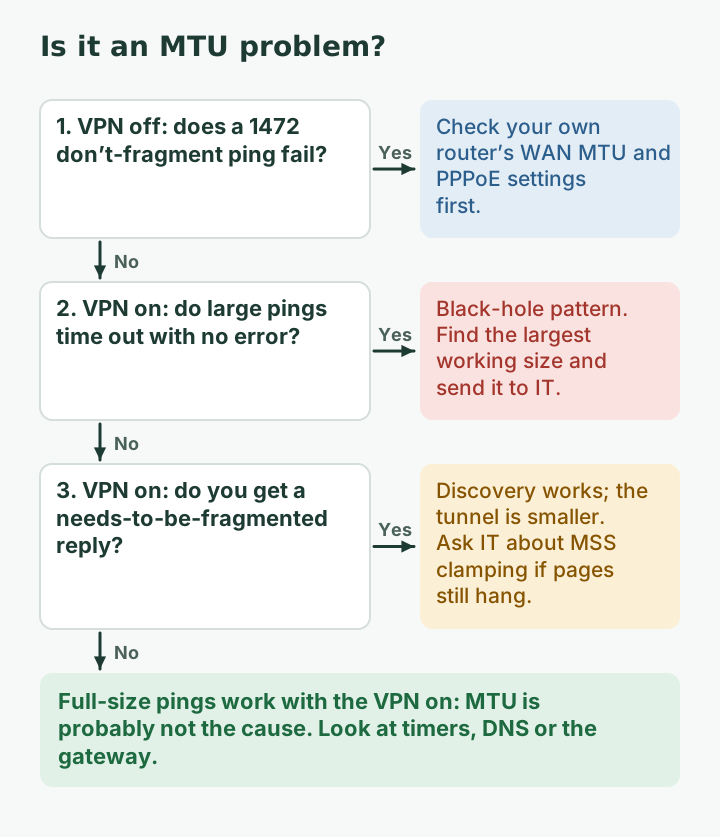
- VPN off: 1472 works. Your Starlink path carries full-size packets, as Starlink states.
- VPN on: only a much smaller size works, and you get a “needs to be fragmented” reply. Path MTU Discovery is working; the tunnel is just smaller. Apps should cope. If they don’t, the client may be ignoring the signal.
- VPN on: larger sizes simply time out, no error message. That is the black-hole pattern. The warning is being dropped somewhere, and big packets disappear.
A worked example (illustrative output)
Here is roughly how a black-hole result looks on a Windows laptop with the VPN connected. The addresses and exact sizes are examples:
ping -f -l 1472 10.20.30.40   -> Request timed out.
ping -f -l 1400 10.20.30.40   -> Request timed out.
ping -f -l 1350 10.20.30.40   -> Reply from 10.20.30.40
ping -f -l 1380 10.20.30.40   -> Reply from 10.20.30.40
ping -f -l 1390 10.20.30.40   -> Request timed out.
The largest size that gets a reply here is 1,380 bytes of data, so the path MTU through the tunnel is about 1,408 bytes (1,380 + 28). The important detail is what is missing: the failed sizes return “Request timed out” rather than “Packet needs to be fragmented but DF set.” No warning came back. That is the pattern RFC 2923 describes, and it explains why a web page or file that needs full-size packets hangs while a small ping works.
With the VPN off, the same laptop sends a 1,472-byte ping to 1.1.1.1 and gets a reply, which shows the Starlink path itself carries full-size packets. Put both results in one ticket. IT can then set the tunnel MTU or MSS a little below the size that worked, and the hang should stop.
What IT can change
These are VPN-side settings. On a company laptop they are IT’s to change, not yours.
- Lower the tunnel MTU on the client profile or gateway, so packets fit with room to spare.
- MSS clamping: the gateway rewrites the maximum segment size in new TCP connections so the other end never sends packets too big for the tunnel. This fixes most web and file problems at once.
- Allow the ICMP “fragmentation needed” message through firewalls on the path, so Path MTU Discovery can work.
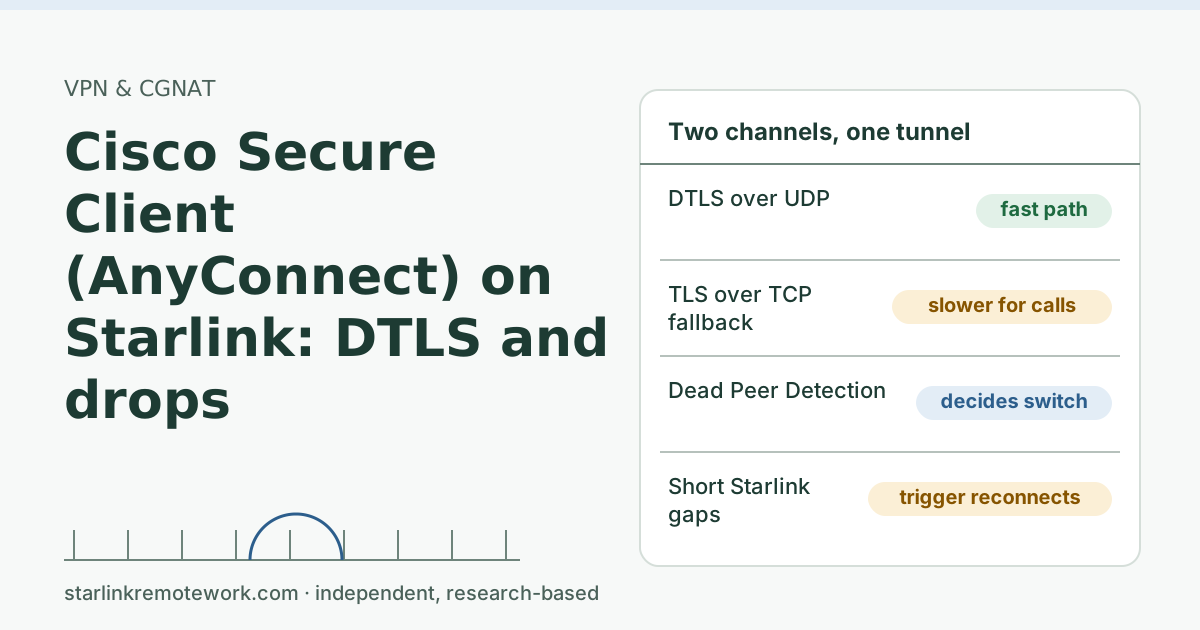
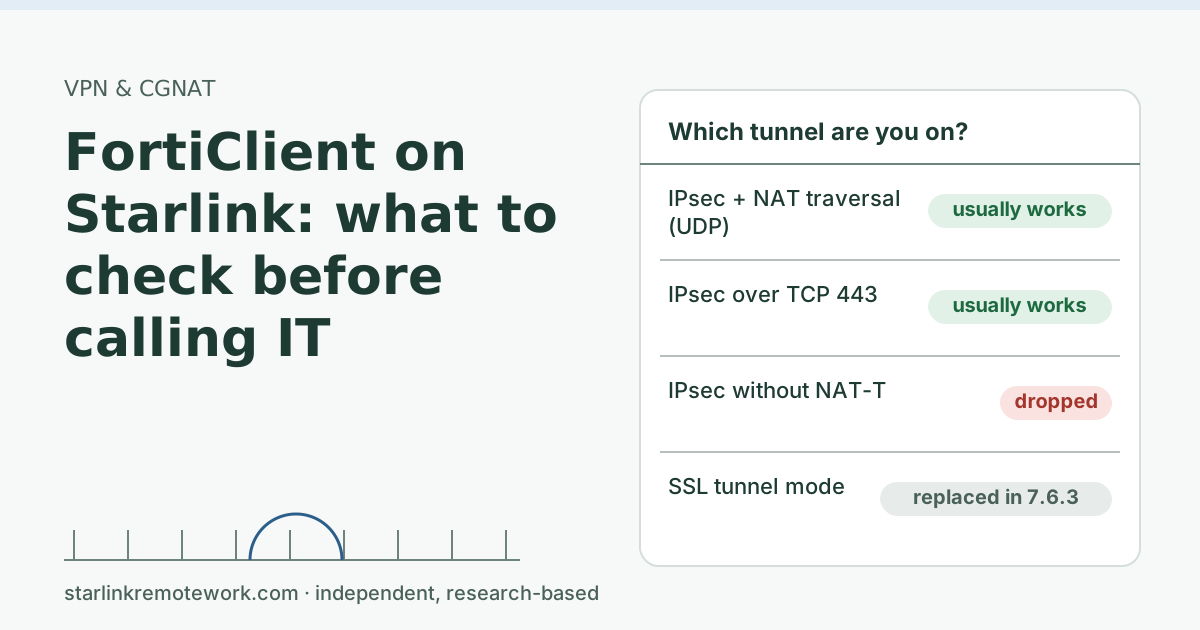
- Check the tunnel mode. Some clients fall back from a UDP-based tunnel to a TCP-based one when UDP struggles, which changes the overhead. Our posts on Cisco Secure Client and DTLS and FortiClient on Starlink cover those clients.
A ticket that says “VPN on: largest don’t-fragment ping to [internal server] is X bytes, no ICMP error returned; VPN off: 1472 works; pages hang on large transfers” gives IT almost everything they need.
Edge cases
- Your own router in front of Starlink. Some routers have their own MTU or “PPPoE” settings left over from an old connection. A setting below 1,500 on a Starlink connection can create the problem without any VPN. Check the router’s WAN page.
- Double NAT at home. It doesn’t change MTU by itself, but some routers handle ICMP oddly. Our CGNAT and public IP guide explains the layers.
- IPv6 paths. IPv6 never splits packets in the middle of the network, so Path MTU Discovery matters even more there. If problems appear only on IPv6 sites, mention it to IT.
- Only one website fails, with or without the VPN. That site’s own network may be dropping ICMP. Little you can do except report it to the site.
Common mistakes
- Lowering the laptop’s MTU yourself. It may help you and leave the real issue in place, and it can break other networks you join later.
- Blaming Starlink’s CGNAT. CGNAT decides which VPN types can connect; it doesn’t shrink MTU.
- Testing only with the VPN on. You need both results to show where the limit comes from.
- Using a ping without the don’t-fragment flag. Without it, large pings get split and appear to work, hiding the problem.
What we don’t know
Corporate VPN products set overhead and defaults differently, and many don’t document their exact tunnel MTU. We can’t say what yours uses without IT. Starlink documents the 1,500 bytes MTU but not how its network handles ICMP in every case, which is why testing your own path matters. The owner’s logger runs a weekly WireGuard session test; the Work-Day Reliability Report will note VPN session problems once months are complete, and the method page lists what it measures.
What to do next
- Run the don’t-fragment ping with the VPN on and off and note the largest working size.
- Send IT the one-line summary above.
- If the VPN also drops or reconnects, read VPN drops about once an hour.
Questions people ask
What does MTU mean?
MTU, maximum transmission unit, is the largest packet a link carries in one piece, in bytes. Standard Ethernet and Starlink use 1,500 bytes. A VPN tunnel wraps each packet in extra headers, so less room is left for your data.
Why does my VPN connect but some websites won’t load?
One common cause is an MTU problem. Small packets such as logins and short pages fit; large ones don’t, and if the warning that should make the sender shrink them is blocked, they vanish. Pages or files that need big packets then hang.
What MTU does Starlink use?
Starlink says it provides a standard 1,500-byte MTU for internet access. That is the same as most home broadband, so Starlink itself is usually not the unusual part of the path.
How do I test MTU?
Send pings with the don’t-fragment flag at different sizes. On Windows, ping -f -l 1472 followed by an address; on a Mac, ping -D -s 1472. Lower the size until replies come back. The largest working size plus 28 is the path MTU for IPv4.
Should I lower the MTU on my computer?
Not on a company laptop without IT. The usual fix belongs on the VPN: a smaller tunnel MTU or MSS clamping. Changing your own adapter can hide the problem for you while leaving it for everyone else.
Can an MTU problem cause slow VPN speeds?
Yes. If big packets have to be split or keep timing out before the sender shrinks them, transfers slow down or stall. Fixing the MTU often makes large transfers both reliable and faster.
Sources
- What is the MTU size support for Starlink? (Starlink support), checked Oct 5, 2026
- Starlink support: What is the MTU size support for Starlink?, retrieved Oct 6, 2026
- IETF RFC 1191: Path MTU Discovery, retrieved Oct 6, 2026
- IETF RFC 2923: TCP Problems with Path MTU Discovery, retrieved Oct 6, 2026
- IETF RFC 4459: MTU and Fragmentation Issues with In-the-Network Tunneling, retrieved Oct 6, 2026
- WireGuard tools: wg-quick (Linux script, MTU handling), retrieved Oct 6, 2026
Research-based: written from vendor documentation, Starlink support pages and standards, not from our own measurements. Starlink rules and prices on this page come from our dated fact file and show the day they were checked; they change, so confirm before you rely on one.Links to Starlink’s plan pages here use the site owner’s own referral link; the owner may get a referral reward and your price is the same. No affiliate links (how we make money). General information, not professional IT, legal or medical advice. Independent · not affiliated with SpaceX or Starlink. Spotted an error? Tell us.