Key takeaways
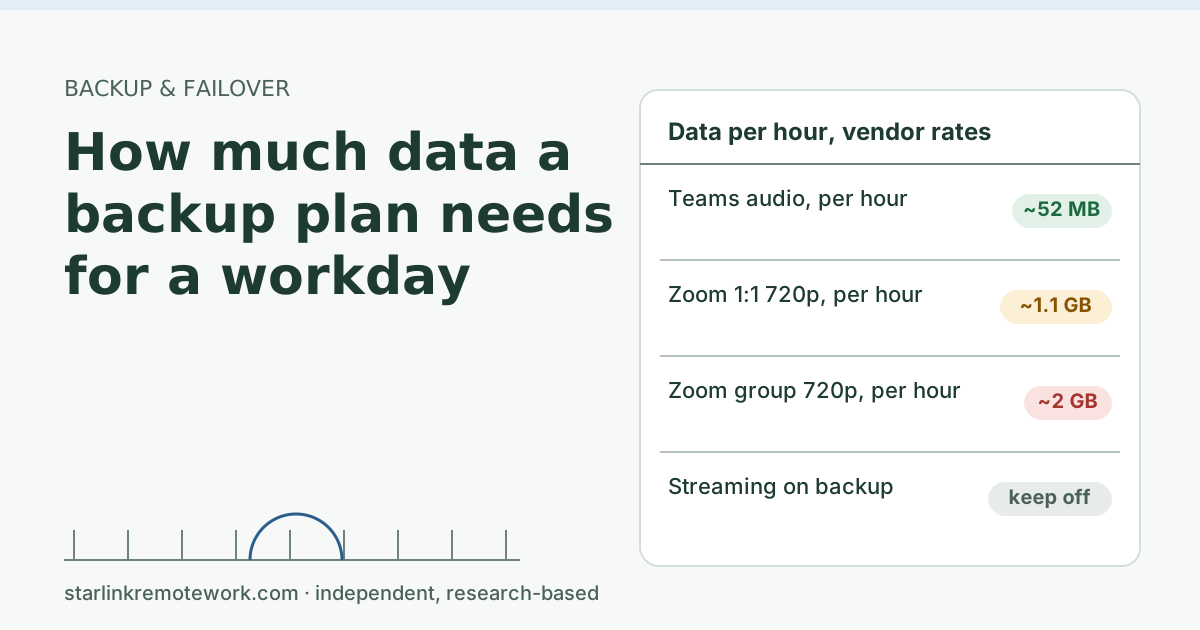
- Video calls are what eat backup data. At Zoom’s listed rate for 1:1 720p video (1.2 Mbps each way), an hour can use about 1.1 GB.
- Audio-only calls are cheap. At Teams’ recommended 58 kbps each way, an hour of audio is about 52 MB.
- These are upper estimates from vendor bandwidth guidance. Apps adapt and often use less, so measure your own day once before you buy.
- Size the plan for your worst realistic month of outages, not the average, and keep streaming, updates and cloud backup off the backup line.
- Some backup plans are sold by the hour or by 24-hour session rather than by the gigabyte. The Failover Builder lists current terms with checked dates.
On this page
- The conversion you need
- Hourly figures from the vendors’ own numbers
- Three example workdays
- How many outage hours to plan for
- Measure your own day once
- Keep the wrong traffic off the backup line
- Upload matters as much as data
- Edge cases
- Common mistakes
- What we don’t know
- What to do next
- Questions people ask
- Sources
A backup line for remote work needs roughly 1 to 2 GB for every hour of video calls and well under 0.1 GB for every hour of audio-only calls, plus whatever email and documents add. Those figures come from the call apps’ own bandwidth guidance. Zoom lists 1.2 Mbps each way for 1:1 720p video, which is about 1.1 GB an hour; Microsoft recommends 58 kbps each way for Teams audio, which is about 52 MB an hour. Multiply by the call hours you would have on a bad day, then by the bad days you expect in a month, and you have a plan size. Treat the results as upper estimates: apps adapt and often use less, so measure one real day before you buy.
The conversion you need
Bandwidth guides list rates in megabits or kilobits per second. Data plans count gigabytes. The conversion:
- 1 Mbps for one hour ≈ 0.45 GB. (1 megabit a second × 3,600 seconds ÷ 8 bits per byte ÷ 1,000.)
- 100 kbps for one hour ≈ 45 MB.
A call sends and receives at the same time, and both directions count against a data plan. So add the upload rate and the download rate before converting.
Hourly figures from the vendors’ own numbers
| Call type | Vendor rate (each way unless noted) | Both directions | About per hour |
|---|---|---|---|
| Teams audio | 58 kbps recommended | 116 kbps | 52 MB |
| Google Meet audio only | 100 kbps | 200 kbps | 90 MB |
| Zoom 1:1 720p video | 1.2 Mbps | 2.4 Mbps | 1.1 GB |
| Teams 1:1 video | 1,500 kbps recommended | 3.0 Mbps | 1.35 GB |
| Google Meet 720p video | up to 1.7 Mbps | up to 3.4 Mbps | up to 1.5 GB |
| Zoom group 720p video | 2.6 Mbps up, 1.8 Mbps down | 4.4 Mbps | 2.0 GB |
| Netflix HD, for comparison | 3 Mbps (download) | 3 Mbps | 1.35 GB |
Sources: Zoom’s system requirements page; Microsoft’s Teams network guide (audio 58 kbps and 1:1 video 1,500 kbps recommended); Google’s Meet network guide; Netflix’s speed recommendations. All were checked on Oct 5, 2026.
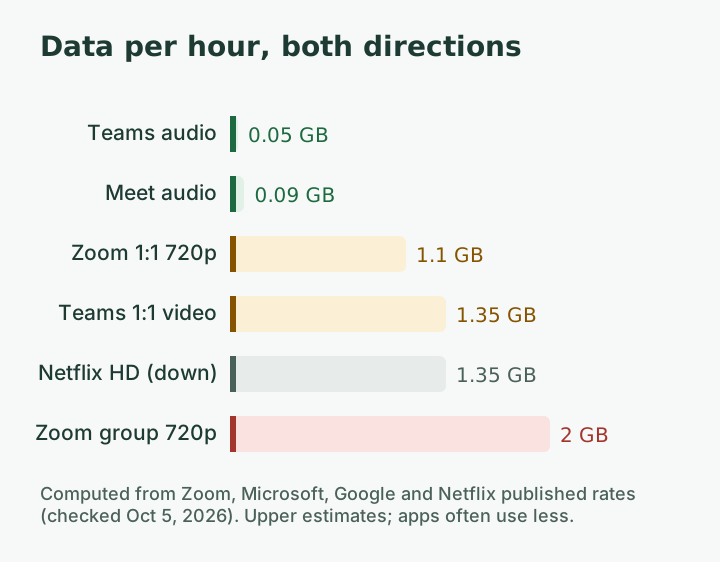
Two notes on reading the table. First, these are the rates the vendors plan for. Apps adjust down when the line is slow, when your camera is off, or when only one person is speaking on video, so real use is often lower. Second, a meeting where you watch a large gallery of other people can use more download than the 1:1 rate; Zoom lists 2 Mbps for receiving a 25-person gallery.
Three example workdays
These are worked examples using the table, not measurements. Swap in your own hours.
Mostly audio
Three hours of Teams audio calls, the rest email and chat. Calls: 3 × 52 MB ≈ 0.16 GB. Email, chat and web work vary too much to give a published figure; for many people it is far smaller than video, but measure it (see below).
Mixed
Two hours of Zoom 1:1 video and two hours of Teams audio. Calls: (2 × 1.1) + (2 × 0.05) ≈ 2.3 GB.
Video-heavy
Five hours of Zoom group video, with camera on. Calls: 5 × 2.0 ≈ 10 GB.
| Day type | Call data on a full outage day | Two outage days a month | Four outage days a month |
|---|---|---|---|
| Mostly audio | about 0.16 GB + other work | about 0.3 GB + other work | about 0.6 GB + other work |
| Mixed | about 2.3 GB + other work | about 4.6 GB + other work | about 9.2 GB + other work |
| Video-heavy | about 10 GB + other work | about 20 GB + other work | about 40 GB + other work |
Two remote workers on calls at the same time double the call figures. Our two remote workers guide covers planning for both.
How many outage hours to plan for
The table assumes full days without the main line. Most outages are shorter, but you should size for a bad month, not an average one. A storm week, a dish that needs replacing, or an extended outage can stack several full days together.
Ways to choose a number:
- Look back. The Starlink app’s statistics page lists outages on your side. Count the work hours lost in your worst recent month.
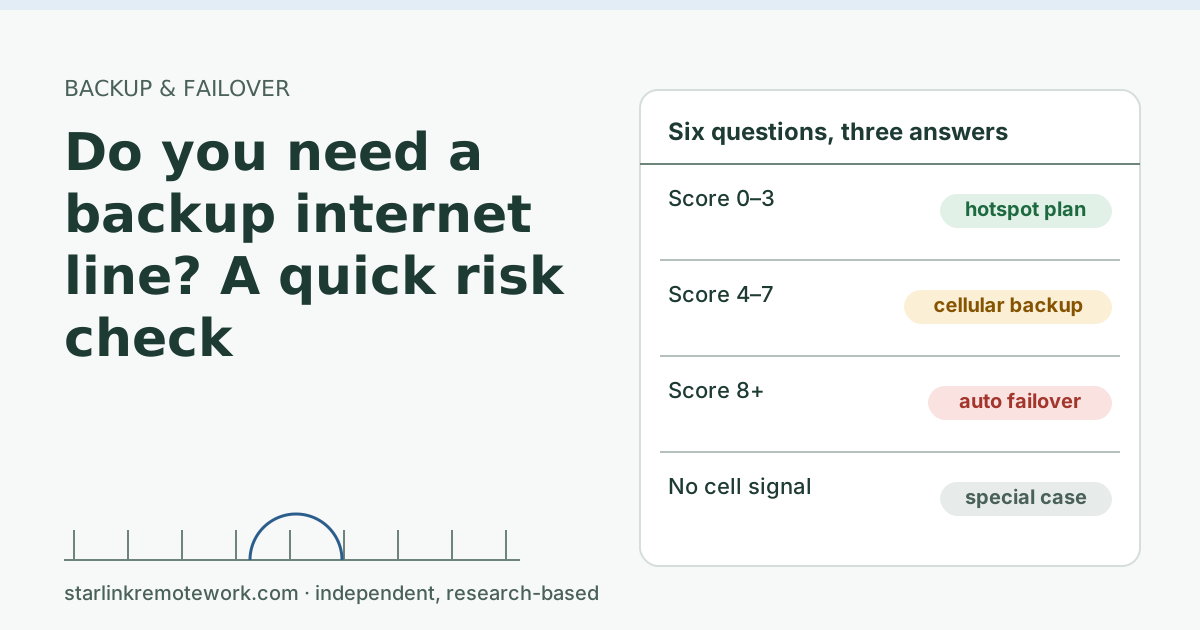
- Use the risk check. Our post Do you need a backup internet line? walks through how often lines go down and what it costs you.
- Add margin. If the worst month you have seen was one full day, plan for two.
The Failover Builder asks how many people work at once and what kind of work they do, then suggests a backup type and data plan with dated prices.
Measure your own day once
Vendor rates are a ceiling. Your real number may be half of it. One measured workday is worth more than any table.
- Windows: Settings > Network & internet > Data usage (or Advanced network settings > Data usage) shows totals per network.
- Mac: Activity Monitor > Network shows data received and sent since the computer started. Note the numbers at the start and end of the workday.
- Phone hotspot: most phones show hotspot data used per cycle in their cellular settings.
Record a normal day with your usual calls. Divide by your call hours to get your own per-hour figure, and use that in the tables above.
Keep the wrong traffic off the backup line
The fastest way to burn a backup plan is to let the whole house use it. When the main line drops, every device fails over together unless you stop them.
| Traffic | Why it matters | What to do |
|---|---|---|
| TV and console streaming | About the same data per hour as a video call | Keep TVs and consoles off the backup network; see the streaming page |
| Cloud backup and photo sync | Can upload gigabytes in the background | Pause during outages; schedule at night on the main line |
| System and game updates | Large downloads start on their own | Set metered connection on Windows; pause updates |
| Your work computer | The traffic the backup exists for | Keep it on the backup, wired if possible |
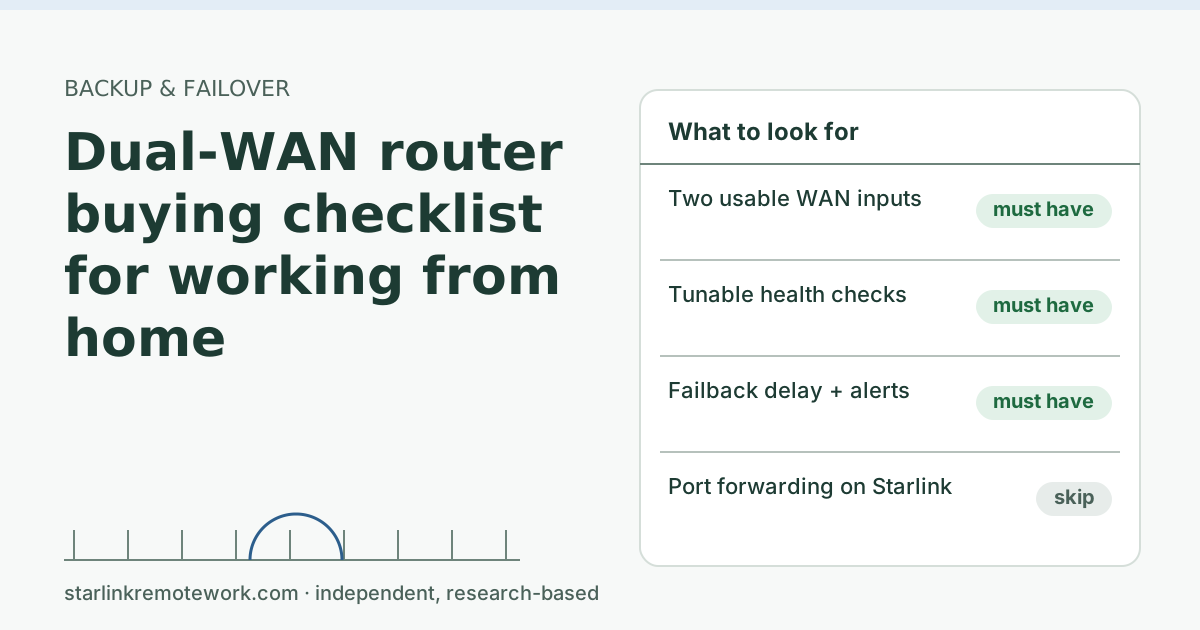
A dual-WAN router with per-device rules does this automatically. Our dual-WAN router checklist lists that feature as strongly wanted. The uploads guide covers taming background uploads on any line.
Upload matters as much as data
Data allowance is only half of sizing a backup. The other half is whether the backup line can carry your calls at all, and for calls the limiting direction is usually upload.
Look back at the vendor rates. A Zoom group video call at 720p wants 2.6 Mbps of upload. A Teams 1:1 video call wants 1,500 kbps each way. Audio needs far less. If the backup line delivers less upload than that at your desk, the app will lower video quality, turn video off, or struggle with audio. So when you check a backup option, check the upload speed where you actually work, at the times you have calls.
Three practical checks before you commit:
- Run a speed test on the backup line at your desk, at a busy time of day, and note upload as well as download.
- Make a test call on the backup line alone, with Starlink unplugged, and watch the app’s call statistics for jitter and loss.
- Check where the cellular signal is best. A cellular router placed by a window, with a long Ethernet cable to your desk, often does much better than a phone in your pocket.
If upload on the backup is tight, plan to switch to audio with camera off during outages. That also stretches the data allowance a long way.
Edge cases
- Hour-based or session-based plans. Some backup products count hours or 24-hour sessions instead of gigabytes. Then the question becomes how many outage hours or days a month you need covered, not how many gigabytes. The Failover Builder shows the current terms for the plans it lists, with checked dates.
- Slowed speeds after a cap. Many hotspot plans slow down sharply after their high-speed allowance. A slowed line may still carry audio calls but not video.
- Starlink as the backup. If Starlink is your second line behind fiber or cable, data isn’t the issue on a Residential plan: All Residential plans include unlimited data. The question there is cost and whether Residential terms fit your use.
- Screen sharing. Sharing a static document usually uses little extra. Sharing video or fast-moving content uses much more.
Common mistakes
- Counting only download. Calls use both directions, and plans count both.
- Sizing for an average month. Outages cluster. Size for a bad month.
- Forgetting the rest of the house. Without rules, the TV fails over too.
- Buying the biggest plan “to be safe.” Measure first. Many audio-heavy workers need far less than they expect.
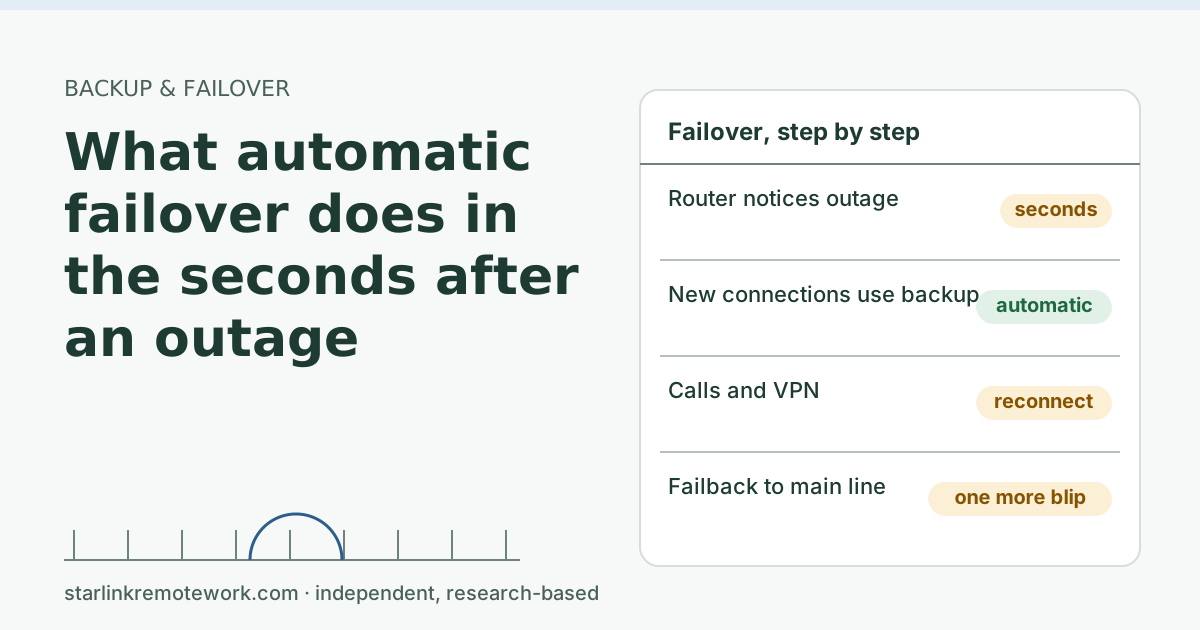
- Never testing the backup. Test once a month so you know it works before you need it. See what automatic failover does in the seconds after an outage.
What we don’t know
Vendors publish planning rates, not average real-world use, and actual use depends on camera settings, gallery size and how the app adapts. We have no published figure for email and document work that would fit every job. The owner’s logger records outage minutes during work hours; once months are complete, the Work-Day Reliability Report will show how many work hours a backup would have had to carry on one connection.
What to do next
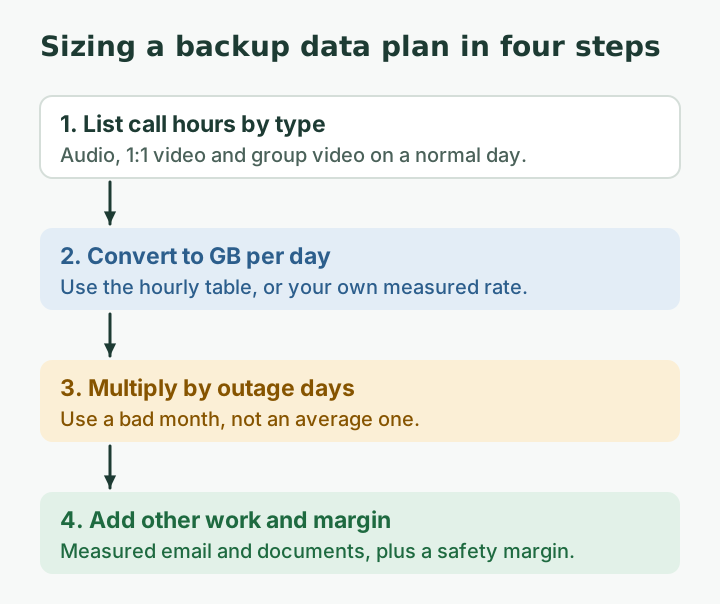
- Write down a typical day’s call hours by type and use the hourly table.
- Measure one real workday with your computer’s data counter.
- Multiply by the outage days in a bad month, add margin, and run the Failover Builder to match a plan.
- Set rules so only work devices use the backup line.
Questions people ask
How much data does a Zoom call use per hour?
Zoom lists 1.2 Mbps up and down for 1:1 720p HD video. Running both directions for an hour works out to about 1.1 GB. Group 720p video, listed at 2.6 Mbps up and 1.8 Mbps down, is about 2 GB an hour. Actual use is often lower.
How much data does a Teams call use?
Microsoft recommends 58 kbps each way for Teams audio, about 52 MB an hour, and 1,500 kbps each way for 1:1 video, about 1.35 GB an hour. Meetings with more video use more.
Is 10 GB enough for a backup internet plan?
For a few outage hours a month of mostly audio calls and email, often yes. For full days of video meetings it can run out within a couple of days. Work it out from your own call hours using the method on this page.
How do I measure how much data my work uses?
Use your computer’s own counters. Windows shows data usage per network in Settings; on a Mac, Activity Monitor’s Network tab shows data sent and received since startup. Record one normal workday.
Should I stream on my backup line?
Not if it is metered. Netflix recommends 3 Mbps for HD, about 1.35 GB an hour. One evening of streaming can use more than a day of audio calls. Keep TVs and consoles on the main line only.
Does the backup line need to be as fast as Starlink?
No. It needs enough upload for your calls, steady latency and enough data for your outage hours. A single video call needs only a few megabits per second.
Sources
- Zoom – system requirements (Windows, macOS, Linux) KB0060748, checked Oct 5, 2026
- Microsoft Learn – Prepare your organization's network for Teams (ms.date 2026-05-26), checked Oct 5, 2026
- Google Workspace – Prepare your network for Meet meetings and live streams, checked Oct 5, 2026
- Internet connection speed recommendations (Netflix Help Center), checked Oct 5, 2026
- What are the Residential plans? (Starlink support, modified 2026-04-08), checked Oct 5, 2026
- Zoom Support: System requirements for Windows, macOS and Linux (bandwidth), retrieved Oct 6, 2026
- Microsoft Learn: Prepare your organization's network for Teams, retrieved Oct 6, 2026
- Google Workspace Admin Help: Prepare your network for Meet meetings and live streams, retrieved Oct 6, 2026
- Netflix Help Center: Internet connection speed recommendations, retrieved Oct 6, 2026
Research-based: written from vendor documentation, Starlink support pages and standards, not from our own measurements. Starlink rules and prices on this page come from our dated fact file and show the day they were checked; they change, so confirm before you rely on one.Links to Starlink’s plan pages here use the site owner’s own referral link; the owner may get a referral reward and your price is the same. No affiliate links (how we make money). General information, not professional IT, legal or medical advice. Independent · not affiliated with SpaceX or Starlink. Spotted an error? Tell us.